How to Cut Out Part of a Grease Pencil Drawing with a Lasso in Blender 5.3 (Carver)
In Blender 5.3, pick the Carver tool in the Draw Mode toolbar, next to Trim, and drag a lasso with the left mouse button around the part you want to remove. Every stroke section inside the lasso is cut away and the parts outside stay where they were, split into separate strokes where needed.
- Mode
- Draw Mode (Grease Pencil)
- Shortcut
- Shift + Space (Toolbar)
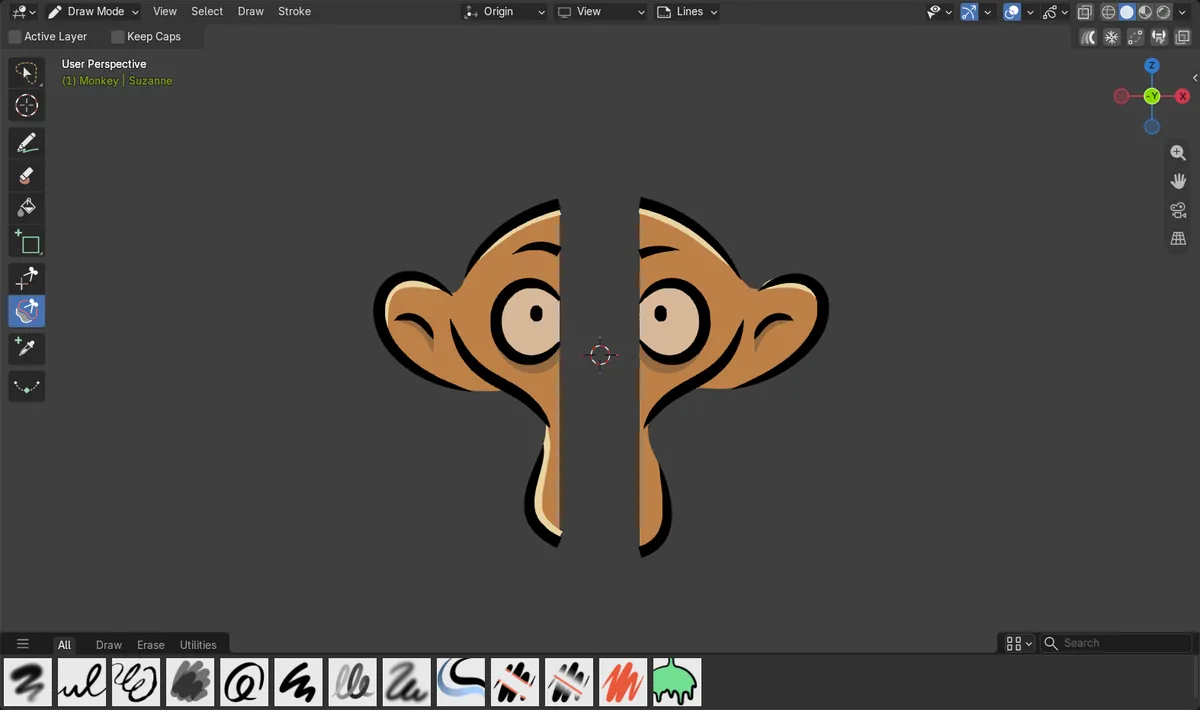
Lasso cut in one drag
A lasso across a Grease Pencil Monkey removed all 178 points inside it in one drag.
The rest is kept
Points on the left and right of the cut stayed the same count, and cut strokes became separate strokes.
Two header options
Active Layer limits the cut to the active layer, and Keep Caps keeps stroke caps from being flattened where a stroke is cut.
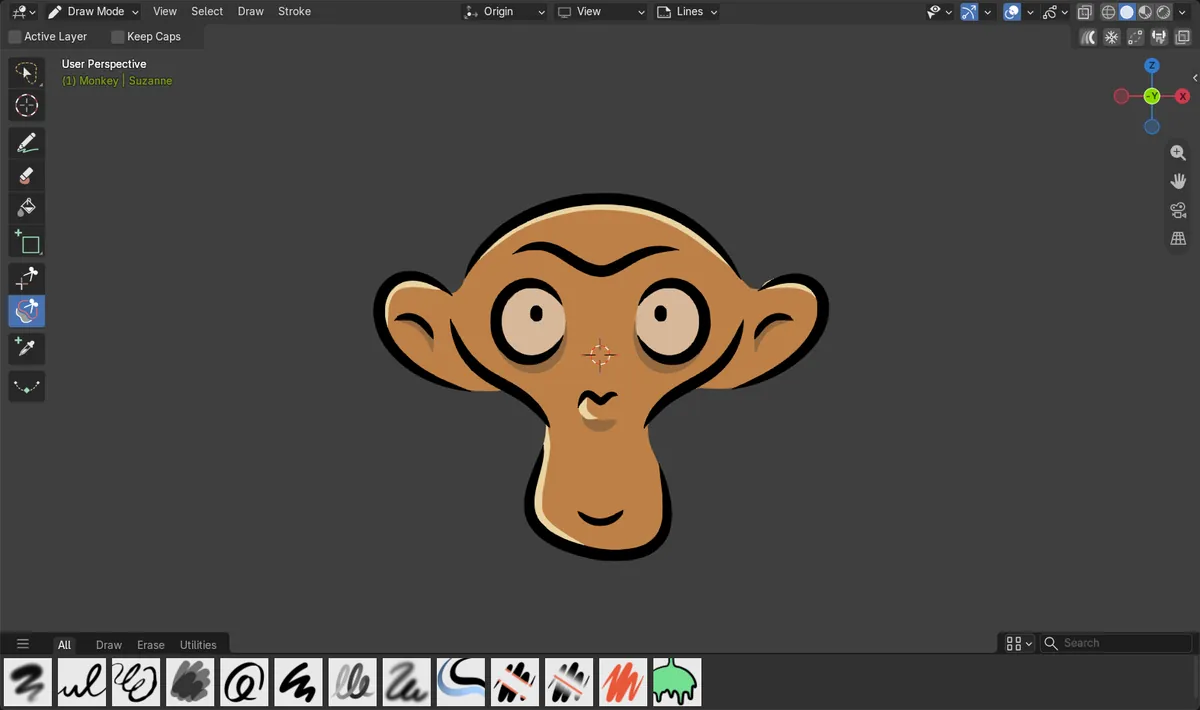
Before and after

AI Scene Builder is a Blender add-on. You type what you want, and it builds it in your scene: buildings, neon signs, wet pavement, fog and lights. Nothing in this picture was modeled by hand.
On a phone now? The add-on runs in Blender on a computer. Send yourself the link and open it there.
Step by step (Blender 5.3)
- Select your Grease Pencil object and switch to Draw Mode with the mode menu in the 3D Viewport header.
- Pick Carver in the toolbar on the left; it sits next to Trim. Shift + Space also opens the toolbar under the mouse.
- Drag with the left mouse button to draw a lasso around the part of the drawing you want to remove.
- Release the mouse. Every stroke section inside the lasso is removed; turn on Active Layer in the header first if only the active layer should be cut.
Other ways to do it
- Trim, next to Carver in the toolbar, removes stroke parts by lasso up to the nearest intersections instead of cutting exactly along the lasso.
- Turn on Active Layer in the header before dragging the lasso to cut only the strokes on the active layer.
Blender 5.2 LTS vs Blender 5.3
| What | Blender 5.2 LTS | Blender 5.3 |
|---|---|---|
| Carver tool in Draw Mode | Not in Blender 5.2 LTS. | In the Draw Mode toolbar next to Trim; cuts strokes along a lasso. |
| Trim tool in Draw Mode | In the Draw Mode toolbar. | In the Draw Mode toolbar. |
Common snags
Other layers were cut too
With Active Layer off, which is the default, Carver cuts strokes on every layer inside the lasso. Turn on Active Layer in the header to cut only the active layer.
Cut ends look flat
Where a stroke is cut, its caps are flattened by default. Turn on Keep Caps in the header to keep the caps as they are.
Carver is missing in the toolbar
Carver is a Draw Mode tool in Blender 5.3. Check that you are in Draw Mode, not Edit Mode or Object Mode, and on Blender 5.3 or newer.
An AI add-on for Blender
AI Scene Builder is a Blender add-on that builds and edits your scene from one typed request, such as “a small wooden table with two chairs”. Each request can be undone in one click.
 An evening market street built with the add-on from 11 typed requests. See every request →
Questions
How do I erase part of a Grease Pencil drawing with a lasso in Blender?
In Blender 5.3, pick the Carver tool in the Draw Mode toolbar and drag a lasso around the part to remove. Everything inside the lasso is cut away.
What is the difference between Carver and Trim?
Carver cuts strokes exactly along the lasso. Trim removes the stroke parts inside the lasso up to the nearest intersections with other strokes.
Is the Carver tool in Blender 5.2 LTS?
No. Carver was added to Grease Pencil Draw Mode in Blender 5.3; Blender 5.2 LTS has Trim but no Carver.
What the pictures show
- Blender 5.3: Carver is in the Grease Pencil Draw Mode toolbar next to Trim.
- Blender 5.3: a lasso band across a Grease Pencil Monkey (1,216 points in 28 strokes) removed all 178 points inside it.
- Blender 5.3: after the cut, the 489 points on the left and 466 on the right were unchanged, and the drawing had 29 strokes.
- Blender 5.2 LTS: there is no Carver tool in Draw Mode.