How to Rotate an HDRI World Background in Blender
Add a Texture Coordinate node and a Mapping node in the World shader, connect them to the Environment Texture's Vector input, and change the Mapping node's Z rotation. Rotating Z by 180 degrees turns the HDRI half way around the horizon.
- Mode
- Shader Editor set to World, in the Node Editor
- Shortcut
- Shift + A
Add the nodes
Use Shift + A in the node editor to add Texture Coordinate and Mapping.
Link them up
Generated to Mapping Vector, then Mapping Vector to the Environment Texture Vector.
Change Z rotation
Z rotation spins the HDRI around the horizon.
Before and after

AI Scene Builder is a Blender add-on. You type what you want, and it builds it in your scene: buildings, neon signs, wet pavement, fog and lights. Nothing in this picture was modeled by hand.
On a phone now? The add-on runs in Blender on a computer. Send yourself the link and open it there.
Step by step (Blender 5.x)
- Open the Properties editor and select the World tab to confirm a world with nodes is in use. Then switch a Node Editor to show the World shader.Blender 4.2 LTS: In Blender 4.2 LTS the World tab also shows a Surface panel with a Use Nodes button; it should be enabled.
- With the mouse over the node editor, press Shift + A to open the Add menu.
- From the Add menu, choose the Texture Coordinate node.
- Press Shift + A again and add a Mapping node (Utilities › Vector › Mapping).Blender 4.2 LTS: In Blender 4.2 LTS the Mapping node is under Vector › Mapping.
- Connect the Texture Coordinate node's Generated output to the Mapping node's Vector input.
- Connect the Mapping node's Vector output to the Vector input of the Environment Texture node.
- In the Mapping node, set the Rotation Z value, for example 180° to turn the HDRI half way around.
- Press F12 to render and check the new orientation.
Other ways to do it
- Right-click in the node editor to open the node context menu, which also contains the Add submenu.
- Render › Render Image renders the result from the top bar.
Blender 4.2 LTS vs Blender 5.x
| What | Blender 4.2 LTS | Blender 5.x |
|---|---|---|
| World tab layout | The World tab has a Surface panel with a Use Nodes toggle. | The Use Nodes toggle is not listed in the World tab. |
Common snags
Nothing changes
The background looks the same if the Mapping node is not connected to the Environment Texture's Vector input. Link the Mapping Vector output to that input.
Wrong editor
Shift + A only opens the node Add menu when the mouse is over the Node Editor. Move the cursor there first.
Wrong axis
Rotating X or Y tips the HDRI over instead of spinning it. Change the Z value for a horizontal turn.
Or type one line in AI Scene Builder
AI Scene Builder is a Blender add-on that carries out the steps for you from one typed request. For this task, type a request like this one, using your own object names:
Rotate my HDRI world background by 180 degrees around the vertical axis A lighthouse island at sunset built with the add-on from 10 typed requests. See every request →
Questions
Which value rotates an HDRI left and right?
The Z rotation of the Mapping node. Changing it turns the HDRI around the horizon.
Do I need a Texture Coordinate node?
Yes, feed its Generated output into the Mapping node's Vector input so the Mapping node has coordinates to rotate.
What the pictures show
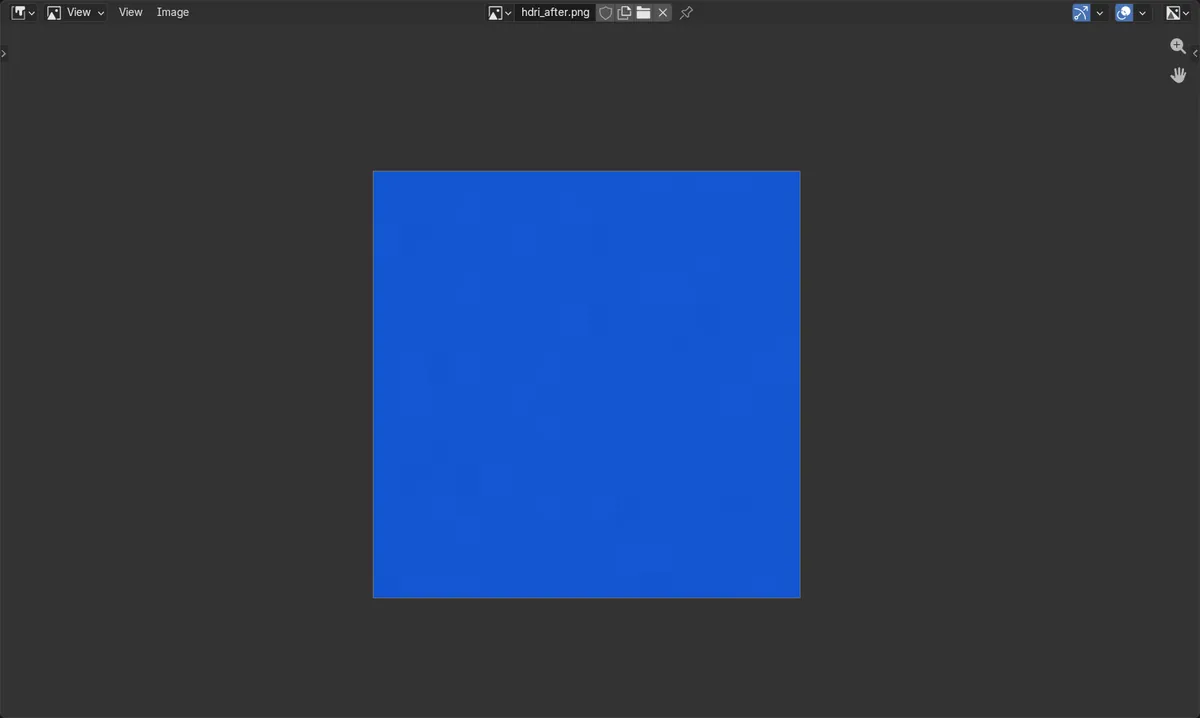
- Before: the Mapping node was not linked and the corner pixel was red 0.85, blue 0.13.
- After: the Mapping node was linked with Z rotation 3.14159 radians (180°).
- The same pixel became red 0.07, blue 0.82, so the background clearly turned.