How to Add a Loop Cut in Blender
Select your mesh, press Tab to enter Edit Mode, hover the mouse over the mesh and press Ctrl + R. Move the mouse until the yellow preview loop sits where you want it, then click to place it and right-click to keep it centred. You can also use Edge › Loop Cut and Slide from the 3D Viewport header.
- Mode
- Edit Mode (3D Viewport)
- Menu
- Edge › Loop Cut and Slide
- Shortcut
- Ctrl + R
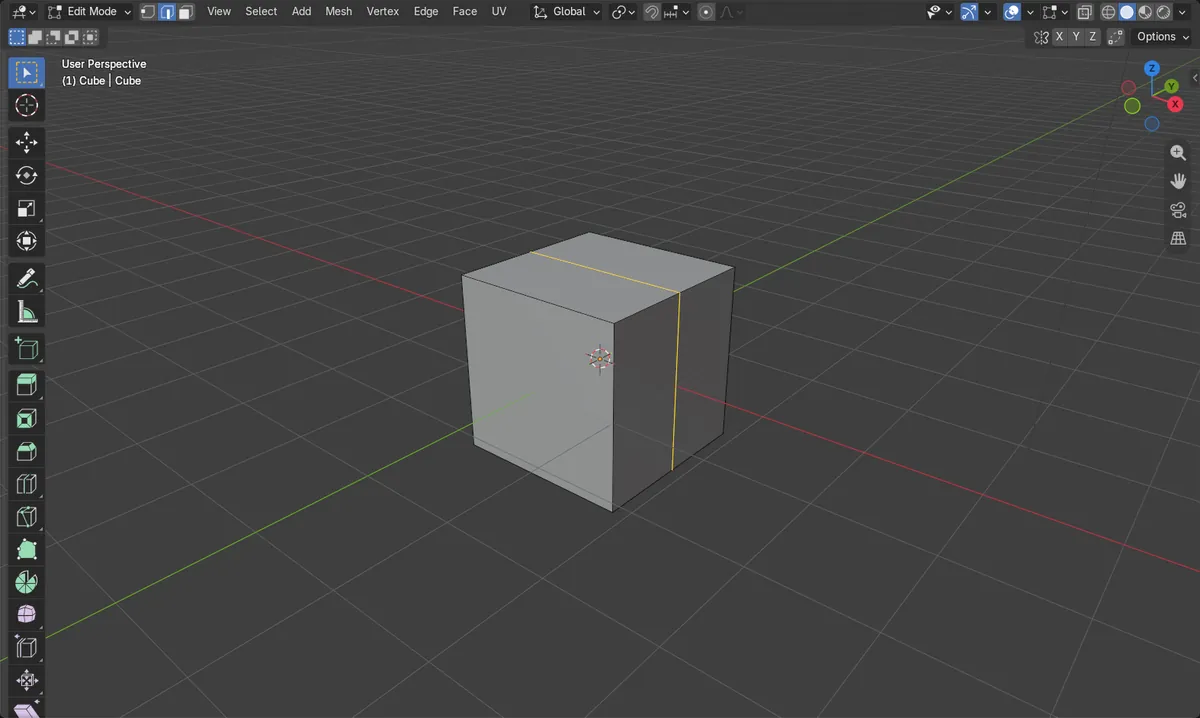
Ctrl + R
Starts Loop Cut and Slide in Edit Mode. Mouse must be over the mesh.
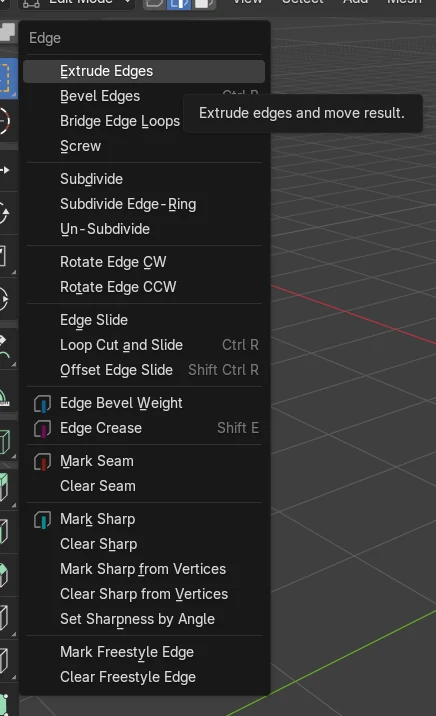
Edge menu
Edge › Loop Cut and Slide is in the 3D Viewport header.
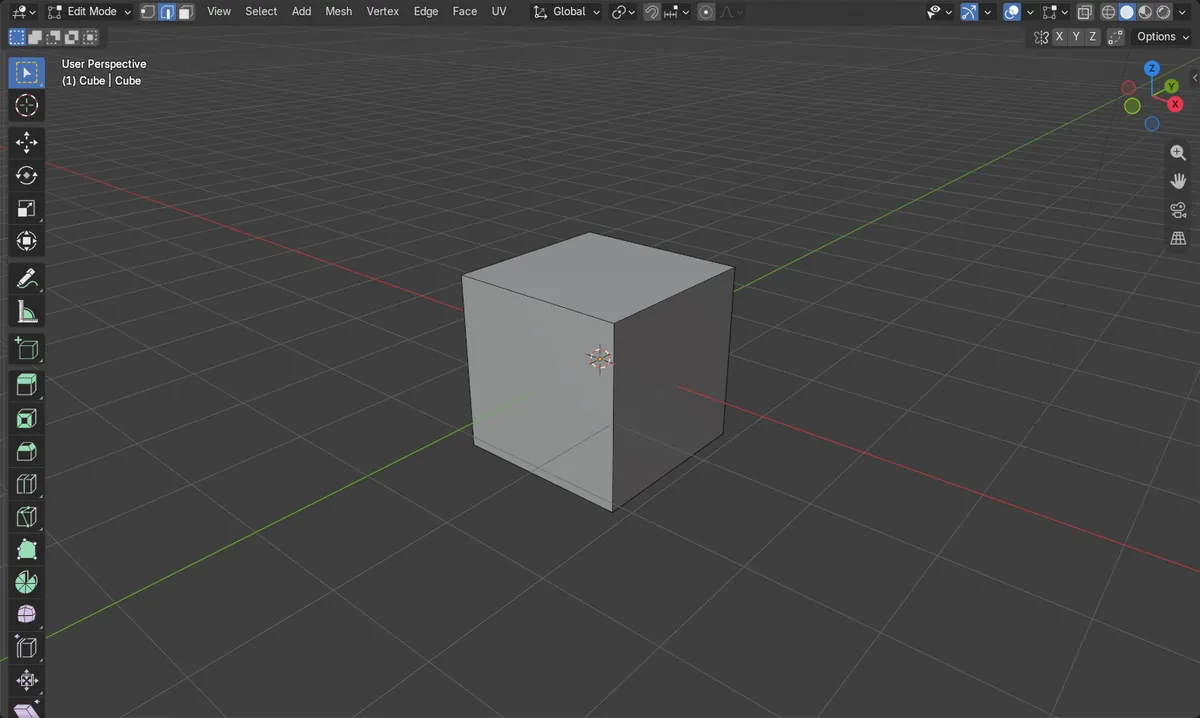
Result on a cube
8 vertices become 12. New ring sits at the middle.
Before and after

AI Scene Builder is a Blender add-on. You type what you want, and it builds it in your scene: buildings, neon signs, wet pavement, fog and lights. Nothing in this picture was modeled by hand.
On a phone now? The add-on runs in Blender on a computer. Send yourself the link and open it there.
Step by step (Blender 5.x)
- Click the mesh object (for example the Cube) in the 3D Viewport to select it.
- Press Tab to enter Edit Mode.
- Move the mouse over the mesh and press Ctrl + R. A preview loop appears across the faces under the cursor.
- Move the mouse to choose which direction the loop runs, then click once to confirm the cut.
- Move the mouse to slide the new loop, or right-click to leave it centred between the existing loops.
Other ways to do it
- Edge › Loop Cut and Slide in the 3D Viewport header (Edit Mode)
- Right-click in the 3D Viewport in Edit Mode and choose Loop Cut and Slide from the context menu
Common snags
Nothing happens
Ctrl + R only works in Edit Mode with the mouse over the mesh. Press Tab with the object selected and keep the cursor over the 3D Viewport.
No preview loop
The cursor is probably not over a face of the mesh. Move it over a face and rotate the view if the mesh is hard to hit.
Cut is not in the middle
Moving the mouse after the first click slides the loop. Right-click instead to cancel the slide and keep it centred.
Or type one line in AI Scene Builder
AI Scene Builder is a Blender add-on that carries out the steps for you from one typed request. For this task, type a request like this one, using your own object names:
Add one loop cut through the middle of the selected mesh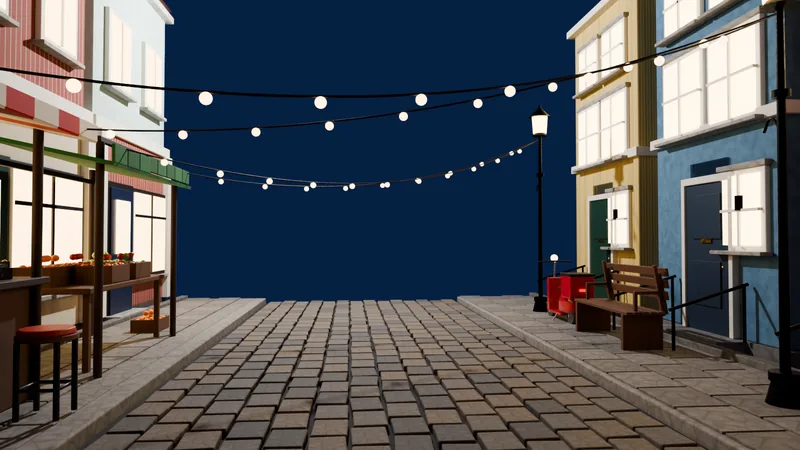 An evening market street built with the add-on from 11 typed requests. See every request →
Questions
What is the shortcut for loop cut in Blender?
Ctrl + R in Edit Mode, with the mouse over the mesh.
Why can't I add a loop cut in Object Mode?
Loop Cut and Slide is an Edit Mode tool. Select the object and press Tab first.
What the pictures show
- A default cube started with 8 vertices, 12 edges and 6 faces.
- After one loop cut it had 12 vertices, 20 edges and 10 faces.
- The new ring of vertices sits at 0 m, midway between -1 m and 1 m on one axis.
- The result was the same in Blender 4.2 LTS and Blender 5.x.