What is new in Blender 5.3, and how to use each new tool
 AI Scene Builder · An AI add-on for BlenderTry it free: 15 credits, no card ›
The new tools in Blender 5.3, one short tested answer each: the exact menu path and keys, a before and after picture, and what Blender 5.2 LTS lacks.
How to Change the Font Size in Blender (5.4 Alpha and 5.3)
In Blender 5.4 Alpha, open Edit › Preferences, go to Interface, expand Text Rendering › Font Style and raise Widget Size; Panel Title Size and Tooltip Size are right next to it.
Read the answer ›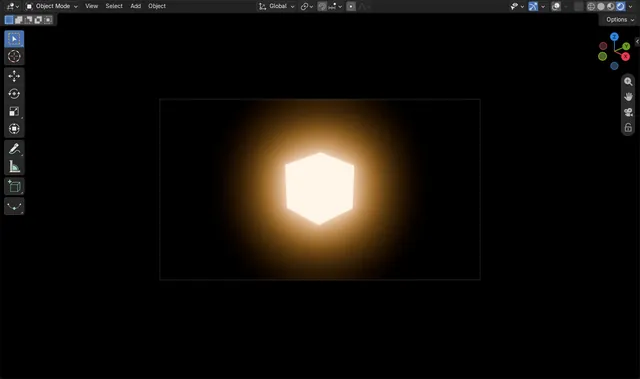
How to Add Bloom in Blender 5.3 (Scene Effects)
In Blender 5.3, open the Compositor & Effects tab of the Properties editor, click Add Scene Effect, open Camera & Lens Effects and choose Bloom.
Read the answer ›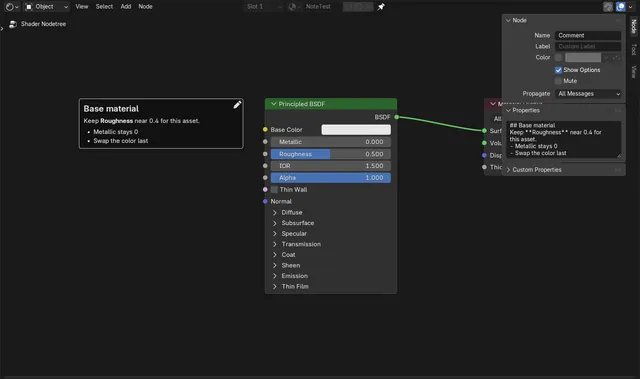
How to Add a Comment to Nodes in Blender 5.3 (Comment Node)
In Blender 5.3, hover over the node editor, press Shift + A and choose Layout › Comment.
Read the answer ›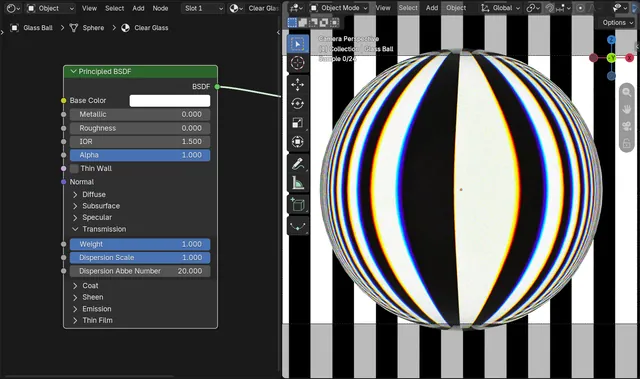
How to Add Dispersion (Rainbow Edges) to Glass in Blender 5.3
In Blender 5.3, open the Transmission panel of the Principled BSDF node and set Dispersion Scale above 0, for example 1.
Read the answer ›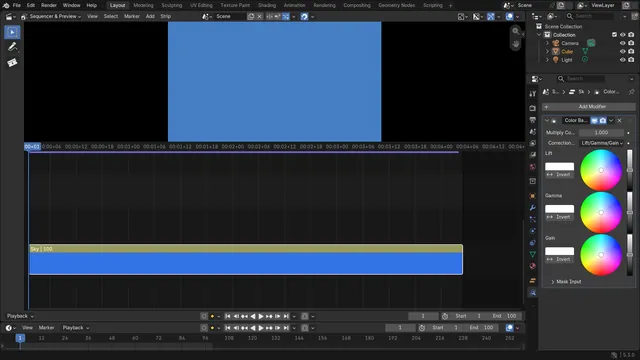
How to Add a Strip Modifier with Shift+A in Blender's Video Editor (Blender 5.3)
In Blender 5.3, select a strip, open the Strip Modifiers tab in the Properties editor, hover the mouse over it and press Shift + A.
Read the answer ›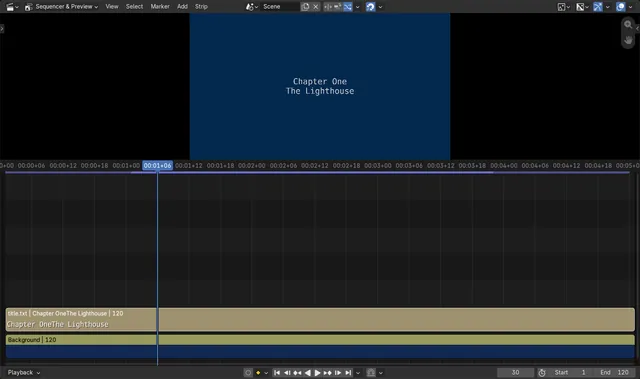
How to Add a Text File as a Text Strip in the Blender 5.3 Video Editor
In Blender 5.3, open the Video Sequencer and choose Add › Text (Shift + A).
Read the answer ›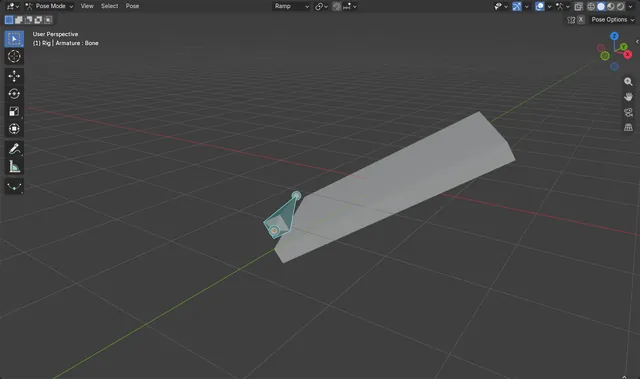
How to Align a Bone to a Custom Transform Orientation in Pose Mode (Blender 5.3)
In Blender 5.3, set the Transform Orientation in the 3D Viewport header to the orientation you want, select the bone in Pose Mode and use Pose › Transform › Align to Transform Orientation.
Read the answer ›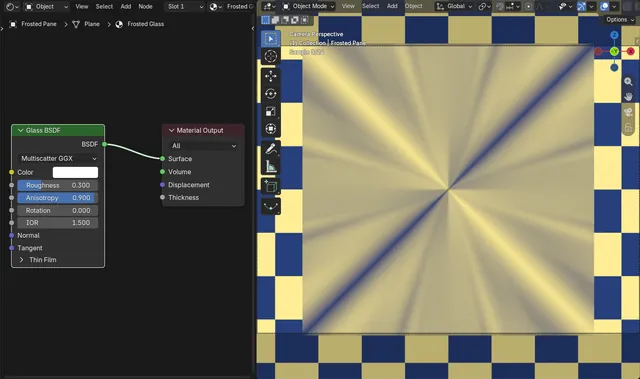
How to Make Brushed or Streaked Glass with Anisotropy (Blender 5.3)
In Blender 5.3, set Roughness above 0 on the Glass BSDF node and raise its new Anisotropy value, for example to 0.9.
Read the answer ›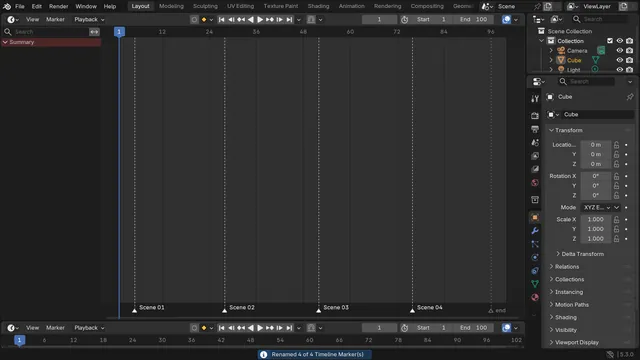
How to Batch Rename Timeline Markers in Blender (Blender 5.3)
In Blender 5.3, select the markers in the Timeline, open Edit › Batch Rename (Ctrl + F2), set Data Type to Markers and Data Source to Selected, then add a Find/Replace row.
Read the answer ›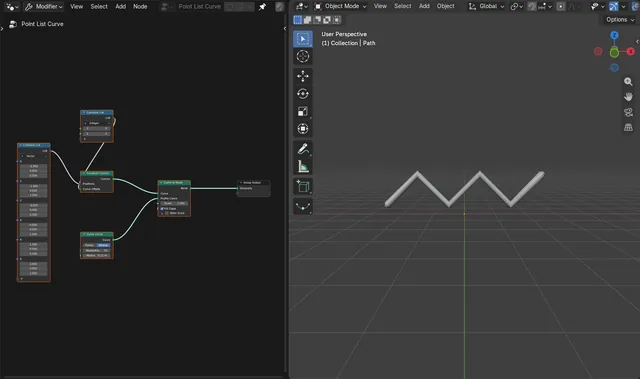
How to Build a Curve from a List of Points in Geometry Nodes (Blender 5.3)
In Blender 5.3, add a Combine List node set to Vector with one position per point, and connect it to Positions on the new Construct Curves node.
Read the answer ›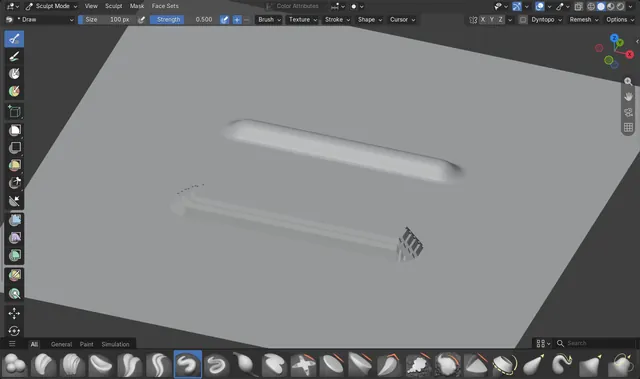
How to Change the Brush Falloff Curve in Sculpt Mode (Blender 5.3)
In Blender 5.3, click Shape in the Sculpt Mode tool header and pick a falloff preset from the list, or pick Custom to edit the curve by hand.
Read the answer ›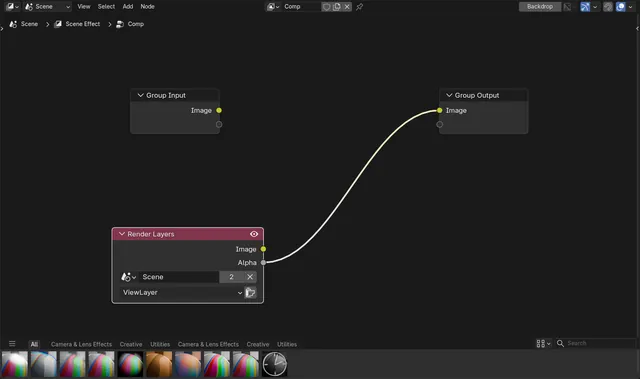
How to Add the Render Layers Node in the Blender Compositor (Blender 5.3)
In Blender 5.3 a new compositor node tree holds a Group Input linked to a Group Output, with no Render Layers node; the render reaches the tree through Group Input.
Read the answer ›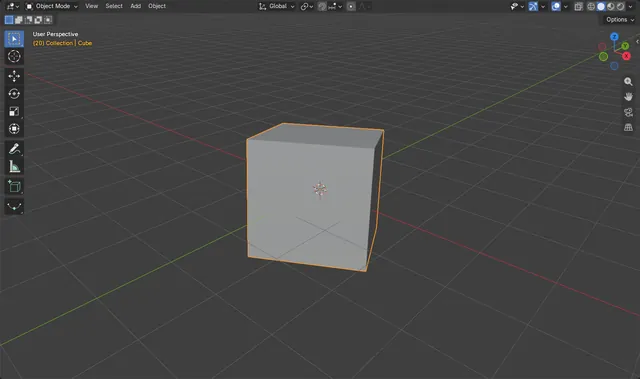
How to Convert Euler Rotation Animation to Quaternion in Blender 5.3
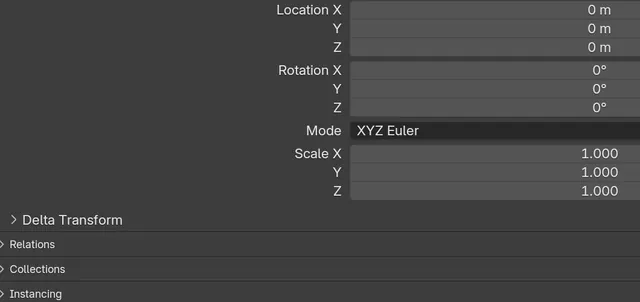
In Blender 5.3, select the animated object, open the small dropdown arrow next to Mode in Object Properties › Transform and choose Quaternion (WXYZ).
Read the answer ›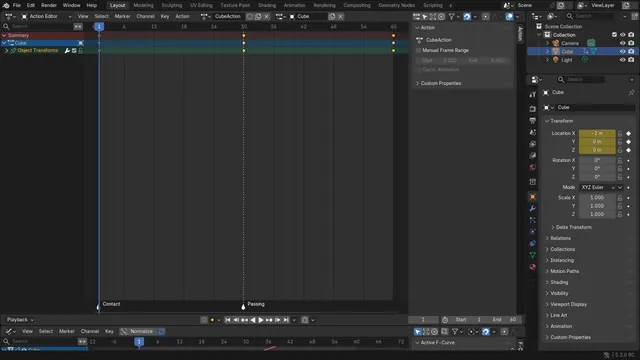
How to Convert Markers to Pose Markers (Blender 5.3)
In Blender 5.3, open the Dope Sheet in Action Editor mode, select the scene markers you want, and choose Marker › Convert to Pose Markers.
Read the answer ›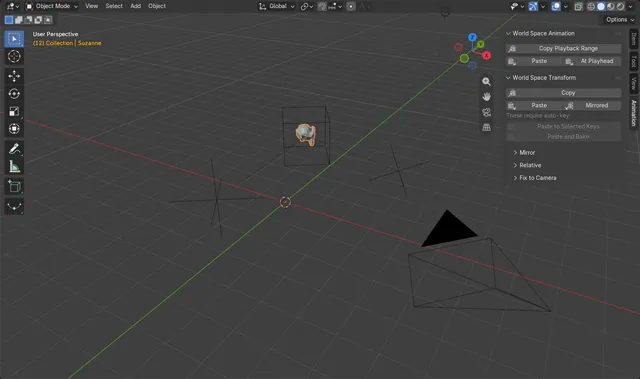
How to Copy World Space Animation to Another Object in Blender 5.3
In Blender 5.3, select the animated object or bones, press N in the 3D Viewport, open the Animation tab and click Copy Playback Range in the World Space Animation panel.
Read the answer ›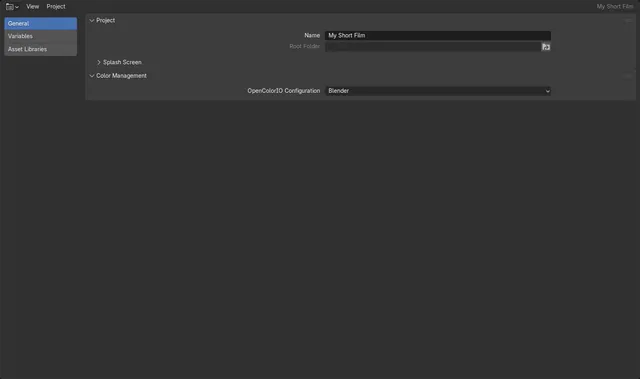
How to Create a Project in Blender 5.3 (File > Project > New)
In Blender 5.3, choose File › Project › New..., give the project a name and pick a folder.
Read the answer ›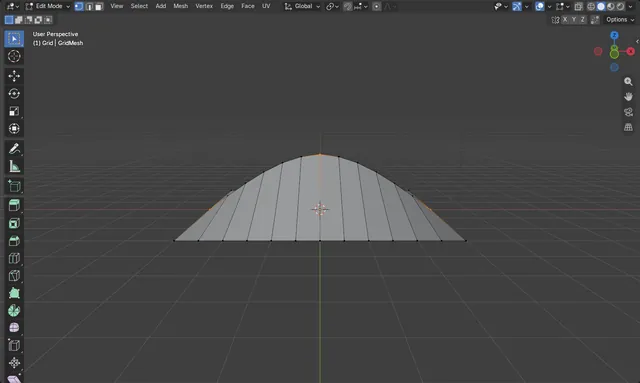
How to Use Curve Edge Loops Between Selected in Blender 5.3
In Edit Mode, select a few vertices along a row, then choose Mesh › Transform › Curve Edge Loops Between Selected.
Read the answer ›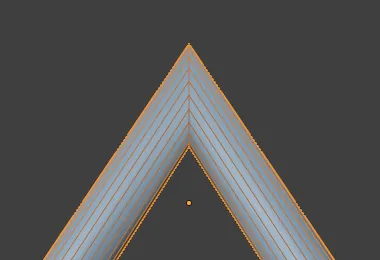
How to Keep Tubes Thick at Sharp Corners with Curve to Mesh (Blender 5.3)
In Blender 5.3, open the Curve to Mesh node in Geometry Nodes and tick Miter Scale.
Read the answer ›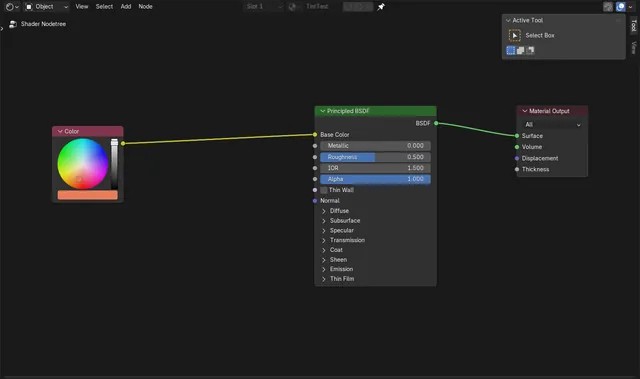
How to Dissolve a Node in Blender 5.3 (Shift + X Keeps the Links)
In Blender 5.3, select the node and press Shift + X, or right-click it and choose Dissolve.
Read the answer ›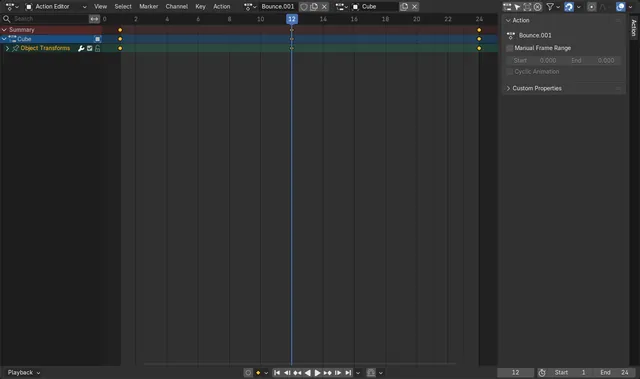
How to Duplicate an Action in Blender 5.3 Without Changing the Original
In Blender 5.3, select the object, open the Dope Sheet in the Action Editor and choose Action › Replace with Duplicate Action.
Read the answer ›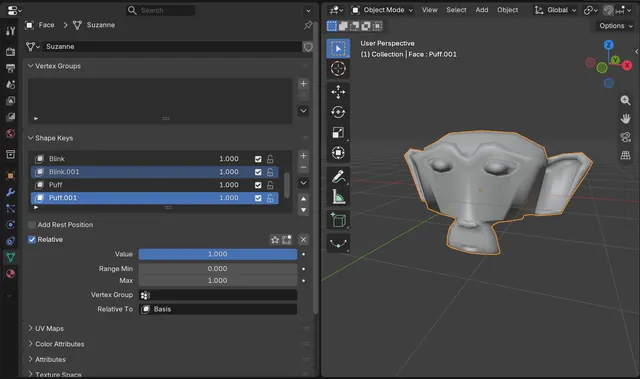
How to Duplicate Multiple Shape Keys at Once in Blender (Blender 5.3)
In Blender 5.3, select the shape keys you want in the Shape Keys list of the Object Data properties, then open the Shape Key Specials menu (the down arrow beside the list) and click Duplicate.
Read the answer ›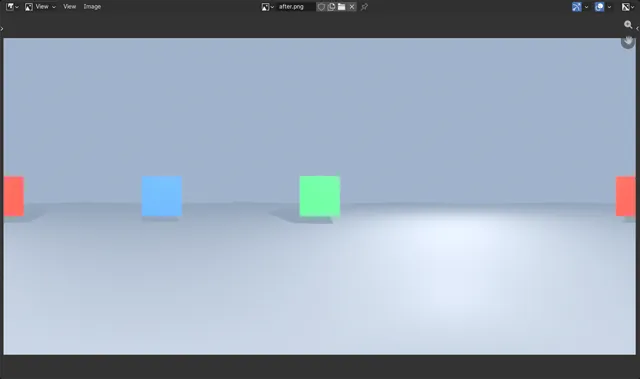
How to Render a 360 Panorama with EEVEE in Blender 5.3
In Blender 5.3, select the camera, open Camera (Object Data) Properties › Lens, set Type to Panoramic and Panorama Type to Equirectangular, then render with F12 using EEVEE.
Read the answer ›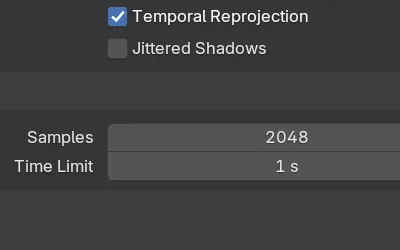
How to Set a Render Time Limit in EEVEE (Blender 5.3)
In Blender 5.3, open Render Properties › Sampling › Render and set Time Limit for EEVEE.
Read the answer ›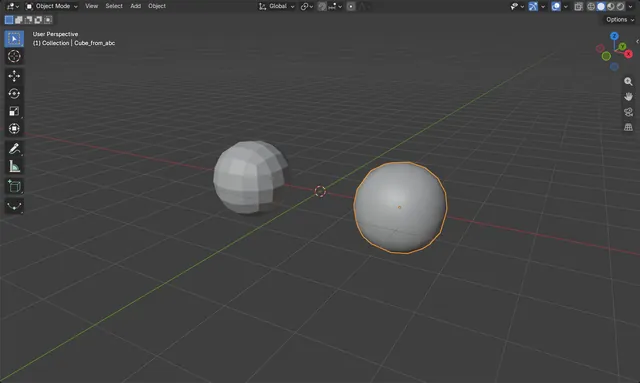
How to Export Subdivision Surface to Alembic (Blender 5.3)
In Blender 5.3, open File › Export and choose Alembic (.abc), tick Selected Objects Only, then in the Geometry panel, under Subdivisions, tick Use Schema and leave Apply off.
Read the answer ›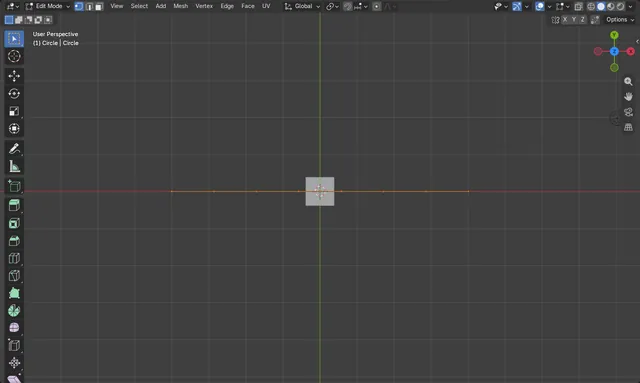
How to Use Fit Edge Loops To Annotation in Blender 5.3
In Edit Mode, select the vertices of an edge loop and choose Mesh › Transform › Fit Edge Loops To Annotation.
Read the answer ›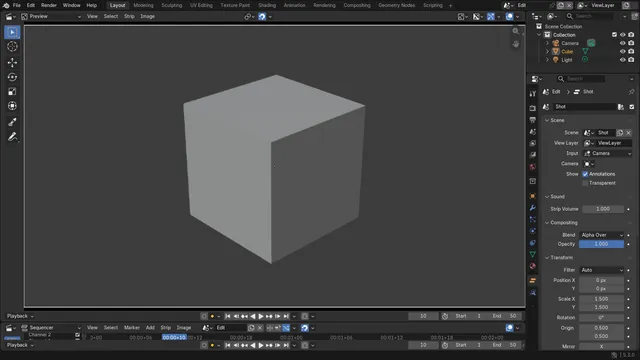
How to Fit a Scene Strip to the Frame in the Video Editor (Blender 5.3)
In Blender 5.3, select the scene strip in the Video Editor timeline and choose Image › Apply › Scale To Fit in the Preview header.
Read the answer ›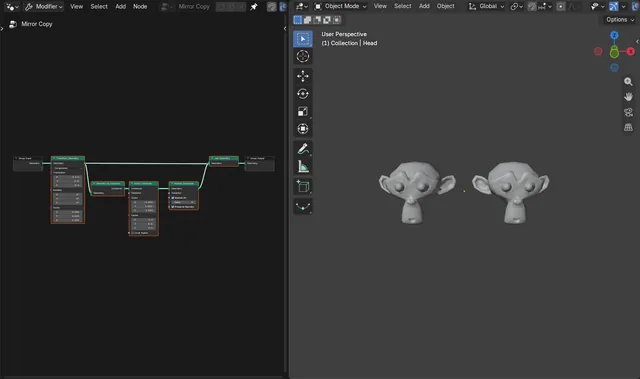
How to Fix Flipped Normals on Mirrored Instances with Realize Instances (Blender 5.3)
In Blender 5.3, tick Preserve Normals on the Realize Instances node.
Read the answer ›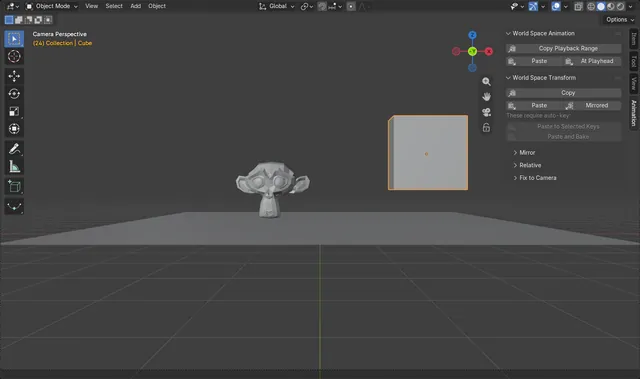
How to Keep an Object Fixed to the Camera During a Zoom in Blender (Blender 5.3)
In Blender 5.3, key the object on one frame, then click Fix to Scene Camera under World Space Transform in the sidebar's Animation tab.
Read the answer ›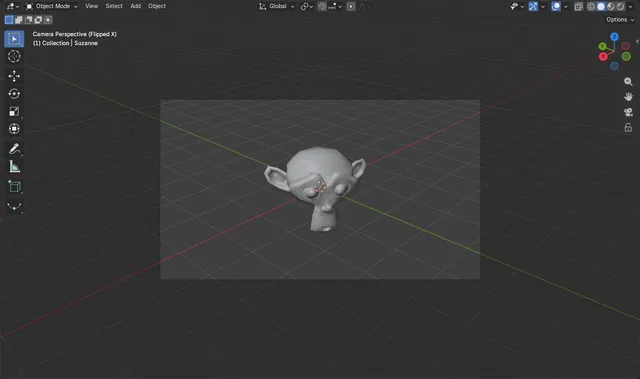
How to Flip the Camera View Horizontally in Blender 5.3 (Flip View)
In Blender 5.3, look through the camera with Numpad 0, then choose View › Navigation › Flip View in the 3D Viewport.
Read the answer ›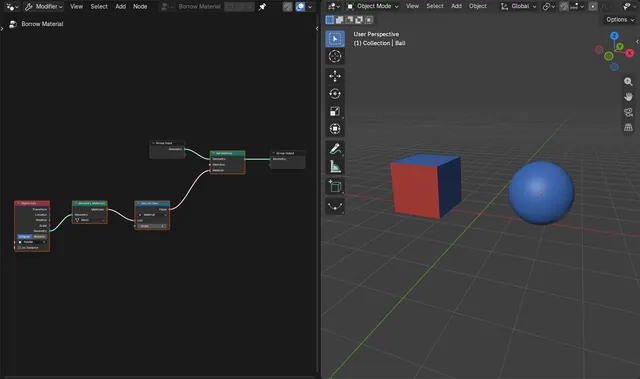
How to Use Another Object's Materials in Geometry Nodes (Blender 5.3 Geometry Materials Node)
In Blender 5.3, bring the other object in with Object Info, then add Geometry Materials (press Shift + A, then Geometry › Material).
Read the answer ›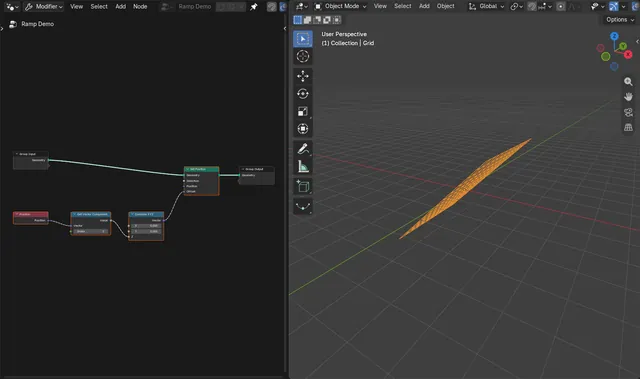
How to Get One Vector Component by Index in Blender 5.3 (Get Vector Component Node)
In Blender 5.3, add the Get Vector Component node (press Shift + A, then Utilities › Vector › Get Vector Component in Geometry Nodes).
Read the answer ›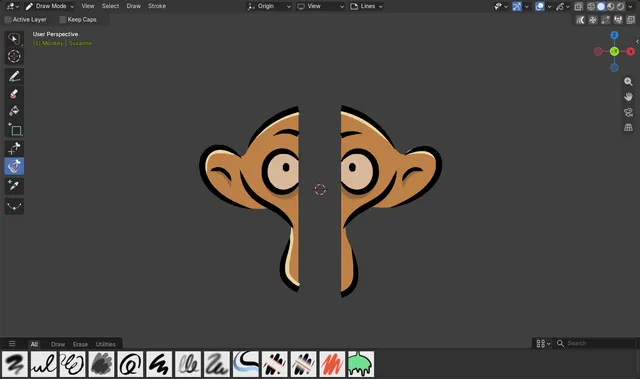
How to Cut Out Part of a Grease Pencil Drawing with a Lasso in Blender 5.3 (Carver)
In Blender 5.3, pick the Carver tool in the Draw Mode toolbar, next to Trim, and drag a lasso with the left mouse button around the part you want to remove.
Read the answer ›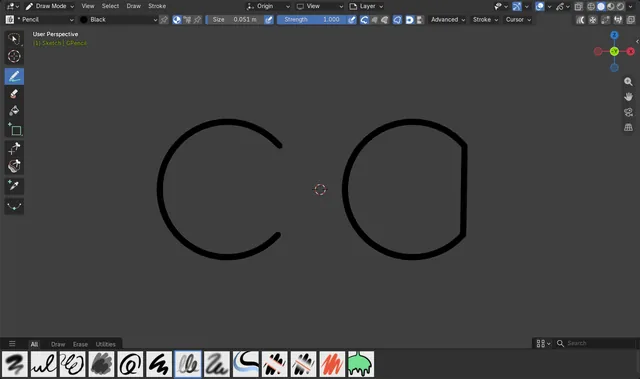
How to Draw Closed Shapes with Grease Pencil in Blender 5.3 (Cyclic)
In Blender 5.3, turn on Cyclic in the Draw tool settings in Draw Mode, and every stroke you draw comes out closed, with its last point joined back to the first.
Read the answer ›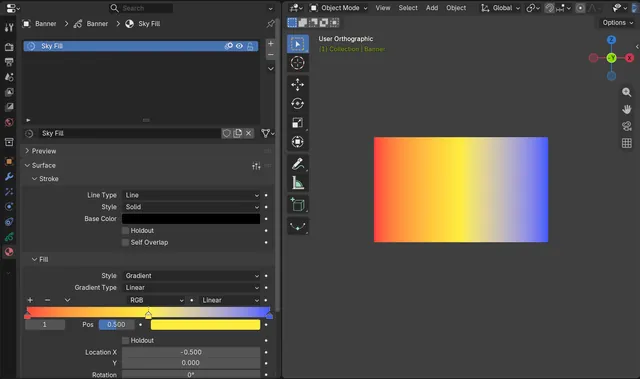
How to Make a Grease Pencil Gradient Fill with More Than Two Colors (Blender 5.3)
In Blender 5.3, open Material Properties, set Surface › Fill › Style to Gradient, and click + on the color ramp to add a color stop.
Read the answer ›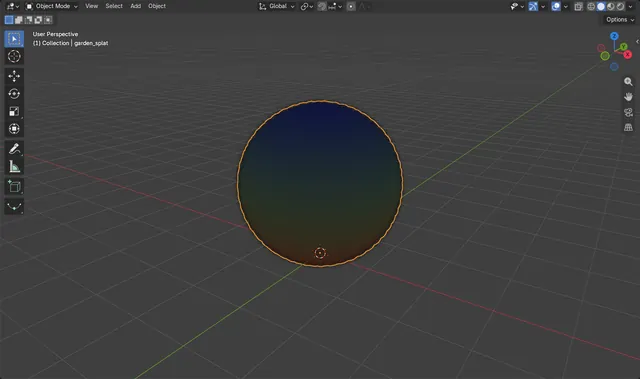
How to Import Gaussian Splats (.ply) in Blender 5.3
In Blender 5.3, choose File › Import › Stanford PLY (.ply) and pick the splat file.
Read the answer ›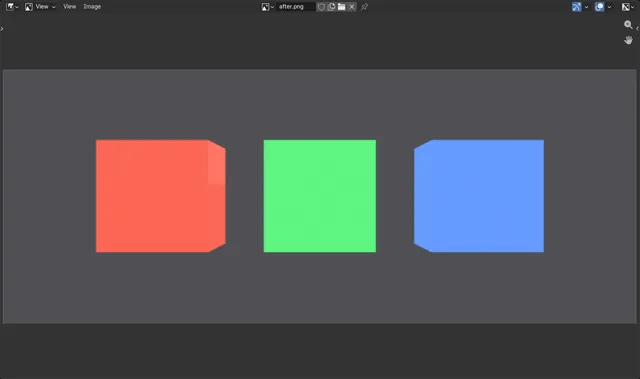
How to Use a Switch Node in Blender Shader Nodes (5.3)
In Blender 5.3, open the Shader Editor, press Shift + A, open Utilities and pick Index Switch (or Switch for a true/false choice).
Read the answer ›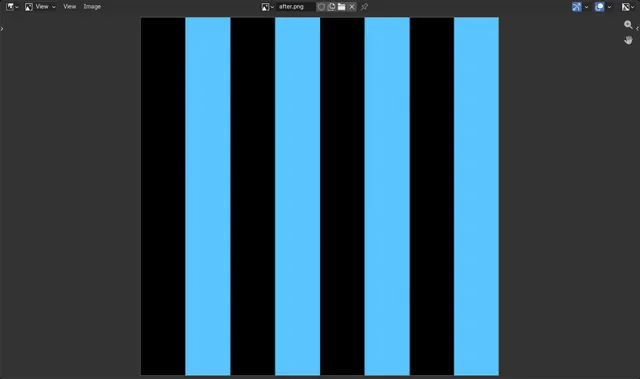
How to Use the Integer Math Node in Blender Shaders (Blender 5.3)
In Blender 5.3, the Integer Math node is in the Shader Editor under Add › Utilities › Math › Integer Math.
Read the answer ›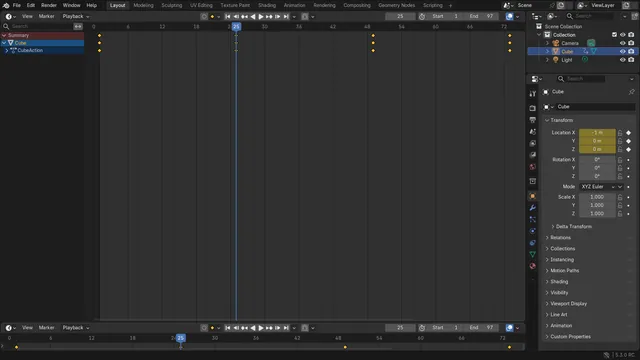
How to Jump Forward One Second in the Timeline (Blender 5.3)
In Blender 5.3, click the jump forward button in the Timeline header, the button between the next keyframe button and the jump to end button, or press Ctrl+Right Arrow.
Read the answer ›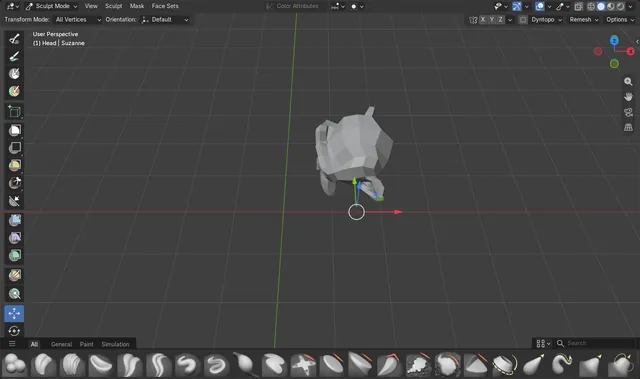
How to Move the Sculpt Pivot Without Moving the Mesh (Blender 5.3)
In Blender 5.3, open the Options popover in the Sculpt Mode tool header and tick Pivot at the top of the popover.
Read the answer ›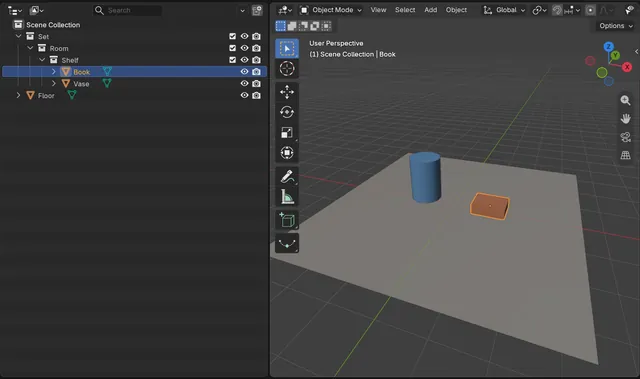
How to Make the Outliner Expand to the Object You Click (Blender 5.3)
In Blender 5.3, open the Filter menu in the Outliner header and tick Expand on Focus (it needs Sync Selection and Scroll to Active on).
Read the answer ›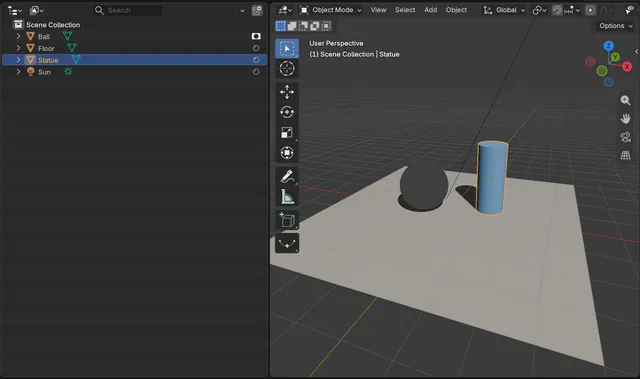
How to Toggle Holdout for One Object in the Outliner (Blender 5.3)
In Blender 5.3, open the Filter menu in the Outliner header and turn on the Holdout icon under Restriction Toggles.
Read the answer ›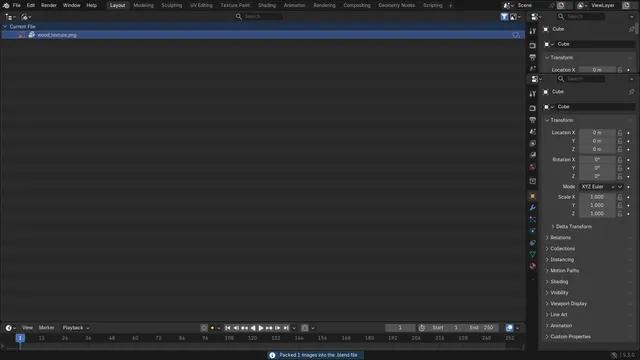
How to Pack Images into the .blend File from the Outliner (Blender 5.3)
In Blender 5.3, set the Outliner's Display Mode to Blender File, expand Images, right-click the image and choose Pack.
Read the answer ›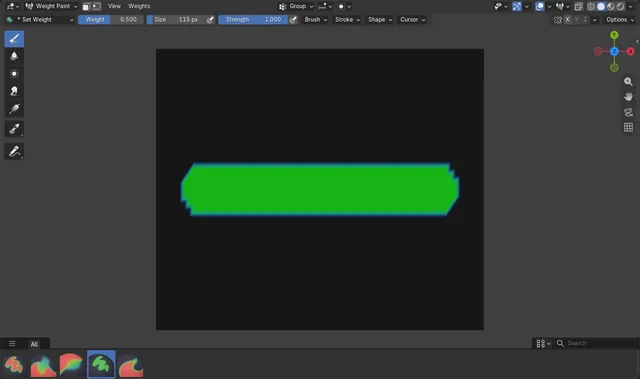
How to Paint an Exact Weight Value in Blender (Blender 5.3)
In Blender 5.3 the default Weight Paint brush is Add Weight, which adds a little weight per stroke.
Read the answer ›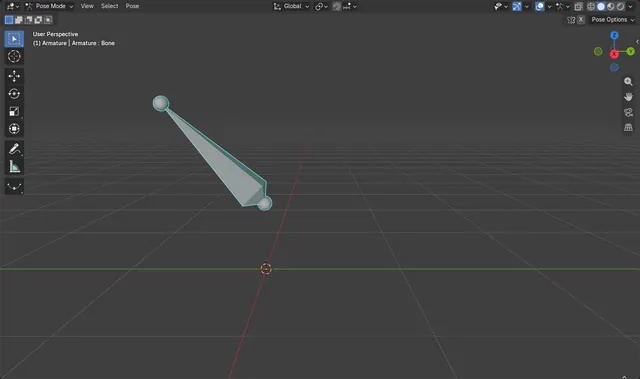
How to Paste a Pose with Influence in Blender 5.3
In Blender 5.3, copy the pose with Ctrl + C, select the bones in Pose Mode, press Ctrl + V (Pose › Paste Pose), then set Factor in the Paste Pose panel that appears in the bottom-left corner of the 3D Viewport.
Read the answer ›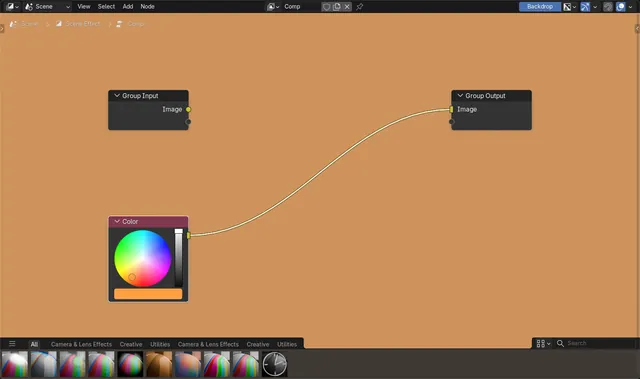
How to Preview a Compositor Node Without a Viewer Node (Blender 5.3)
In Blender 5.3, Shift+Alt+click a node in the Compositor to connect it to the Group Output, and with no Viewer node in the tree the Group Output result is shown in the backdrop.
Read the answer ›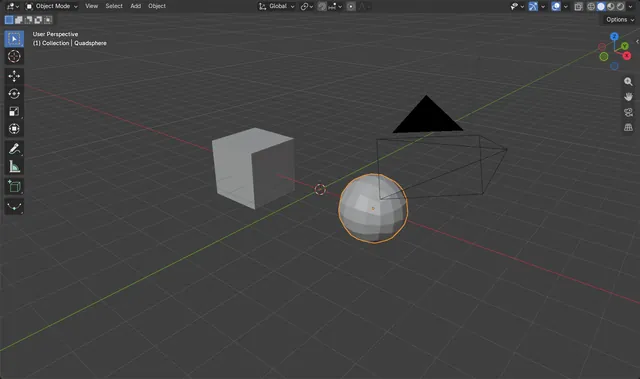
How to Use the Quad Sphere in Blender 5.3
In Blender 5.3, hover over the 3D Viewport, open Add › Mesh and choose Quad Sphere.
Read the answer ›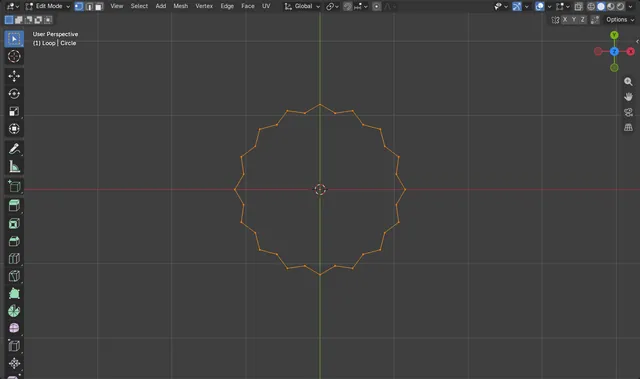
How to Use Relax Edge Loops in Blender 5.3
In Edit Mode, select an edge loop and choose Mesh › Transform › Relax Edge Loops.
Read the answer ›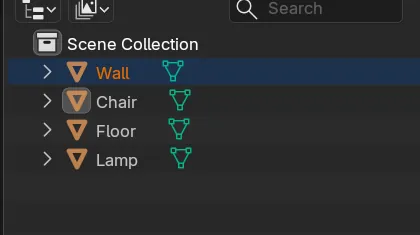
How to Reorder Objects in the Blender Outliner (Custom Sort in 5.3)
In Blender 5.3, keep the Outliner's Sort set to Custom and drag an object onto the top or bottom edge of another row.
Read the answer ›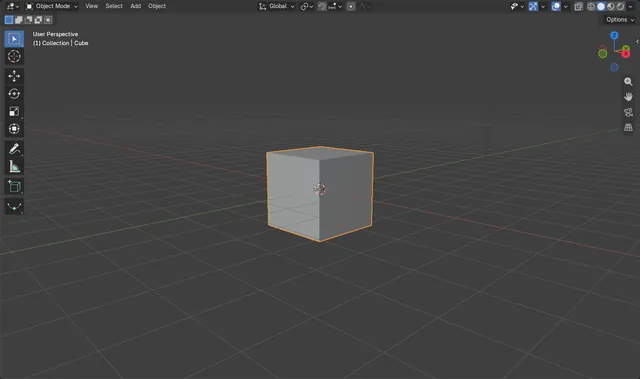
How to Reset a Tilted View in Blender 5.3 (Reset Roll)
In Blender 5.3, open View › Navigation in the 3D Viewport header and click Reset Roll.
Read the answer ›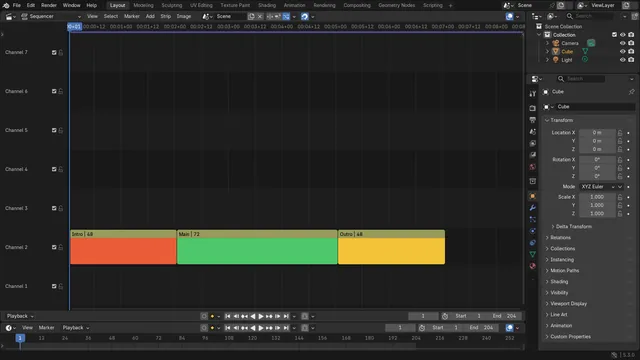
How to Ripple Delete Strips in the Blender 5.3 Video Editor
In Blender 5.3, select the strip in the Video Sequencer timeline and press Shift + X, or choose Strip › Ripple Delete.
Read the answer ›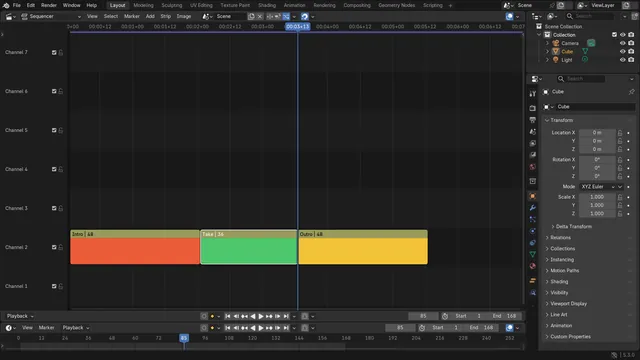
How to Ripple Trim a Strip to the Playhead in Blender 5.3
In Blender 5.3, place the playhead where the strip should end, select the strip in the Sequencer timeline and press Shift + W, or choose Strip › Transform › Ripple Trim End.
Read the answer ›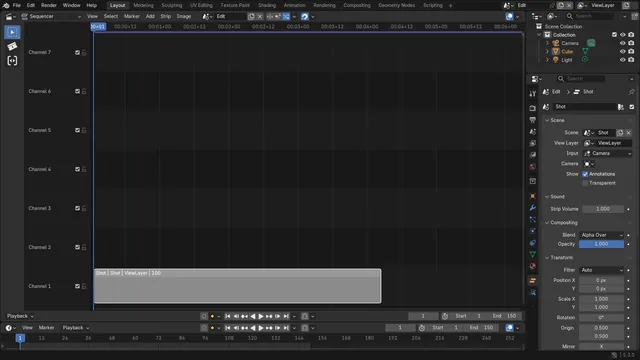
How to Show a Scene's New End Frames in a Scene Strip (Blender 5.3)
In Blender 5.3, a scene strip's content follows the frame range of the scene it shows; drag the strip's right edge out to show the new frames.
Read the answer ›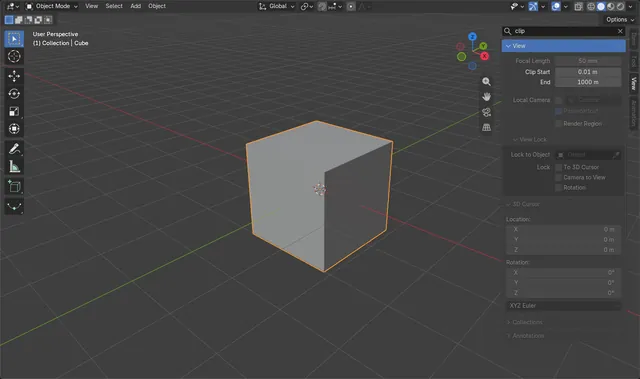
How to Search the Sidebar in Blender 5.3 (Ctrl + F in the N Panel)
In Blender 5.3, move the mouse over the sidebar (the N panel) and press Ctrl + F.
Read the answer ›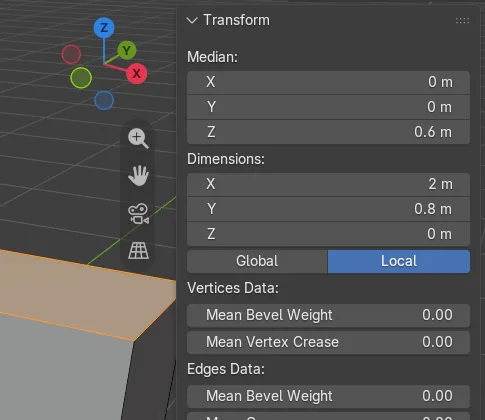
How to See the Dimensions of Selected Vertices in Edit Mode (Blender 5.3)
In Blender 5.3, select the vertices, edges or faces in Edit Mode, press N to open the Sidebar and look at the Item tab.
Read the answer ›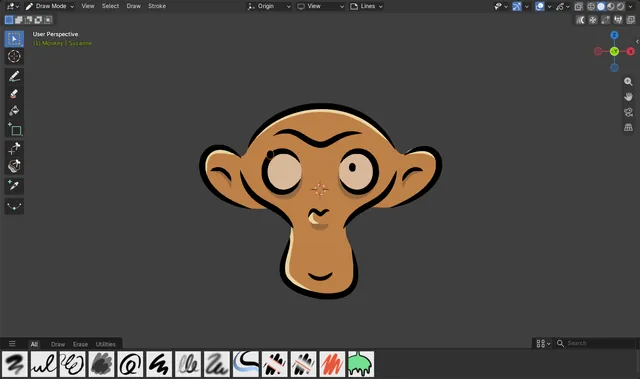
How to Select and Move Strokes in Draw Mode (Blender 5.3)
In Blender 5.3, pick Select Box at the top of the Draw Mode toolbar, drag a box around the stroke, then press G and move the mouse to move it.
Read the answer ›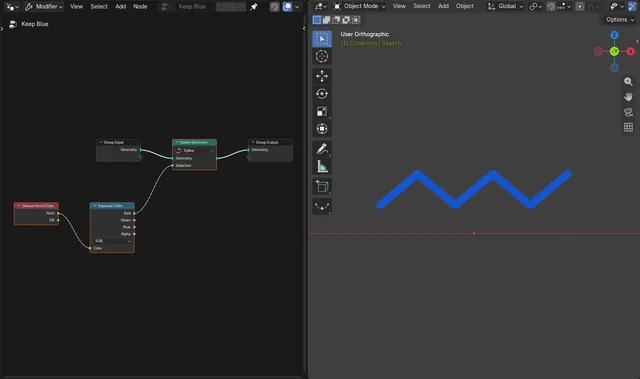
How to Select Grease Pencil Strokes by Color in Geometry Nodes (Blender 5.3)
In Blender 5.3, add a Geometry Nodes modifier to the Grease Pencil object and add Grease Pencil Color (press Shift + A, then Grease Pencil › Read).
Read the answer ›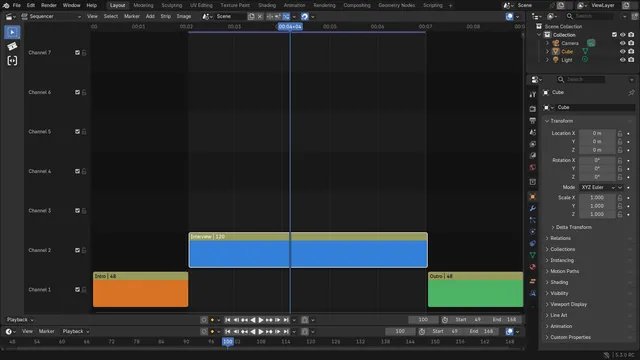
How to Set the Render Range to Selected Strips (Blender 5.3)
In Blender 5.3, select the strip in the Video Sequencer timeline, right-click and choose Set Render Range to Selected.
Read the answer ›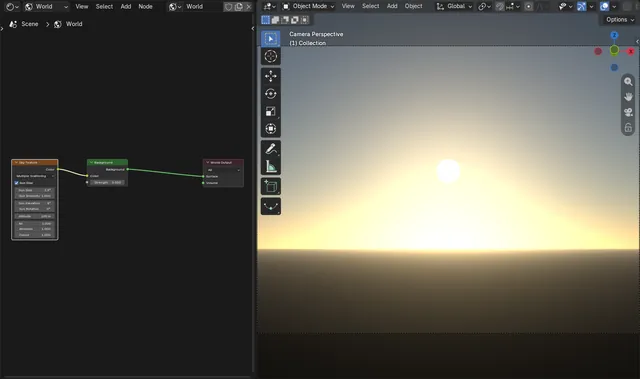
How to Show the Sun Disc of the Sky Texture in EEVEE (Blender 5.3)
In Blender 5.3, tick Sun Disc on the Sky Texture node of your World and set Sun Size.
Read the answer ›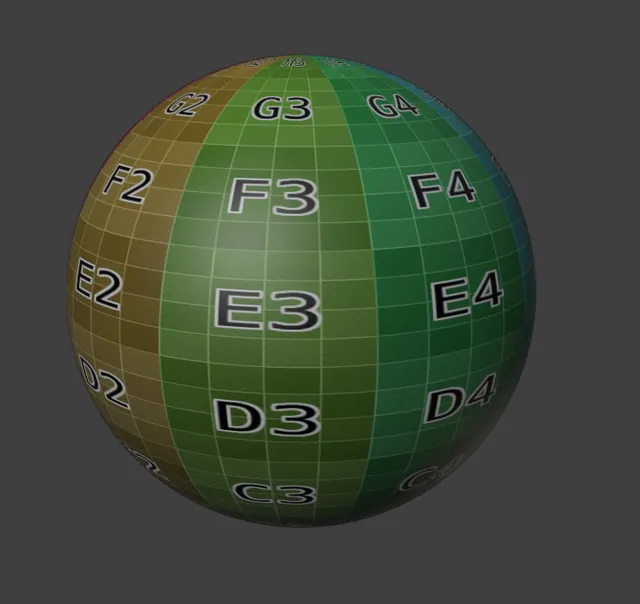
How to See Your Texture While Sculpting with Multires in Blender 5.3
In Blender 5.3, stay in Sculpt Mode with Solid shading, open the Viewport Shading popover in the 3D Viewport header and set Color to Texture.
Read the answer ›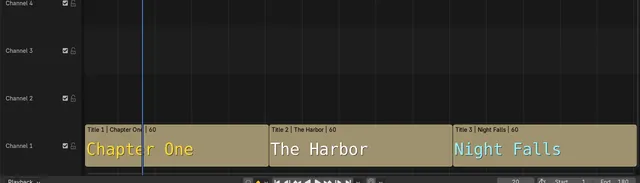
How to Show Thumbnails on Text Strips in the Video Editor (Blender 5.3)
In Blender 5.3, open the Overlays dropdown in the Video Sequencer header and tick Thumbnails.
Read the answer ›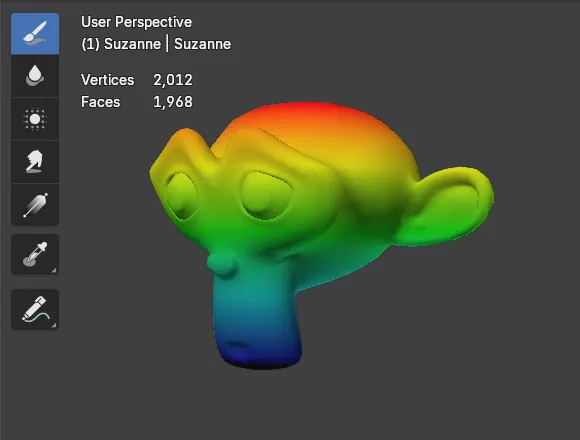
How to See the Vertex Count in Weight Paint Mode in Blender 5.3
In Blender 5.3, open the Viewport Overlays popover in the 3D Viewport header while in Weight Paint mode and tick Statistics in its Text section.
Read the answer ›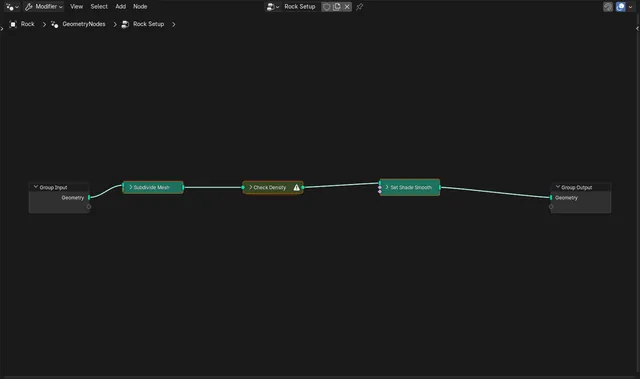
How to Keep Seeing Node Warnings When Nodes Are Collapsed (Blender 5.3)
In Blender 5.3 you do not need to change anything: a node that has a warning keeps its warning icon in the header after you collapse it with H (Collapse in the Show/Hide submenu of the Node menu).
Read the answer ›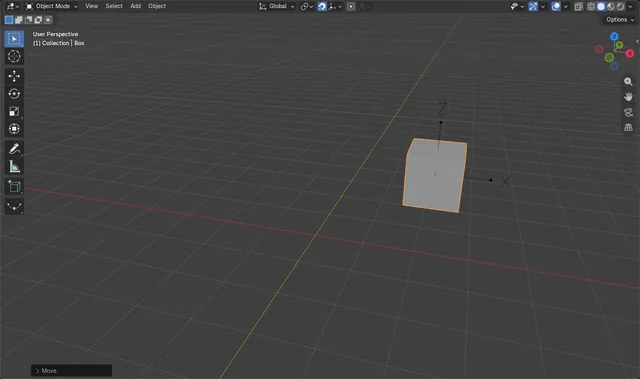
How to Snap an Object onto Another Object's Origin in Blender 5.3
In Blender 5.3, turn on snapping (the magnet in the 3D Viewport header, or Shift + Tab), open the Snapping menu and choose Origin under Snap Target, with Snap Base set to Active.
Read the answer ›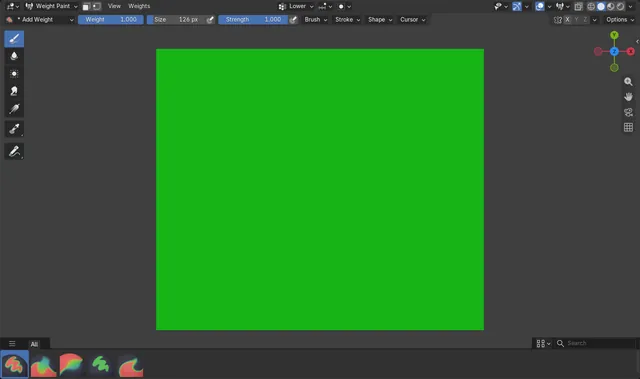
How to Stop Weight Paint Lowering Other Vertex Groups in Blender (Blender 5.3)
In Blender 5.3, Auto Normalize is on by default in Weight Paint mode, so painting one bone's vertex group lowers the other deform groups on the same vertices to keep the total at 1.0.
Read the answer ›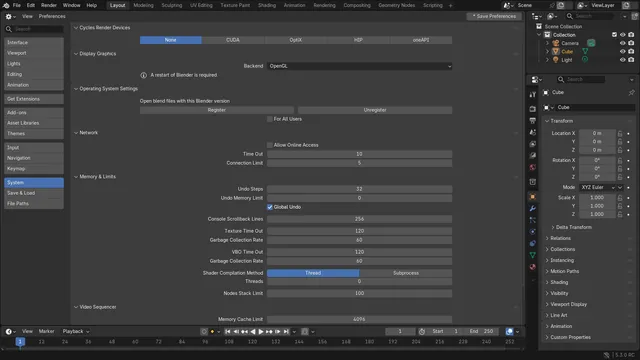
How to Switch Blender Back to OpenGL (Blender 5.3)
In Blender 5.3, open Edit › Preferences..., go to the System section and set Backend to OpenGL in the Display Graphics panel, then close Blender and start it again.
Read the answer ›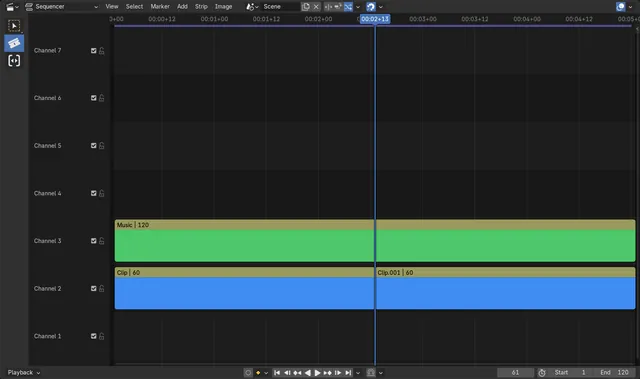
How to Use the Blade Tool by Holding C in the Blender 5.3 Video Editor
In Blender 5.3, hover over the Video Sequencer timeline and hold C.
Read the answer ›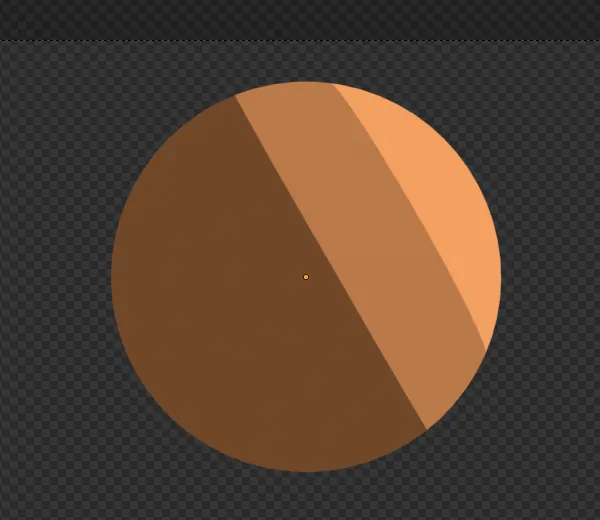
How to Make Toon Shading in Blender EEVEE (Blender 5.3)
In Blender 5.3 with EEVEE, add a Light Evaluation node, run its Factor through a Color Ramp set to Constant, multiply it by the Color of a Light Info node with a Mix node and plug the result into the Diffuse Light input of a Light Accumulation node, which goes into the Surface input of the Material Output.
Read the answer ›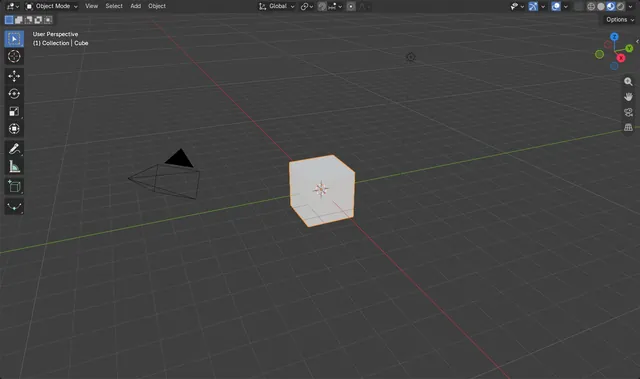
How to Turn Off the Viewport Compositor (Blender 5.3)
In Blender 5.3, open the Shading popover in the 3D Viewport header (the small arrow to the right of the shading buttons) and set Compositor to Disabled.
Read the answer ›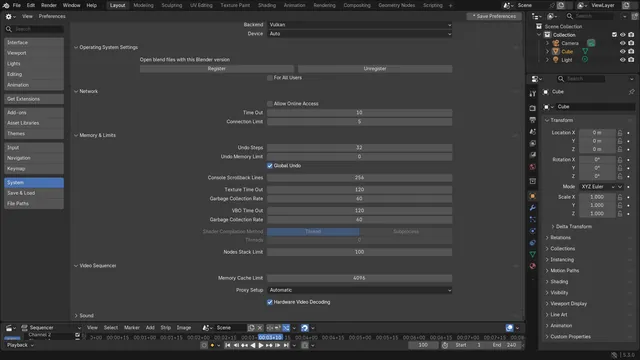
How to Turn On Hardware Video Decoding in the Video Editor (Blender 5.3)
In Blender 5.3, open Edit › Preferences..., go to System and tick Hardware Video Decoding in the Video Sequencer section.
Read the answer ›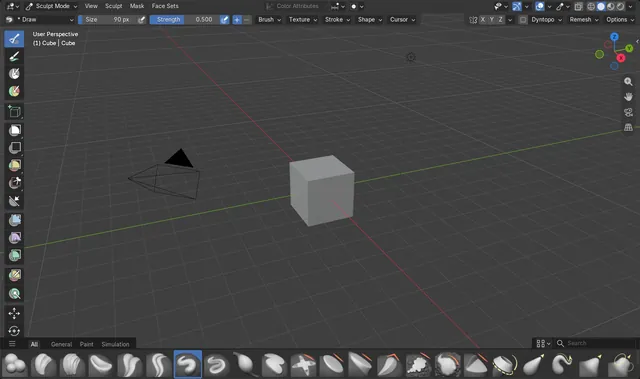
How to Use the Same Brush Size for All Sculpt Brushes (Blender 5.3)
In Blender 5.3, all sculpt brushes use one size when each of them has the shared-size button on: open Brush Settings, check that the icon to the right of Size is highlighted, and click it on any brush where it is off.
Read the answer ›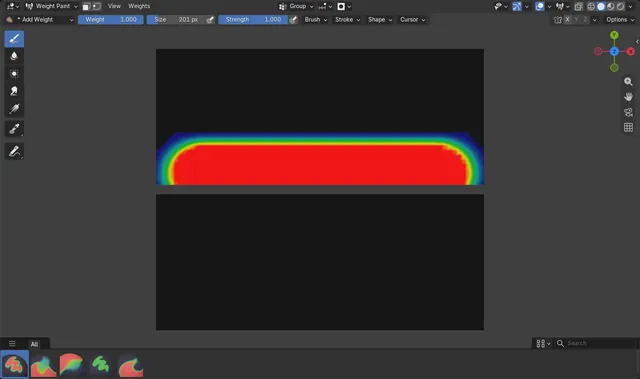
How to Stop Weight Paint Bleeding onto a Nearby Separate Part (Blender 5.3)
In Blender 5.3, open the Auto-Masking menu in the 3D Viewport header while in Weight Paint mode and tick Topology.
Read the answer ›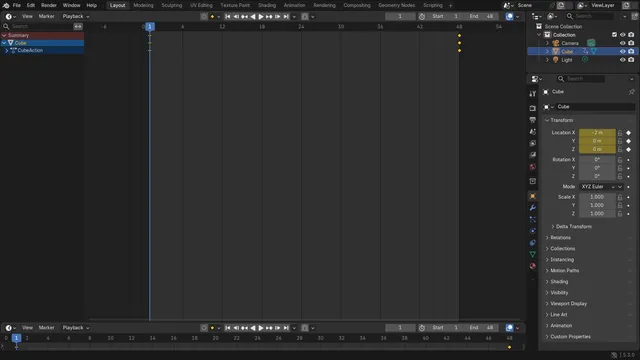
How to Make the Playhead Wrap Around in Blender 5.3
In Blender 5.3, click the Playback Options drop-down just right of the play buttons in the Timeline header and turn on Wrap Timeline Navigation.
Read the answer ›