How to Jump Forward One Second in the Timeline (Blender 5.3)
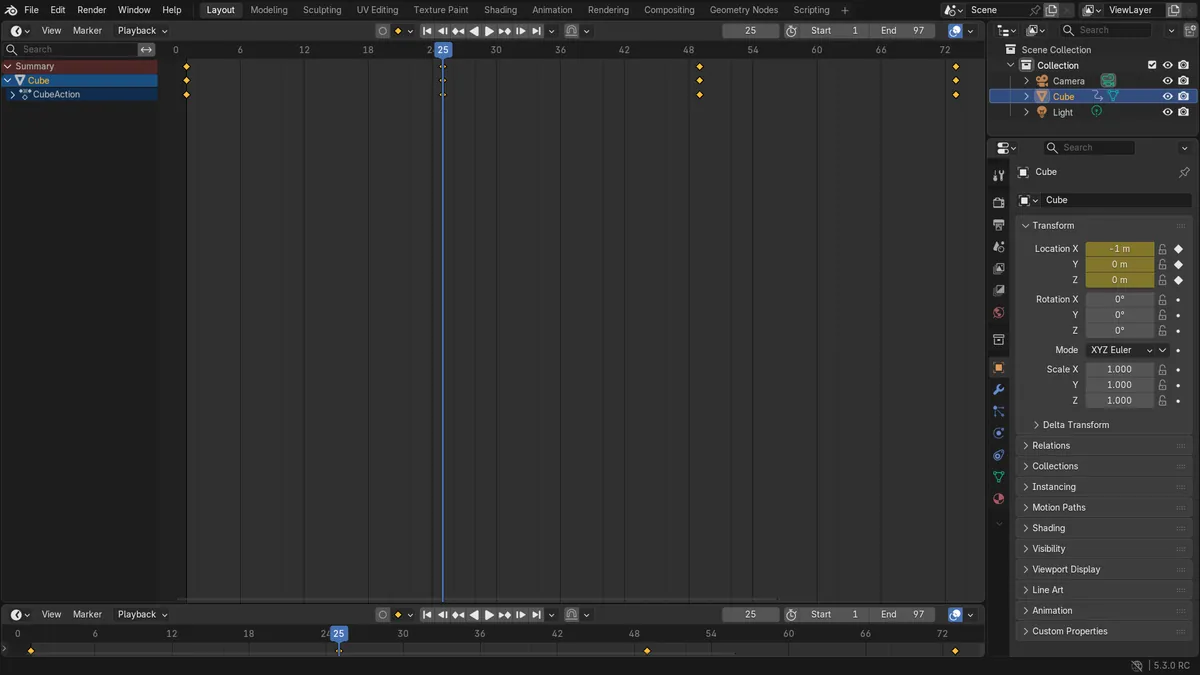
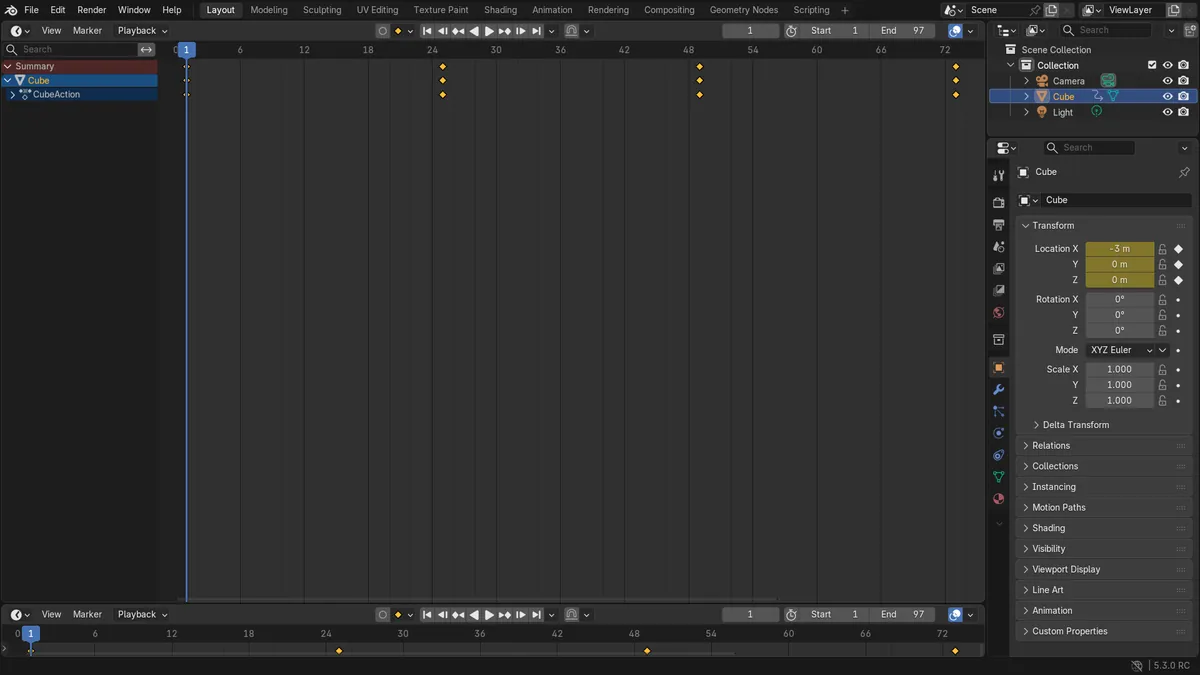
In Blender 5.3, click the jump forward button in the Timeline header, the button between the next keyframe button and the jump to end button, or press Ctrl+Right Arrow. The playhead moves forward by one second, and the jump back button left of the play buttons, or Ctrl+Left Arrow, moves it back. In the test at 24 fps the playhead went from frame 1 to frame 25 and back to frame 1. The jump size is set in the Playback Options popover at the end of the same row, where Jump Unit and Delta live. In Blender 5.2 LTS both jump buttons sit together after the play buttons, with Jump Unit and Delta in a Time Jump popover.
- Mode
- Timeline
Buttons beside the play controls
Jump back sits left of the play buttons, next to the jump to start button. Jump forward sits right of them, before the jump to end button.
One second by default
Jump Unit starts at Second and Delta at 1. At 24 fps one jump moved the playhead from frame 1 to frame 25.
Settings moved to Playback Options
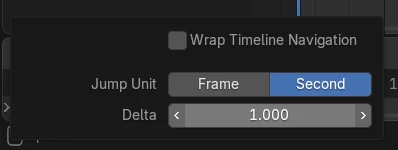
Jump Unit and Delta are in the Playback Options popover at the end of the transport row, together with Wrap Timeline Navigation.
Before and after

AI Scene Builder is a Blender add-on. You type what you want, and it builds it in your scene: buildings, neon signs, wet pavement, fog and lights. Nothing in this picture was modeled by hand.
On a phone now? The add-on runs in Blender on a computer. Send yourself the link and open it there.
Step by step (Blender 5.3)
- In the Timeline header, find the play buttons in the middle.
- Click the jump forward button, between the next keyframe button and the jump to end button, or press Ctrl+Right Arrow with the mouse over the Timeline or the 3D Viewport.Blender 5.2 LTS: In Blender 5.2 LTS the two jump buttons sit together after the play buttons.
- To go back by the same amount, click the jump back button left of the play buttons, or press Ctrl+Left Arrow.
- To change the size of a jump, open the Playback Options popover at the end of the row and set Jump Unit to Second or Frame and Delta to the amount.Blender 5.2 LTS: In Blender 5.2 LTS Jump Unit and Delta are in the Time Jump popover next to the jump buttons.
Other ways to do it
- Press Right Arrow or Left Arrow without Ctrl to step one frame at a time
- Set Jump Unit to Frame and Delta to 10 in Playback Options to jump ten frames at a time
Blender 5.2 LTS vs Blender 5.3
| What | Blender 5.2 LTS | Blender 5.3 |
|---|---|---|
| Position of the jump buttons | Blender 5.2 LTS shows both jump buttons together after the play buttons. | Blender 5.3 places jump back left of the play buttons and jump forward right of them. |
| Jump Unit and Delta | Blender 5.2 LTS keeps them in the Time Jump popover. | Blender 5.3 keeps them in the Playback Options popover, with Wrap Timeline Navigation. |
Common snags
The playhead moves one frame instead of one second
Ctrl was not held. Right Arrow alone steps one frame; Ctrl+Right Arrow jumps by the Delta.
A jump goes further than one second
Jump Unit or Delta was changed. Open Playback Options and set Jump Unit to Second and Delta to 1.
The Time Jump popover is missing
In Blender 5.3 the jump settings are in the Playback Options popover at the end of the transport row.
An AI add-on for Blender
AI Scene Builder is a Blender add-on that builds and edits your scene from one typed request, such as “a small wooden table with two chairs”. Each request can be undone in one click.
 A log cabin room built with the add-on from 9 typed requests. See every request →
Questions
Where are the time jump buttons in Blender 5.3?
Jump back is left of the play buttons and jump forward is right of them, in the Timeline header.
How do I jump by frames instead of seconds?
Open the Playback Options popover at the end of the transport row and set Jump Unit to Frame, then set Delta to the number of frames.
What is the shortcut for jumping one second?
Ctrl+Right Arrow jumps forward and Ctrl+Left Arrow jumps back. Both are in the Frames keymap, so they work with the mouse over the Timeline or the 3D Viewport.
What the pictures show
- Before: a Blender 5.3 scene at 24 fps with the playhead on frame 1, Jump Unit set to Second and Delta to 1, the values of a new scene.
- After one jump forward in Blender 5.3 the playhead was on frame 25; one jump back returned it to frame 1. With Jump Unit set to Frame and Delta to 10, a jump went from frame 1 to frame 11.
- Blender 5.2 LTS gave the same frames, 25, 1 and 11, with its buttons and the Time Jump popover.