How to Make a Grease Pencil Gradient Fill with More Than Two Colors (Blender 5.3)
In Blender 5.3, open Material Properties, set Surface › Fill › Style to Gradient, and click + on the color ramp to add a color stop. Each stop adds one more color to the same fill, so one shape can blend three or more colors.
- Mode
- Properties editor, Material tab (Grease Pencil object)
- Menu
- Material Properties › Surface › Fill, Style: Gradient, then + above the color ramp
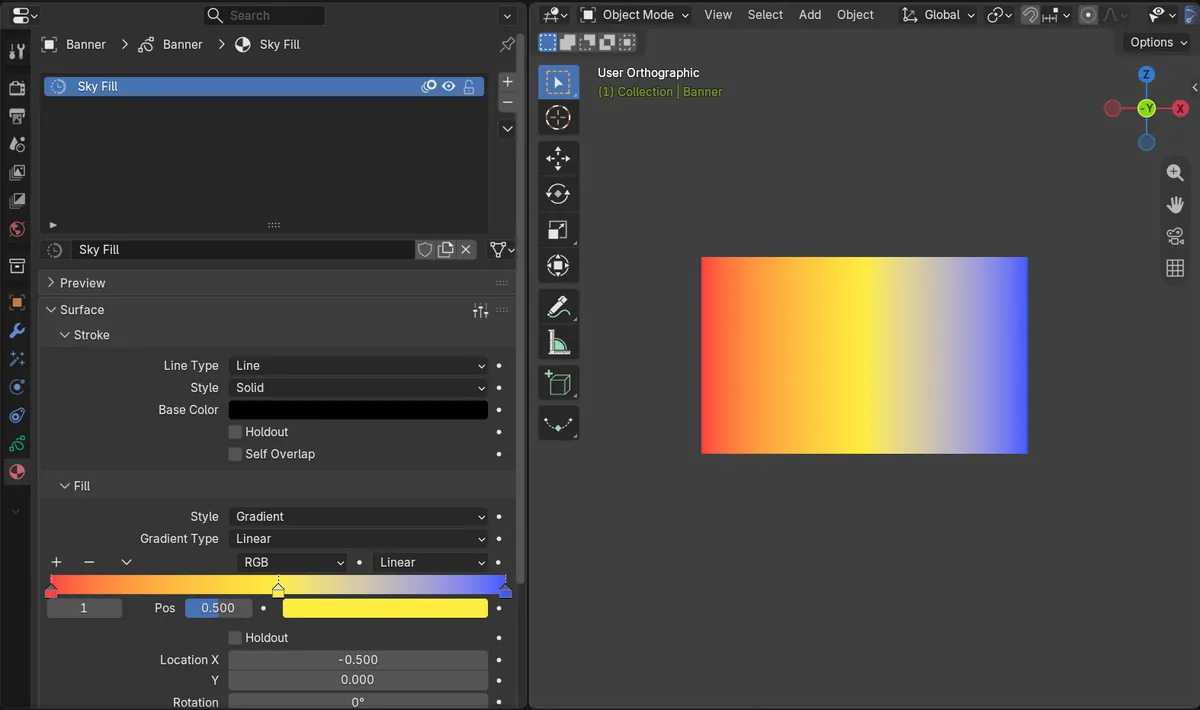
Color ramp
With Style set to Gradient, the Fill panel shows a color ramp with + and - buttons.
Third color
A yellow stop at Pos 0.500 turned the middle of a red-to-blue fill yellow.
New in 5.3
Blender 5.2 LTS only has Base Color and Secondary Color, so a fill blends two colors at most.
Before and after

AI Scene Builder is a Blender add-on. You type what you want, and it builds it in your scene: buildings, neon signs, wet pavement, fog and lights. Nothing in this picture was modeled by hand.
On a phone now? The add-on runs in Blender on a computer. Send yourself the link and open it there.
Step by step (Blender 5.3)
- Select the Grease Pencil object and open the Material tab in the Properties editor.
- Under Surface › Fill, set Style to Gradient and pick Linear or Radial for Gradient Type.
- Click + above the color ramp to add a color stop.
- Set where the new stop sits with Pos (0.500 is the middle), then click the color field next to it and pick a color.
- Add more stops the same way. Use - to remove the selected stop.
Other ways to do it
- Drag a stop along the color ramp instead of typing Pos
- Switch Gradient Type to Radial to blend the colors from the center outward
- Change Location X, Y and Rotation in the same panel to move or turn the gradient
Blender 5.2 LTS vs Blender 5.3
| What | Blender 5.2 LTS | Blender 5.3 |
|---|---|---|
| Gradient colors | Blender 5.2 LTS has Base Color, Secondary Color and Blend, so a gradient has two colors. | Blender 5.3 replaces them with a color ramp, so a gradient can have as many color stops as you add. |
Common snags
The gradient only covers part of the shape
The gradient runs over a fixed size. On a large shape, change the Scale below Location and Rotation in the Fill panel so the colors spread over the whole fill.
No color ramp in the Fill panel
The color ramp appears only when Fill Style is Gradient. With Solid or Texture it is hidden.
There is no + button for colors
The color ramp for Grease Pencil fills is new in Blender 5.3. Blender 5.2 LTS shows Base Color and Secondary Color instead.
An AI add-on for Blender
AI Scene Builder is a Blender add-on that builds and edits your scene from one typed request, such as “a small wooden table with two chairs”. Each request can be undone in one click.
 A log cabin room built with the add-on from 9 typed requests. See every request →
Questions
Can a Grease Pencil fill have more than two gradient colors?
Yes, in Blender 5.3. Set Fill Style to Gradient and add color stops with + on the color ramp.
Where is Secondary Color in Blender 5.3?
Blender 5.3 shows a color ramp instead. The first and last stops do the job of the two colors, and you can add more stops between them.
Does it work with a radial gradient?
Yes. Set Gradient Type to Radial and the color stops blend from the center outward.
What the pictures show
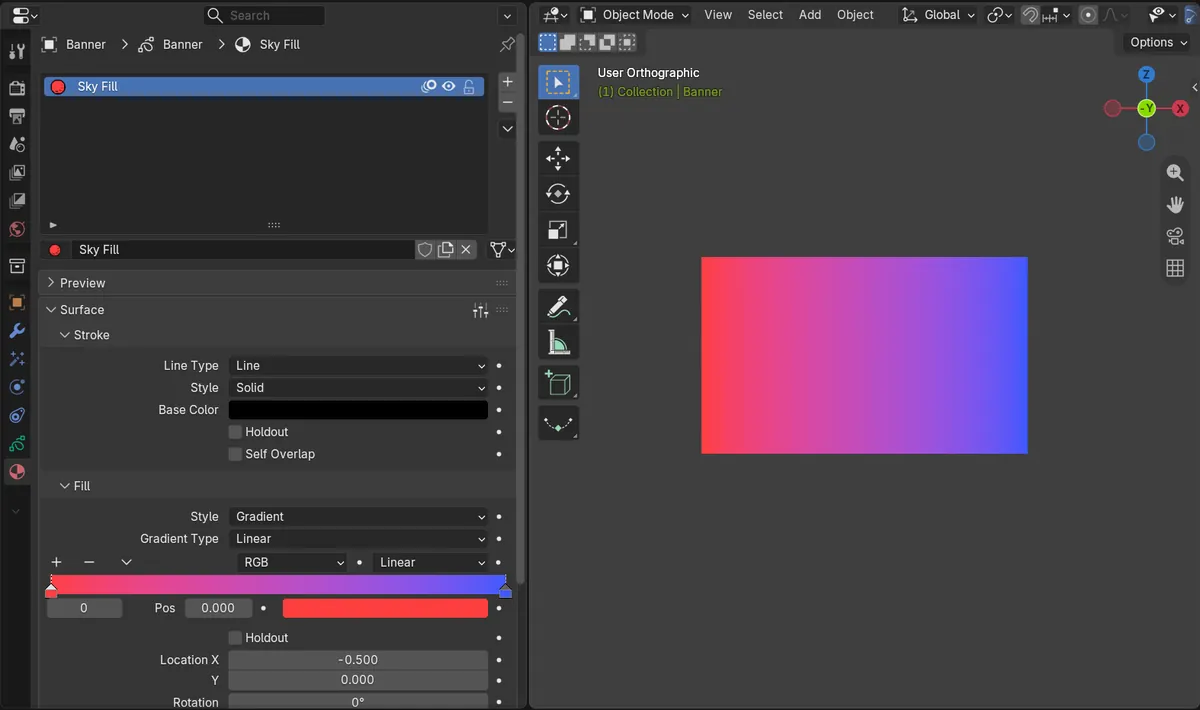
- Before: a rectangle with Fill Style Gradient (Linear) and two color stops, red at Pos 0.000 and blue at Pos 1.000, showed red on the left, blue on the right and purple in the middle.
- After clicking + and setting the new stop to yellow at Pos 0.500: the color ramp had three stops and the middle of the rectangle turned yellow.
- The left side stayed red-orange and the right side stayed blue after the third stop was added.
- In Blender 5.2 LTS the Fill panel had only Base Color, Secondary Color and Blend; the same rectangle stayed a two-color red-to-blue blend.