How to Turn Off the Viewport Compositor (Blender 5.3)
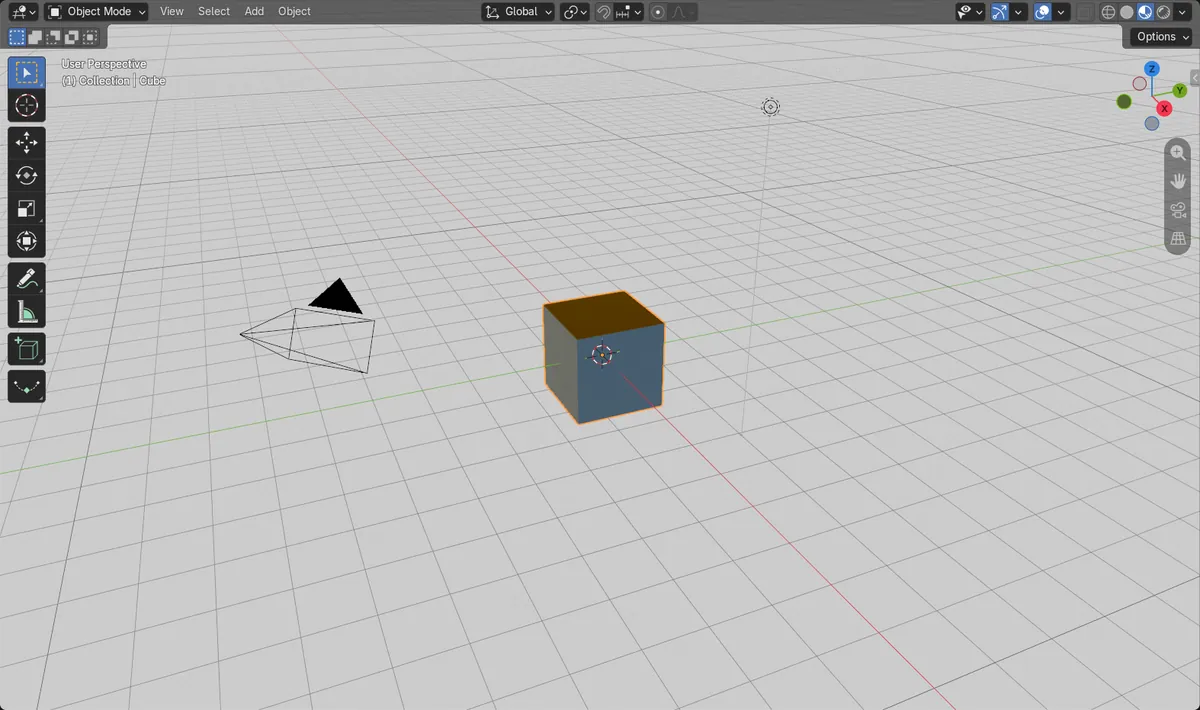
In Blender 5.3, open the Shading popover in the 3D Viewport header (the small arrow to the right of the shading buttons) and set Compositor to Disabled. The setting is listed when the viewport is in Material Preview or Rendered shading. In the 5.3 startup file the Layout workspace has Compositor set to Always, so compositor effects show in the viewport straight away. In the test a compositor tree with an Invert node made the Material Preview viewport light, with an average brightness of 0.78; after choosing Disabled it went back to the normal dark look at 0.26. In Blender 5.2 LTS every workspace starts with the compositor off in the viewport.
- Mode
- 3D Viewport, Material Preview or Rendered shading
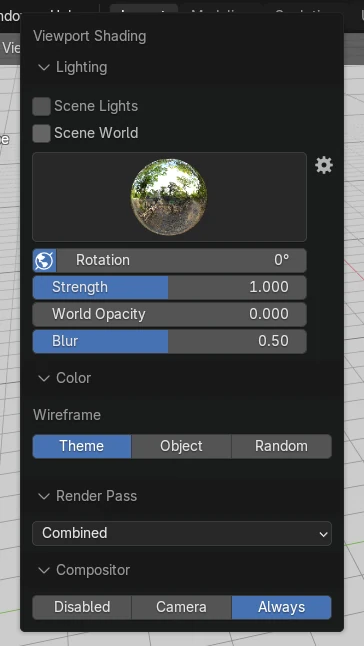
Compositor in the Shading popover
The Compositor row in the Shading popover has three choices: Disabled, Camera and Always.
Disabled removes the effect
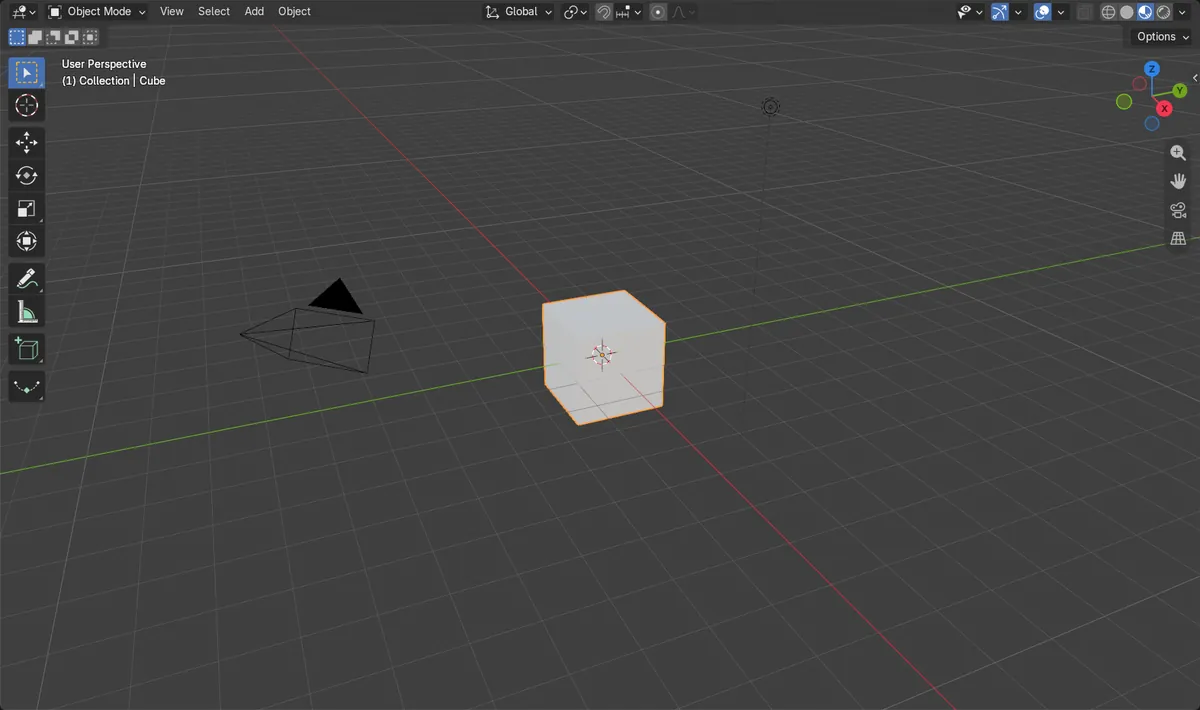
With Disabled the Invert effect left the viewport, and the average brightness went from 0.78 to 0.26.
On by default in 5.3
The Blender 5.3 startup file sets Compositor to Always in the Layout workspace. The other workspaces, and Blender 5.2 LTS, start with Disabled.
Before and after

AI Scene Builder is a Blender add-on. You type what you want, and it builds it in your scene: buildings, neon signs, wet pavement, fog and lights. Nothing in this picture was modeled by hand.
On a phone now? The add-on runs in Blender on a computer. Send yourself the link and open it there.
Step by step (Blender 5.3)
- In the 3D Viewport header, switch the shading to Material Preview or Rendered, the two modes that run the compositor.
- Click the small arrow to the right of the shading buttons to open the Shading popover.
- Find the Compositor row in the popover and choose Disabled.Blender 5.2 LTS: Blender 5.2 LTS starts with Disabled already, so this step changes nothing there.
- Check the viewport: compositor effects such as bloom or colour changes are no longer drawn, while the render still uses the compositor.
Other ways to do it
- Choose Camera in the same row so the compositor runs in the viewport when you look through the scene camera
- Switch the viewport to Solid shading, where the compositor is not drawn
Blender 5.2 LTS vs Blender 5.3
| What | Blender 5.2 LTS | Blender 5.3 |
|---|---|---|
| Viewport compositor in the startup file | Blender 5.2 LTS starts with Compositor set to Disabled in every workspace. | Blender 5.3 starts with Compositor set to Always in the Layout workspace and Disabled in the other workspaces. |
| Where to change it | Blender 5.2 LTS has the same Compositor row in the Shading popover. | Blender 5.3 keeps the row in the Shading popover, with Disabled, Camera and Always. |
Common snags
There is no Compositor row in the popover
The viewport is in Solid or Wireframe shading. Switch to Material Preview or Rendered first, then open the Shading popover again.
The effect is gone in one workspace but not in another
Each workspace's viewport keeps its own Compositor setting. In the 5.3 startup file Layout is set to Always, so change it in each viewport where you want it off.
The final render still has the effect
The Compositor row affects the viewport. The render keeps using the compositor node tree, so mute or remove the nodes there if the render should change too.
An AI add-on for Blender
AI Scene Builder is a Blender add-on that builds and edits your scene from one typed request, such as “a small wooden table with two chairs”. Each request can be undone in one click.
 A log cabin room built with the add-on from 9 typed requests. See every request →
Questions
Why does my Blender 5.3 viewport show compositor effects?
The 5.3 startup file sets Compositor to Always in the Layout workspace. Open the Shading popover and choose Disabled to turn it off.
Does turning off the viewport compositor change the render?
No. The setting is for the viewport. The render still runs the compositor node tree.
Can the viewport show the compositor through the camera view?
Yes. Choose Camera in the Compositor row of the Shading popover, and the compositor runs when you look through the scene camera.
What the pictures show
- Before: the Blender 5.3 startup file in the Layout workspace, Material Preview shading, Compositor set to Always, and a compositor tree with an Invert node. The viewport was light, with an average brightness of 0.78.
- After choosing Disabled in the Compositor row of the Shading popover in Blender 5.3: the viewport went back to its normal dark look, with an average brightness of 0.26.
- The 5.3 startup file had Compositor set to Always in Layout and Disabled in the other workspaces. In Blender 5.2 LTS every workspace started with Disabled, and the same scene showed 0.26 without any change.