How to Triangulate a Mesh in Blender
Select the mesh, press Tab to enter Edit Mode and press A to select everything. Then press Ctrl + T, or choose Face › Triangulate Faces. Every selected quad and n-gon is split into triangles without adding vertices. Alt + J joins triangles back into quads.
- Mode
- Edit Mode, 3D Viewport
- Menu
- Face › Triangulate Faces
- Shortcut
- Ctrl + T
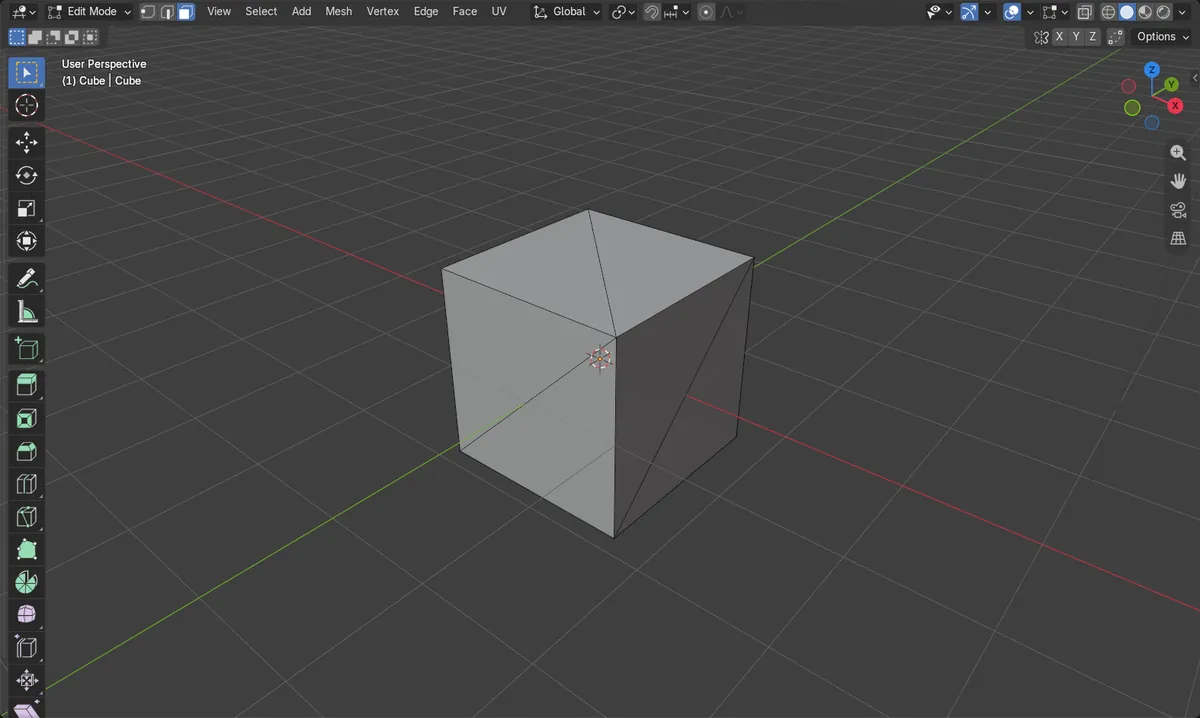
Ctrl + T
Splits the selected faces into triangles.
Select first
Only selected faces change; press A to select all.
Alt + J goes back
Joins triangles into quads again.
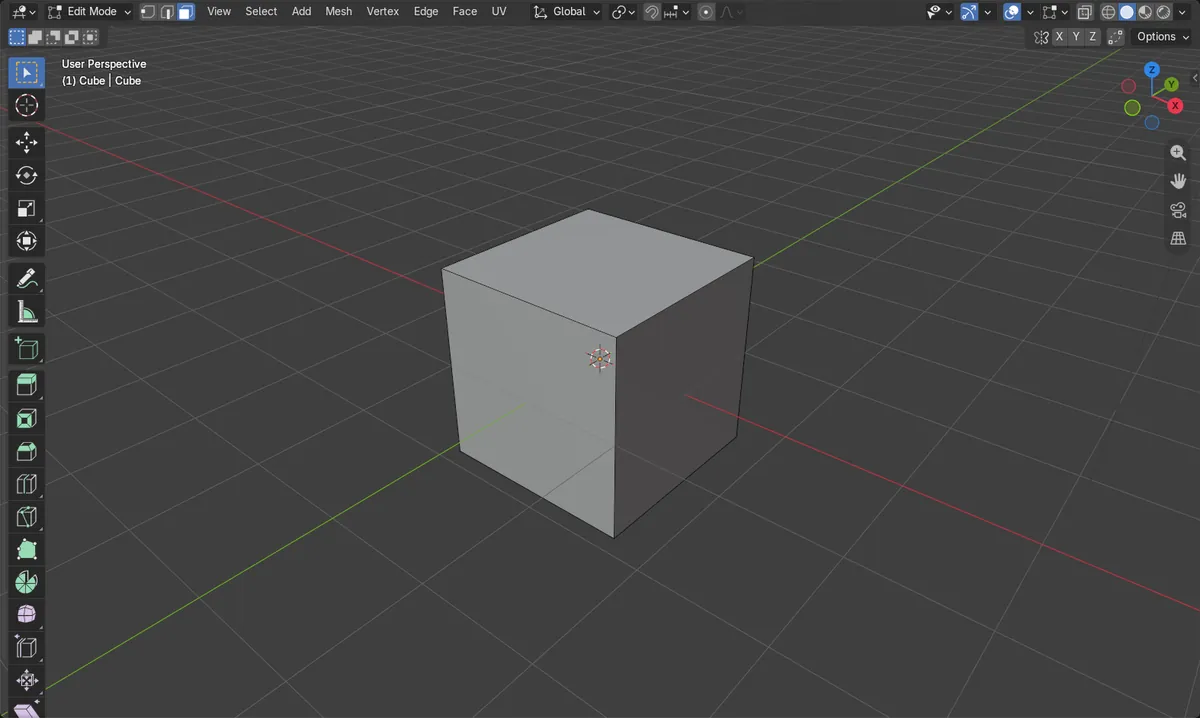
Before and after

AI Scene Builder is a Blender add-on. You type what you want, and it builds it in your scene: buildings, neon signs, wet pavement, fog and lights. Nothing in this picture was modeled by hand.
On a phone now? The add-on runs in Blender on a computer. Send yourself the link and open it there.
Step by step (Blender 5.x)
- Select the mesh in Object Mode and press Tab to enter Edit Mode.
- Press A to select all faces, or select only the faces you want to split.
- Press Ctrl + T, or choose Face › Triangulate Faces in the header.
- Open the Adjust Last Operation panel in the lower left to change how quads and n-gons are split.
- Press Tab to go back to Object Mode.
Other ways to do it
- Press 3 for face select, then right-click and choose Triangulate Faces
- A Triangulate modifier (Modifier Properties › Add Modifier › Generate) keeps the original quads and triangulates only the result
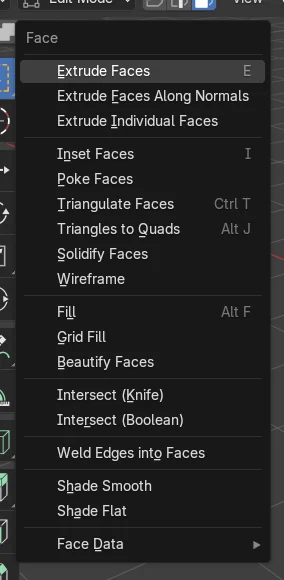
Blender 4.2 LTS vs Blender 5.x
| What | Blender 4.2 LTS | Blender 5.x |
|---|---|---|
| Name of the reverse command (Alt + J) | Tris to Quads | Triangles to Quads |
Common snags
Nothing changed after Ctrl + T
No faces were selected, or you are in Object Mode. Press Tab, press A, then Ctrl + T.
Only part of the mesh was triangulated
Ctrl + T works on the selected faces only. Press A to select everything first.
I want triangles only when I export
Use the Triangulate modifier instead, so the quads stay editable in the file.
An AI add-on for Blender
AI Scene Builder is a Blender add-on that builds and edits your scene from one typed request, such as “a small wooden table with two chairs”. Each request can be undone in one click.
 A log cabin room built with the add-on from 9 typed requests. See every request →
Questions
How do I convert triangles back to quads in Blender?
Select the faces in Edit Mode and press Alt + J.
How do I see the face count?
Open the Overlays menu in the 3D Viewport header and turn on Statistics.
Does triangulating change the shape?
No vertices are added or moved; flat quads look the same, only the edges inside them change.
What the pictures show
- Before: the cube had 6 quad faces and 8 vertices.
- After A and Ctrl + T: 12 faces, all of them triangles.
- The vertex count stayed at 8, and the mesh stayed in Edit Mode.
- Results were identical in Blender 4.2 LTS and Blender 5.x; only the menu names differ as shown above.