How to Round the Edges of a Mesh in Blender
Select the object, open the Modifiers tab, choose Add Modifier › Generate › Bevel, then raise Segments to get a smooth round edge. For a one-off edit in Edit Mode, select edges and press Ctrl + B, or use Edge › Bevel Edges.
- Mode
- Object Mode (modifier) or Edit Mode (Bevel Edges)
- Menu
- Properties › Modifiers › Add Modifier › Generate › Bevel
- Shortcut
- Ctrl + B (Edit Mode, edges)
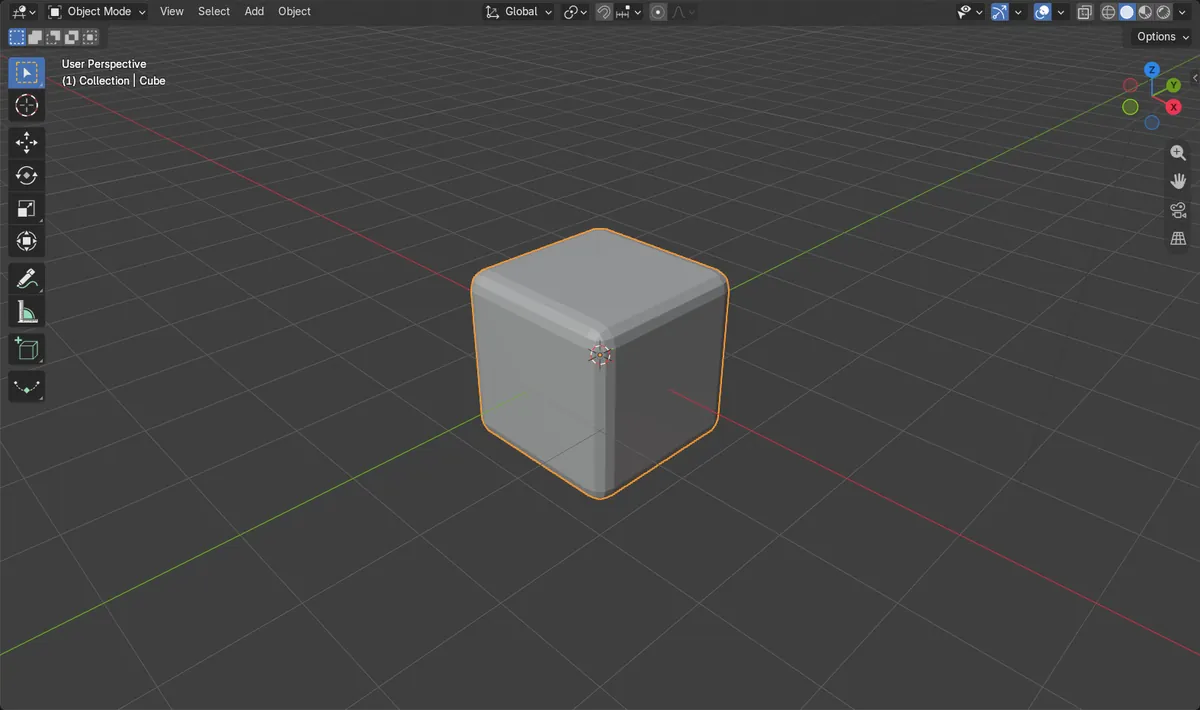
Bevel modifier
Add Modifier › Generate › Bevel. Non-destructive and adjustable.
Ctrl + B
In Edit Mode, bevels the selected edges. Move the mouse to set the amount.
Use Segments
More Segments make the edge rounder. Width sets the bevel amount.
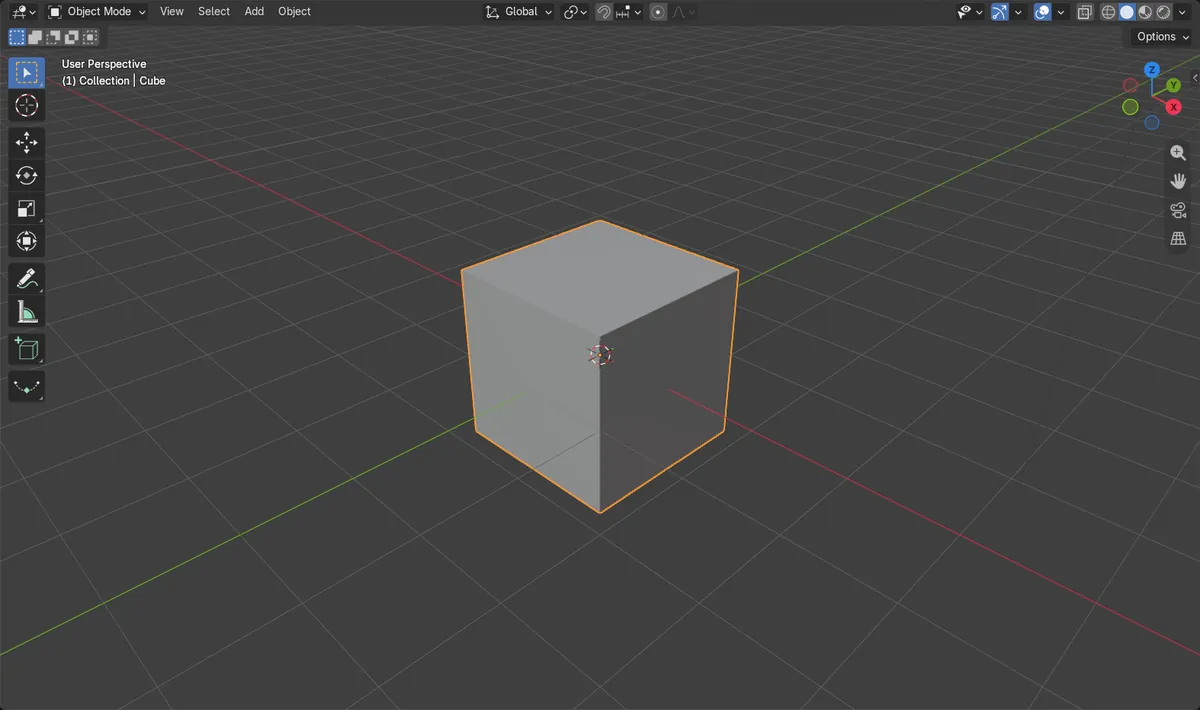
Before and after

AI Scene Builder is a Blender add-on. You type what you want, and it builds it in your scene: buildings, neon signs, wet pavement, fog and lights. Nothing in this picture was modeled by hand.
On a phone now? The add-on runs in Blender on a computer. Send yourself the link and open it there.
Step by step (Blender 5.x)
- Click the cube in the 3D Viewport so it is the selected, active object in Object Mode.
- Open the Modifiers tab in the Properties editor.
- Click Add Modifier and choose Generate › Bevel.
- Set Width to 0.2 for the size of the rounding.
- Set Segments to 3 or higher to make the edge smoothly round.
- Optionally change Limit Method (None, Angle, Weight or Vertex Group) to control which edges are rounded.
Other ways to do it
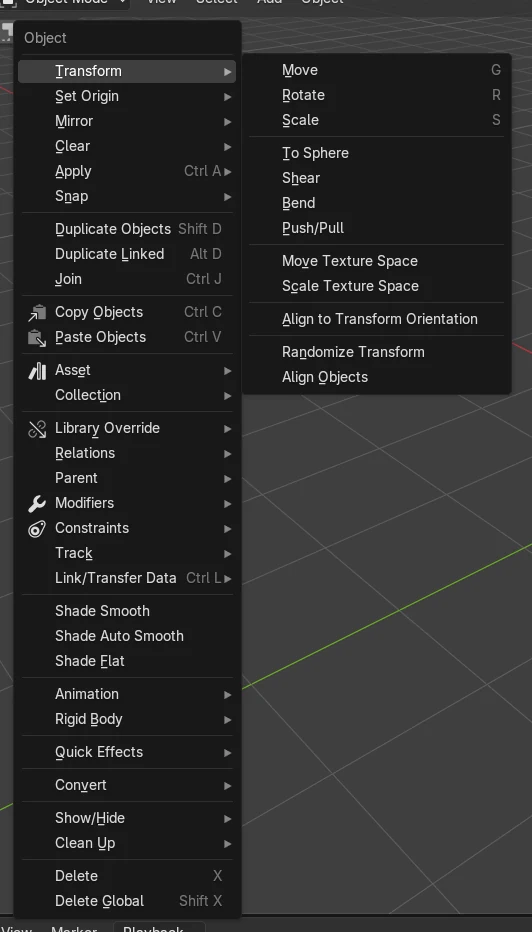
- Edit Mode: select edges, then Edge › Bevel Edges
- Edit Mode: select edges, then press Ctrl + B
- Edit Mode: right-click and choose Bevel Edges (Bevel Vertices is also listed)
- Edit Mode: press Ctrl + Shift + B to bevel vertices
Common snags
Nothing happens
The Modifiers tab shows only the active object. Click the object first so it is selected and active.
Ctrl + B does nothing
Ctrl + B bevels edges only in Edit Mode. Press Tab to enter Edit Mode and select edges first, with the mouse over the 3D Viewport.
Edges still look sharp
With only one segment the bevel is a flat cut. Increase Segments, and check that Limit Method includes the edges you want.
Or type one line in AI Scene Builder
AI Scene Builder is a Blender add-on that carries out the steps for you from one typed request. For this task, type a request like this one, using your own object names:
Round the edges of the selected mesh with a bevel of 0.2 and 3 segments A log cabin room built with the add-on from 9 typed requests. See every request →
Questions
How do I round only some edges in Blender?
In Edit Mode select those edges and use Edge › Bevel Edges or Ctrl + B. With the modifier, set Limit Method to Weight or Vertex Group.
How do I make the rounding smoother?
Increase Segments in the Bevel modifier. Width changes the size of the rounded area.
What the pictures show
- Before: the cube had no modifiers and 8 vertices.
- After adding Bevel with Width 0.2 and Segments 3, the cube had 1 modifier and showed 96 vertices.
- The original mesh kept its 8 vertices, so the modifier is non-destructive.