How to Add a Camera in Blender
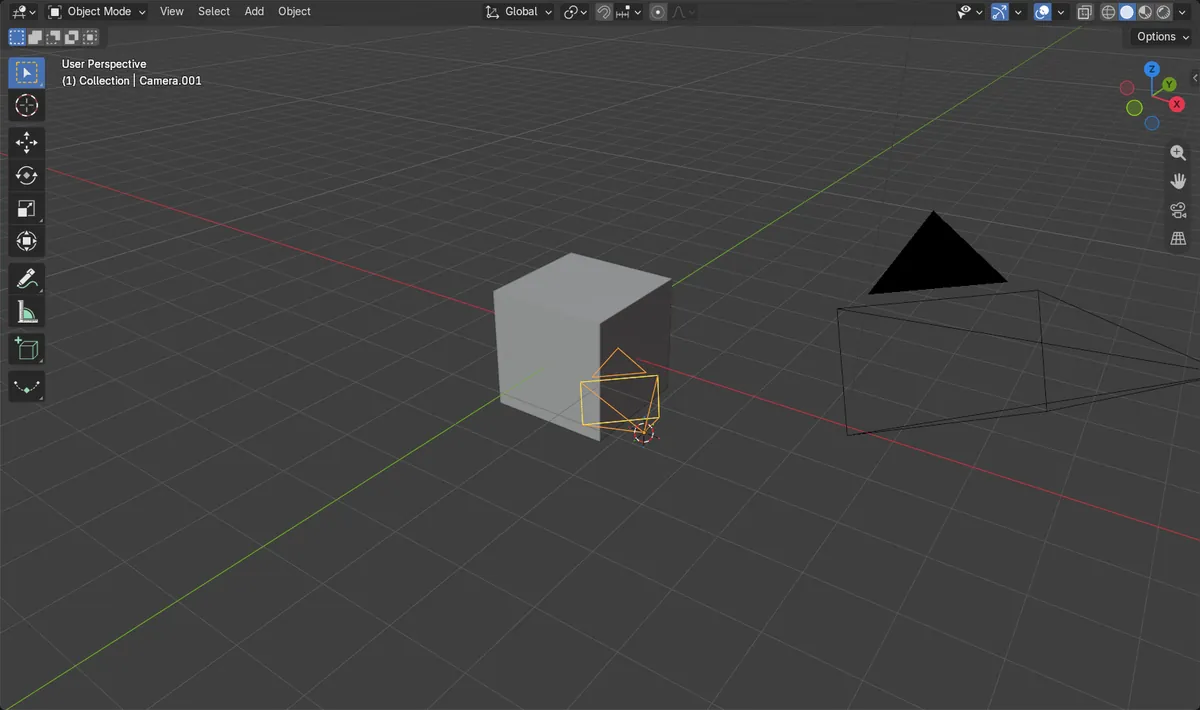
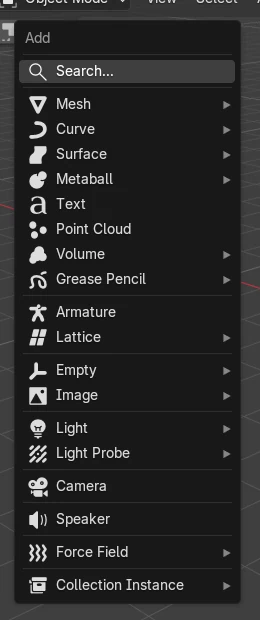
In Object Mode, press Shift + A and choose Camera: a new camera object appears at the 3D Cursor. To render from it, keep it selected and press Ctrl + Numpad 0, which makes it the active scene camera and shows the view through it. Numpad 0 switches to the camera view at any time.
- Mode
- Object Mode, 3D Viewport
- Menu
- Add › Camera
- Shortcut
- Shift + A
Ctrl + Numpad 0
Makes the selected camera the active one and looks through it.
Numpad 0
Jumps to the active camera's view.
Lens settings
Focal Length and more are in the camera's Object Data tab.
Before and after

AI Scene Builder is a Blender add-on. You type what you want, and it builds it in your scene: buildings, neon signs, wet pavement, fog and lights. Nothing in this picture was modeled by hand.
On a phone now? The add-on runs in Blender on a computer. Send yourself the link and open it there.
Step by step (Blender 5.x)
- Hold Shift and right-click in the 3D Viewport to place the 3D Cursor where the camera should go, or leave it at the centre.
- In Object Mode, press Shift + A to open the Add menu.
- Choose Camera. The new camera is created at the 3D Cursor and selected.
- Press Ctrl + Numpad 0 to make it the active camera and look through it.
- Set the Focal Length in the Lens panel of the camera's Object Data tab, for example 35 mm for a wider view.
Other ways to do it
- Add › Camera in the 3D Viewport header
- View › Cameras › Set Active Object as Camera to use the selected camera for rendering
Common snags
The render still uses the old camera
Only the active scene camera renders. Select the new one and press Ctrl + Numpad 0, or pick it in the Camera field of the Scene tab.
The camera points the wrong way
A new camera faces along its own axis from the 3D Cursor. Use Ctrl + Alt + Numpad 0 to snap the active camera to the current view instead.
There is no numpad on my keyboard
Use View › Cameras in the 3D Viewport header for the same commands.
An AI add-on for Blender
AI Scene Builder is a Blender add-on that builds and edits your scene from one typed request, such as “a small wooden table with two chairs”. Each request can be undone in one click.
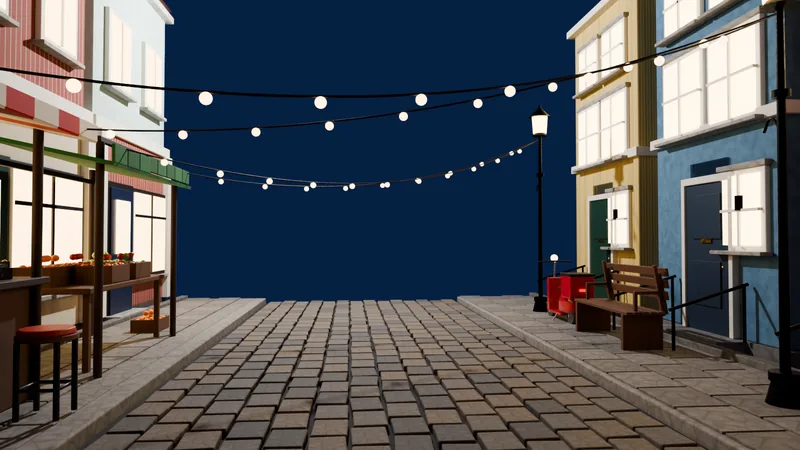 An evening market street built with the add-on from 11 typed requests. See every request →
Questions
How do I look through the camera in Blender?
Hover the 3D Viewport and press Numpad 0 to switch to the active camera's view.
How do I change which camera renders?
Select the camera and press Ctrl + Numpad 0, or set Camera in the Scene tab.
How do I move the camera to match my view?
Line up the 3D Viewport the way you want and press Ctrl + Alt + Numpad 0.
What the pictures show
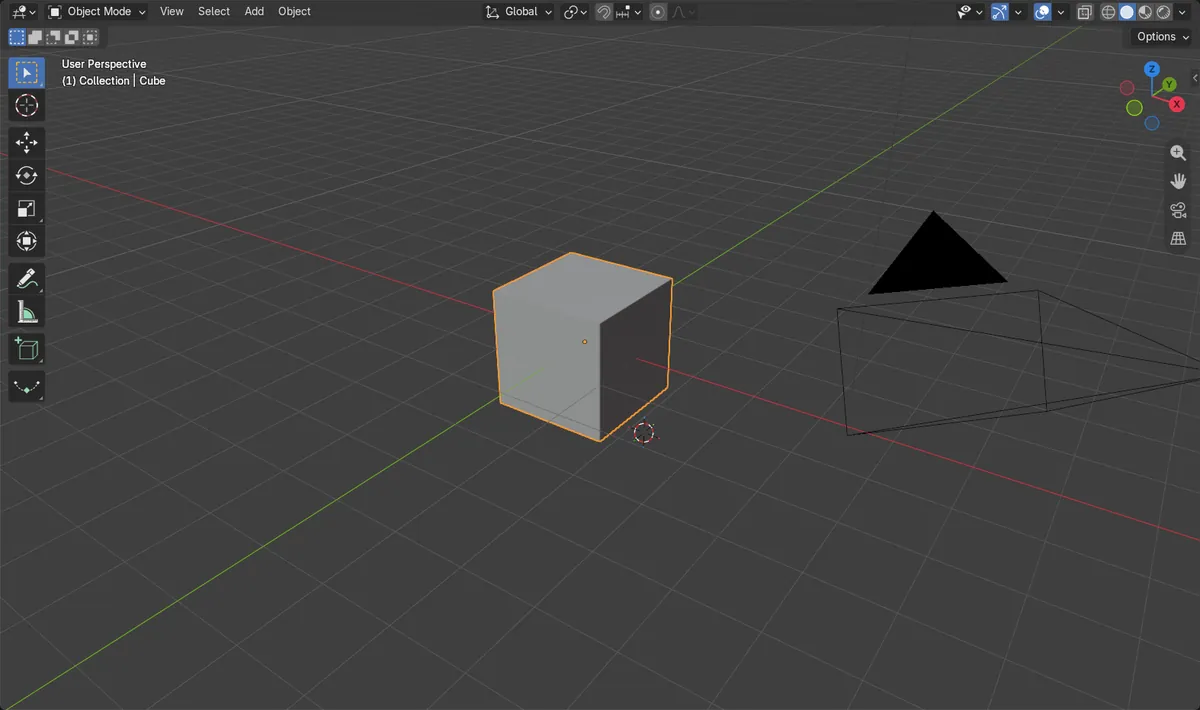
- Before: the scene had 1 camera and the cube was the active object.
- After Add > Camera: the scene has 2 cameras and the new camera is active.
- The new camera sits at the 3D Cursor position x 3 m, y -3 m, z 1 m.
- Results were identical in Blender 4.2 LTS and Blender 5.x.