How to Change the World Background Color in Blender
Open the World tab in the Properties editor and click the Color swatch in the Surface panel, then pick a new color. The world color is what you see behind your objects in a render.
- Mode
- Properties editor, World tab (any mode)
- Menu
- Properties › World tab › Surface › Color
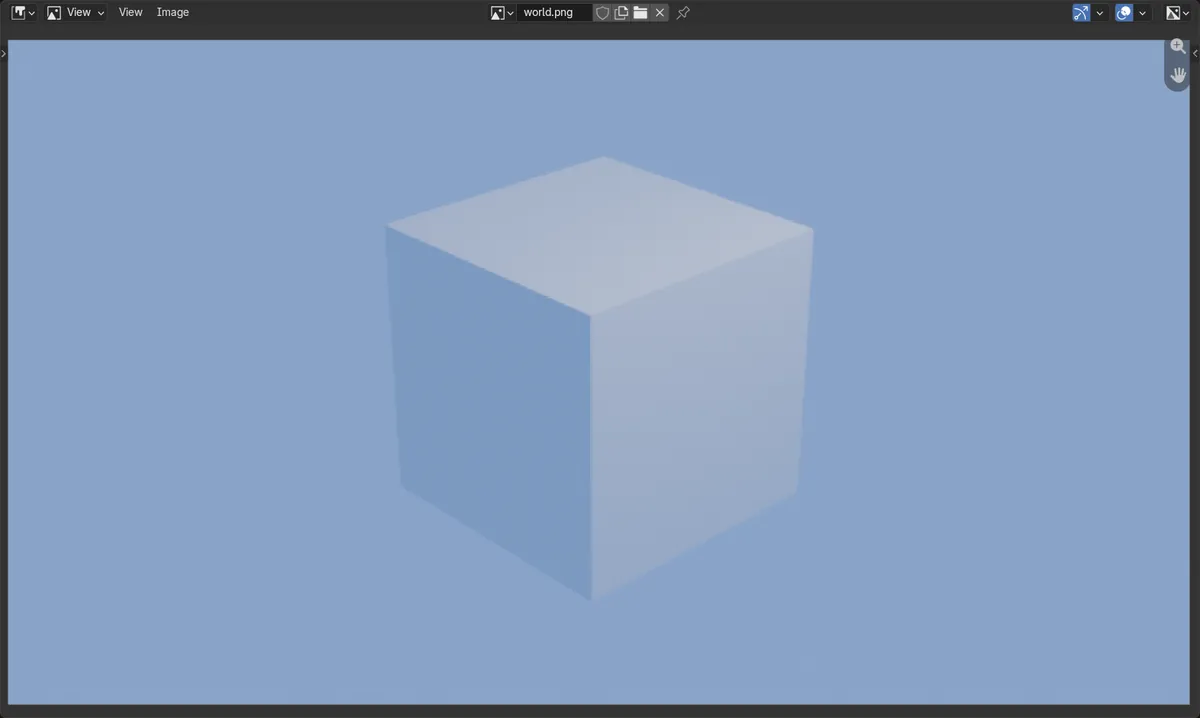
World tab
Properties editor › World tab › Surface panel.
Press F12
Render Image to see the new background.
Check Transparent
Render tab › Film › Transparent hides the world color.
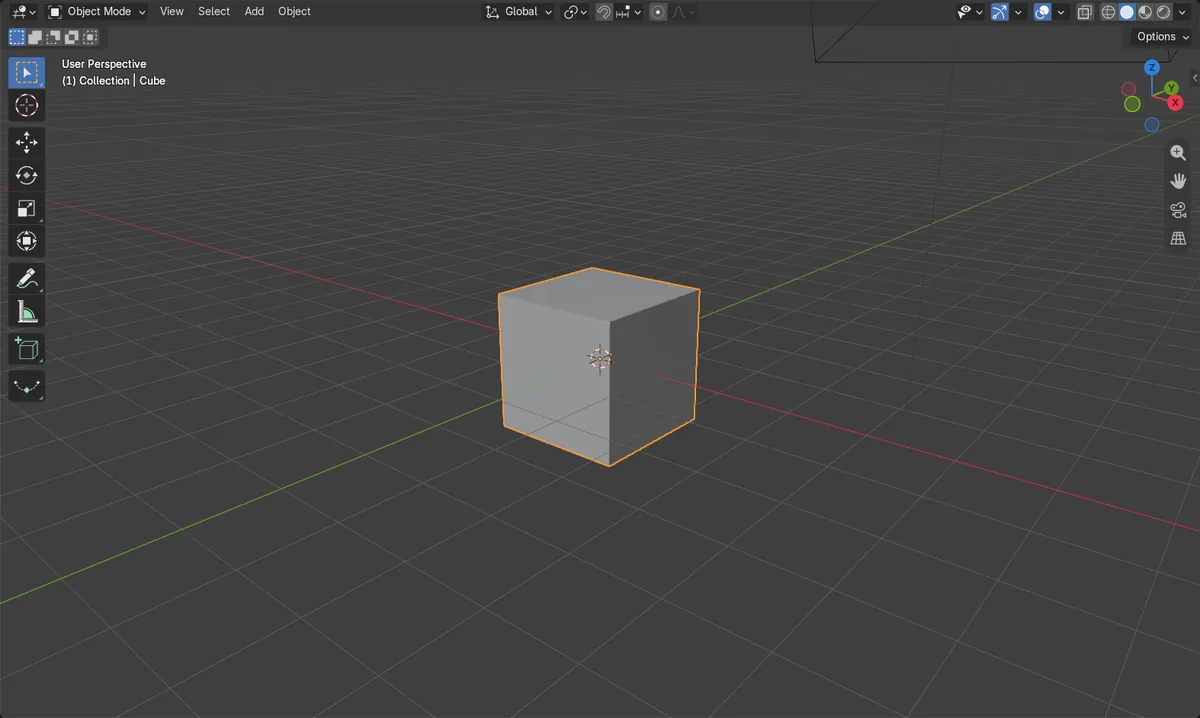
Before and after

AI Scene Builder is a Blender add-on. You type what you want, and it builds it in your scene: buildings, neon signs, wet pavement, fog and lights. Nothing in this picture was modeled by hand.
On a phone now? The add-on runs in Blender on a computer. Send yourself the link and open it there.
Step by step (Blender 5.x)
- Hover over the Properties editor and click the World tab.
- In the Surface panel, click the Color swatch.Blender 4.2 LTS: In Blender 4.2 LTS the EEVEE Surface panel also has a Use Nodes button.
- Choose a new color in the color picker. In this test the color was set to a blue (0.2, 0.4, 1.0).
- Press F12 or use Render › Render Image to render and see the new background.
Other ways to do it
- World tab › Viewport Display › Color sets the world color used for viewport display.
- If there is no world yet, click New in the World tab (New World) to create one.
Blender 4.2 LTS vs Blender 5.x
| What | Blender 4.2 LTS | Blender 5.x |
|---|---|---|
| Use Nodes button | The EEVEE Surface panel has a Use Nodes button. | The Use Nodes button is not in the Surface panel. |
Common snags
Background is transparent
If the render shows a checkerboard or no color, Film › Transparent is on. Turn it off in the Render tab.
Viewport color looks different
The viewport only shows the world in Material Preview or Rendered shading with Scene World enabled in the shading Lighting popover. Otherwise use World tab › Viewport Display › Color.
No World tab content
If the scene has no world, click New in the World tab to create one, then set the color.
Or type one line in AI Scene Builder
AI Scene Builder is a Blender add-on that carries out the steps for you from one typed request. For this task, type a request like this one, using your own object names:
Change the world background color to blue A lighthouse island at sunset built with the add-on from 10 typed requests. See every request →
Questions
How do I change the background color in the viewport only?
Use World tab › Viewport Display › Color. This sets the color shown in the viewport without changing the render.
Why does my render ignore the world color?
Film › Transparent in the Render tab is probably enabled. Turn it off to see the world color.
What the pictures show
- World color before: dark gray (0.05, 0.05, 0.05).
- World color after: blue (0.2, 0.4, 1.0).
- The rendered corner pixel turned bluer than red (about 0.53 red, 0.64 green, 0.78 blue) in both versions.