Straighten Vertices Along a Line in Blender
In Edit Mode, select the vertices and scale them to 0 along the axis that is out of line, for example Y, using the Resize operator. Every selected vertex then lands on the same line, and the vertex count does not change.
- Mode
- Edit Mode (Vertex select)
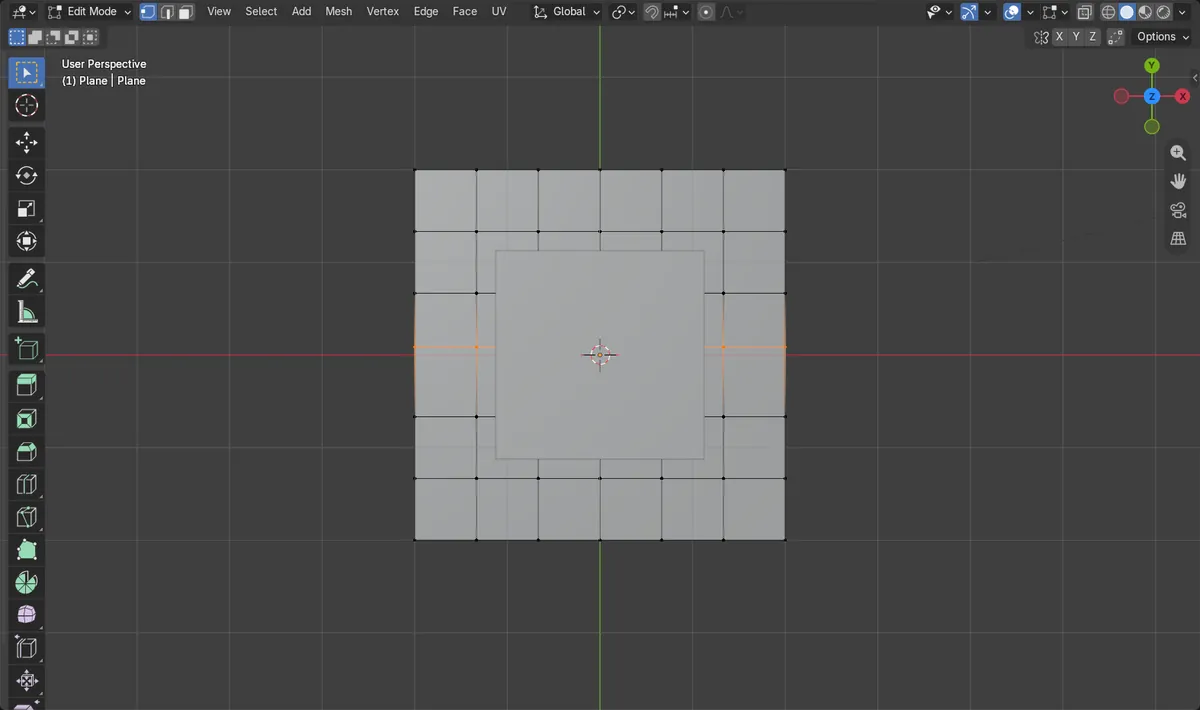
Select vertices
Use Vertex select mode and pick the wobbly row.
Scale on one axis
Resize with 0 on the axis to flatten, 1 on the others.
Nothing is added
Same vertices, only their positions change.
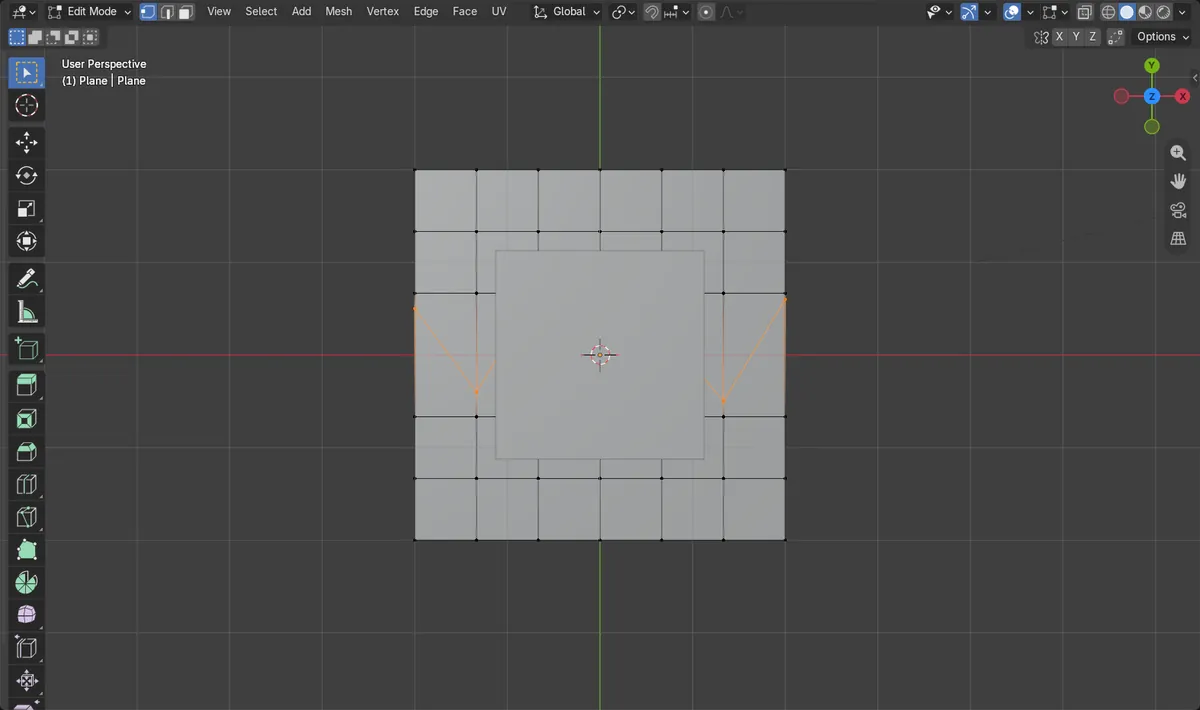
Before and after

AI Scene Builder is a Blender add-on. You type what you want, and it builds it in your scene: buildings, neon signs, wet pavement, fog and lights. Nothing in this picture was modeled by hand.
On a phone now? The add-on runs in Blender on a computer. Send yourself the link and open it there.
Step by step (Blender 5.x)
- Select the mesh object and enter Edit Mode with Tab, then switch to Vertex select mode.
- Select the vertices you want to straighten. A selects everything, Alt + A deselects everything.
- Hover over the 3D Viewport and press S to start Resize (scale) on the selected vertices.
- Set the scale to 0 on the axis the vertices wander along (for example X 1, Y 0, Z 1 flattens them in Y) and keep the Global orientation.
- Confirm. The selected vertices now sit on one straight line.
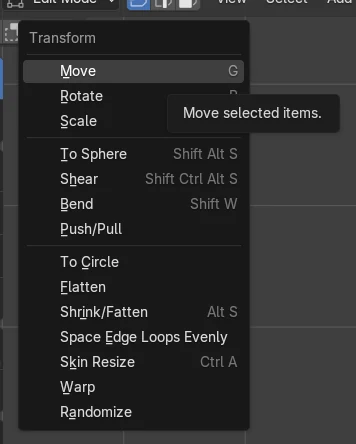
Blender 4.2 LTS vs Blender 5.x
| What | Blender 4.2 LTS | Blender 5.x |
|---|---|---|
| Transform menu contents | The Transform menu contains an extra item, Scale Texture Space. | Scale Texture Space does not appear in the Transform menu. |
Common snags
Nothing moves
No vertices are selected, or you are in Object Mode. Press Tab for Edit Mode and select the vertices first.
Flattened on the wrong axis
The line ends up crooked or collapsed in the wrong direction. Undo and set 0 only on the axis that was off, with the Global orientation.
Line shifts position
Scaling happens around the pivot point, which is Median Point by default. The flattened line sits at the median of your selection; change Transform Pivot Point if you need another reference.
An AI add-on for Blender
AI Scene Builder is a Blender add-on that builds and edits your scene from one typed request, such as “a small wooden table with two chairs”. Each request can be undone in one click.
 A log cabin room built with the add-on from 9 typed requests. See every request →
Questions
How do I make vertices line up in Blender?
Select them in Edit Mode and scale to 0 along the axis they deviate on. They snap onto one line.
Does straightening vertices add or remove geometry?
No. The vertex count stays the same; only positions change.
What the pictures show
- Seven vertices in a row were selected in Edit Mode on a subdivided plane.
- Before, their Y positions spread over 1.3 m.
- After scaling with Y at 0, the Y spread was 0.0 m.
- The mesh kept its 49 vertices and all 7 stayed selected.