How to See Through Objects (X-Ray) in Blender
Hover the mouse over the 3D Viewport and press Alt + Z to toggle X-Ray. With X-Ray on, objects turn transparent and you can select items hidden behind others.
- Mode
- 3D Viewport (any mode)
- Shortcut
- Alt + Z
Alt + Z
Toggles X-Ray on and off. Mouse must be over the 3D Viewport.
Shading popover
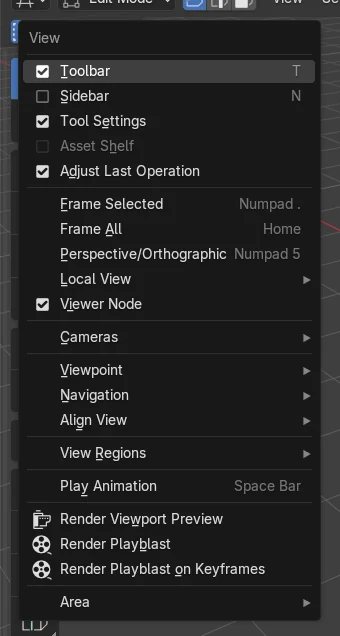
Open the Shading popover in the viewport header. Use the X-Ray checkbox under Options.
Select through
With X-Ray on, box select also picks hidden vertices.
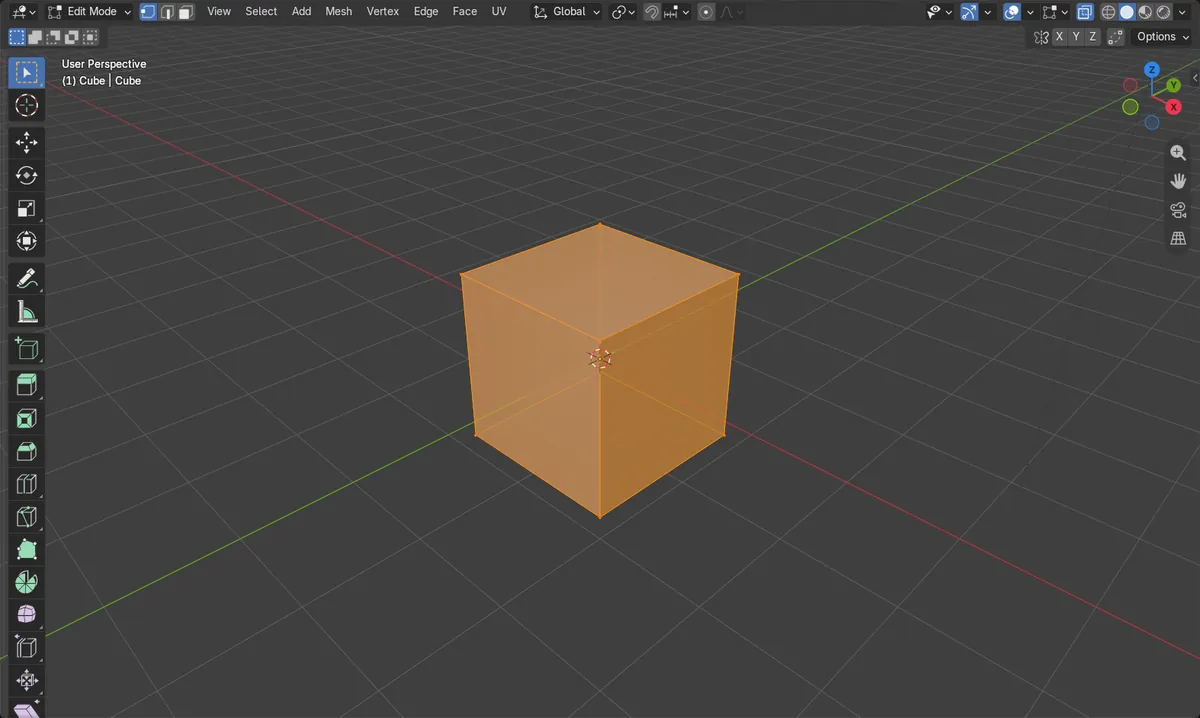
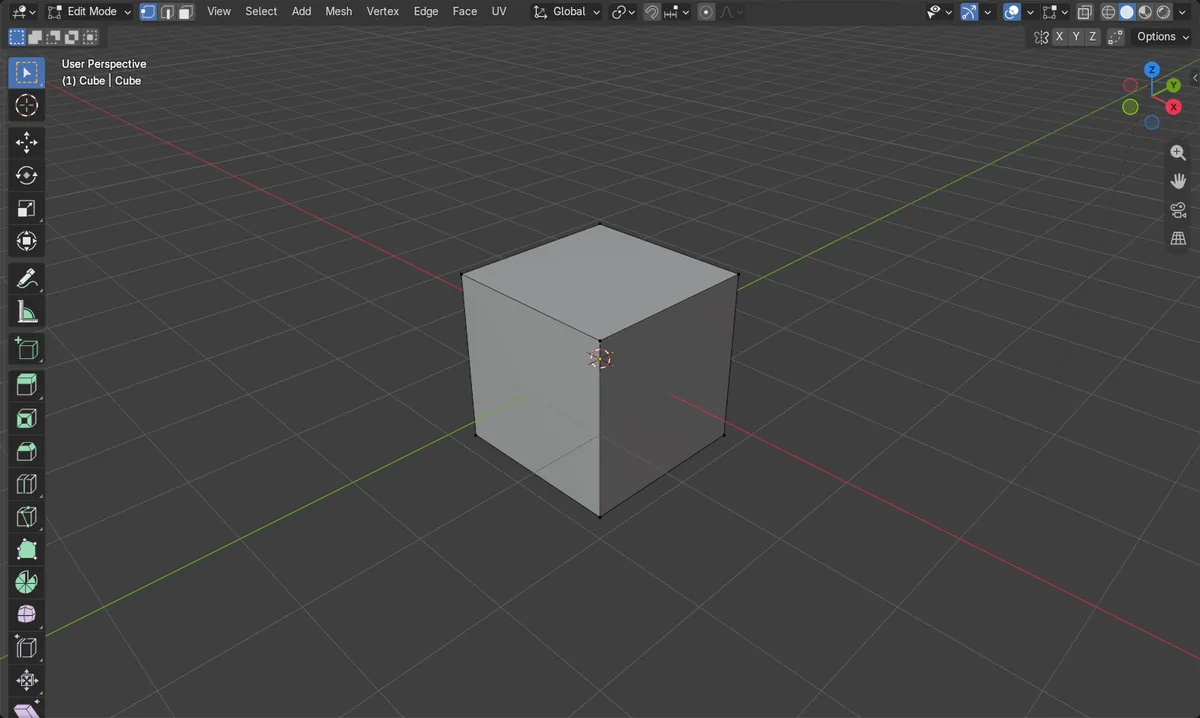
Before and after

AI Scene Builder is a Blender add-on. You type what you want, and it builds it in your scene: buildings, neon signs, wet pavement, fog and lights. Nothing in this picture was modeled by hand.
On a phone now? The add-on runs in Blender on a computer. Send yourself the link and open it there.
Step by step (Blender 5.x)
- Move the mouse over the 3D Viewport.
- Press Alt + Z to turn X-Ray on. The objects become transparent.
- Alternatively, open the Shading popover in the viewport header and, under Options, tick the X-Ray checkbox.
- In Edit Mode, drag a box selection. It now selects vertices, edges or faces behind the front surfaces as well.
- Press Alt + Z again to turn X-Ray off.
Other ways to do it
- Properties editor › Object tab › Viewport Display › In Front, to show only one object in front of others
Common snags
Nothing happens on Alt + Z
The mouse is probably over another editor. Move it over the 3D Viewport and press Alt + Z again.
Box select misses hidden vertices
Without X-Ray, box select only picks visible items. Turn X-Ray on first with Alt + Z, then draw the box.
Only one object should show through
X-Ray affects the whole viewport. To keep a single object in front, enable In Front under Object tab › Viewport Display.
Or type one line in AI Scene Builder
AI Scene Builder is a Blender add-on that carries out the steps for you from one typed request. For this task, type a request like this one, using your own object names:
Turn on X-Ray in the 3D viewport so I can see and select through objects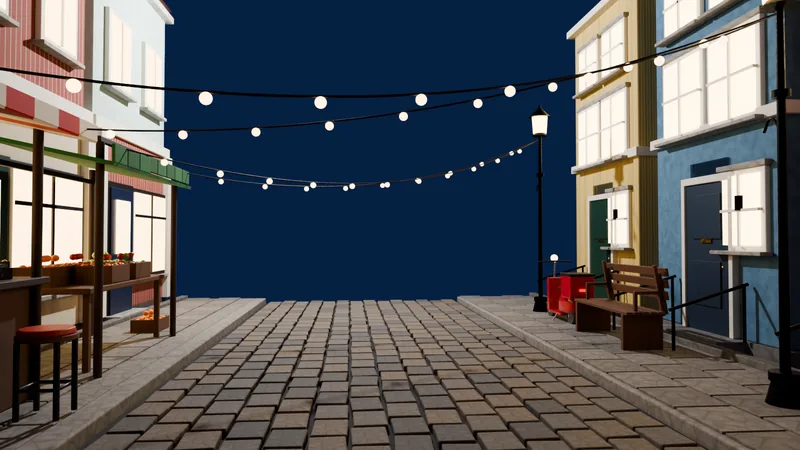 An evening market street built with the add-on from 11 typed requests. See every request →
Questions
What is the shortcut for X-Ray in Blender?
Alt + Z in the 3D Viewport toggles X-Ray. The operator is labelled Toggle X-Ray.
Does X-Ray let me select hidden geometry?
Yes. With X-Ray on, box selection picks items behind other surfaces too.
What the pictures show
- Before: X-Ray was off and 0 of the cube's 8 vertices were selected.
- After: X-Ray was on and the same box select selected all 8 of 8 vertices.
- The cube still had 8 vertices; only the display and selection changed.