Contents
To connect Claude or ChatGPT to Odoo, install an MCP server module in Odoo, copy its connector URL, and add that URL as a custom connector in Claude or ChatGPT; each user then signs in to Odoo once and presses Allow. From then on you can ask about customers, quotations, leads, stock and invoices in the chat you already use, and any change the AI wants to make waits in Odoo until a person approves it.
- Works with: Claude (web, desktop, mobile), ChatGPT, Claude Code and other MCP clients.
- Odoo versions: 17, 18, 19 and 20, Community and Enterprise.
- Safety: the AI sees only what the connected Odoo user may see, and writes nothing until someone presses Approve in Odoo.
Set it up in a few minutes
- Install MCP Server for Odoo (also for Odoo 19, 18 and 17). A new AI Connector menu appears.
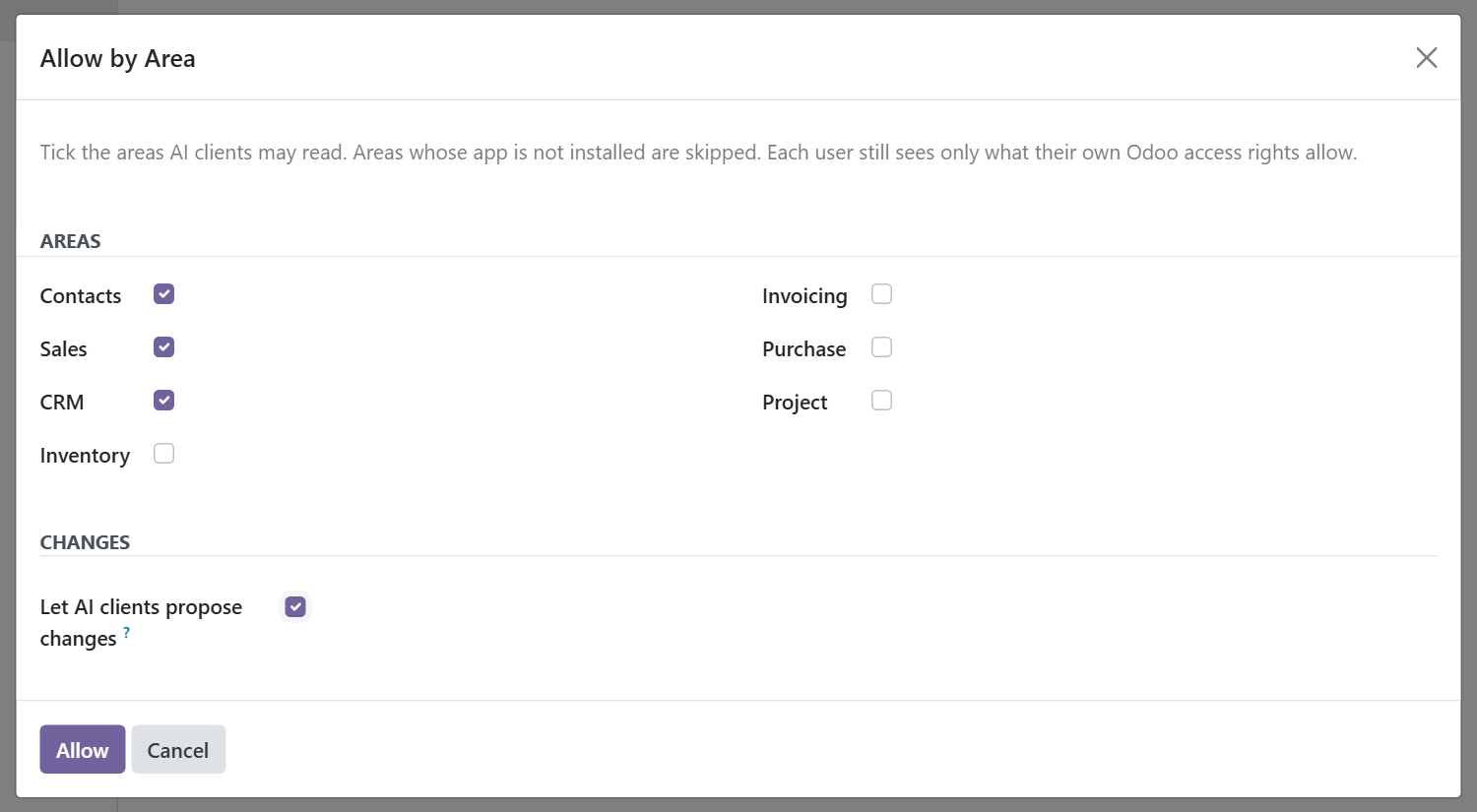
- Open AI Connector > Configuration > Allow by Area and tick the apps the AI may read: Contacts, Sales, CRM, Inventory, Invoicing, Purchase or Project. Tick Let AI clients propose changes if you want the AI to prepare edits.
- Open AI Connector > Configuration > Settings and copy the Connector URL.
- Claude: Settings > Connectors > Add custom connector, paste the URL, sign in to Odoo and press Allow.
ChatGPT: Settings > Connectors > Create, paste the URL as the MCP server address, choose OAuth, sign in to Odoo and press Allow.
Claude Code:claude mcp add --transport http odoo <Connector URL>. - Ask your first question, for example “Which quotations are still open for Gemini Furniture?”
What you can ask
- Look-ups: “List the customers in Germany without an email address.” The assistant reads your live database and answers in the chat.
- Totals: “How many leads did we win per month this year?” Odoo calculates sums, counts and averages on all your records, so the numbers match your reports.
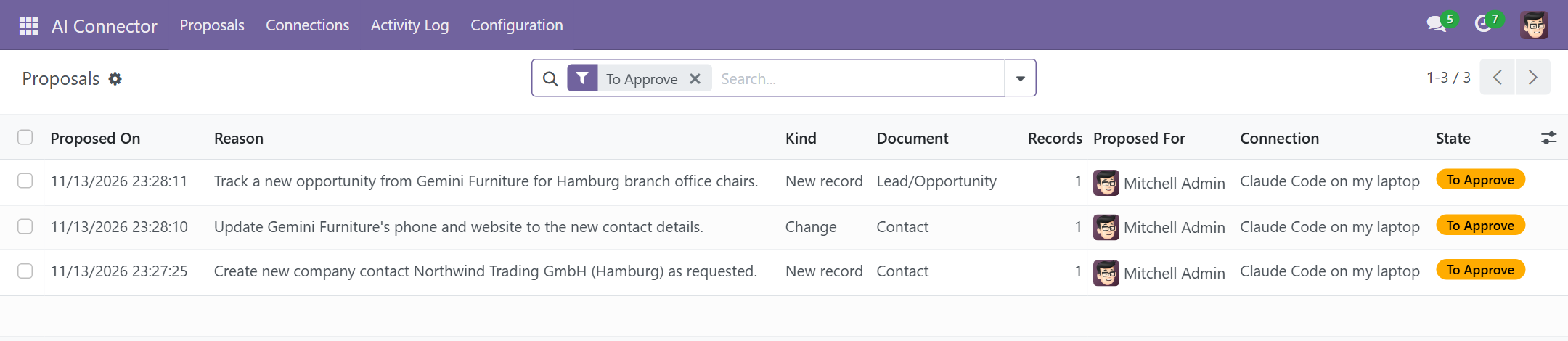
- Prepared work: “Add the contacts from this email”, “Draft a quotation for…”, “Correct this phone number.” The AI prepares the change as a proposal; nothing in Odoo changes yet.
Every change waits for a person
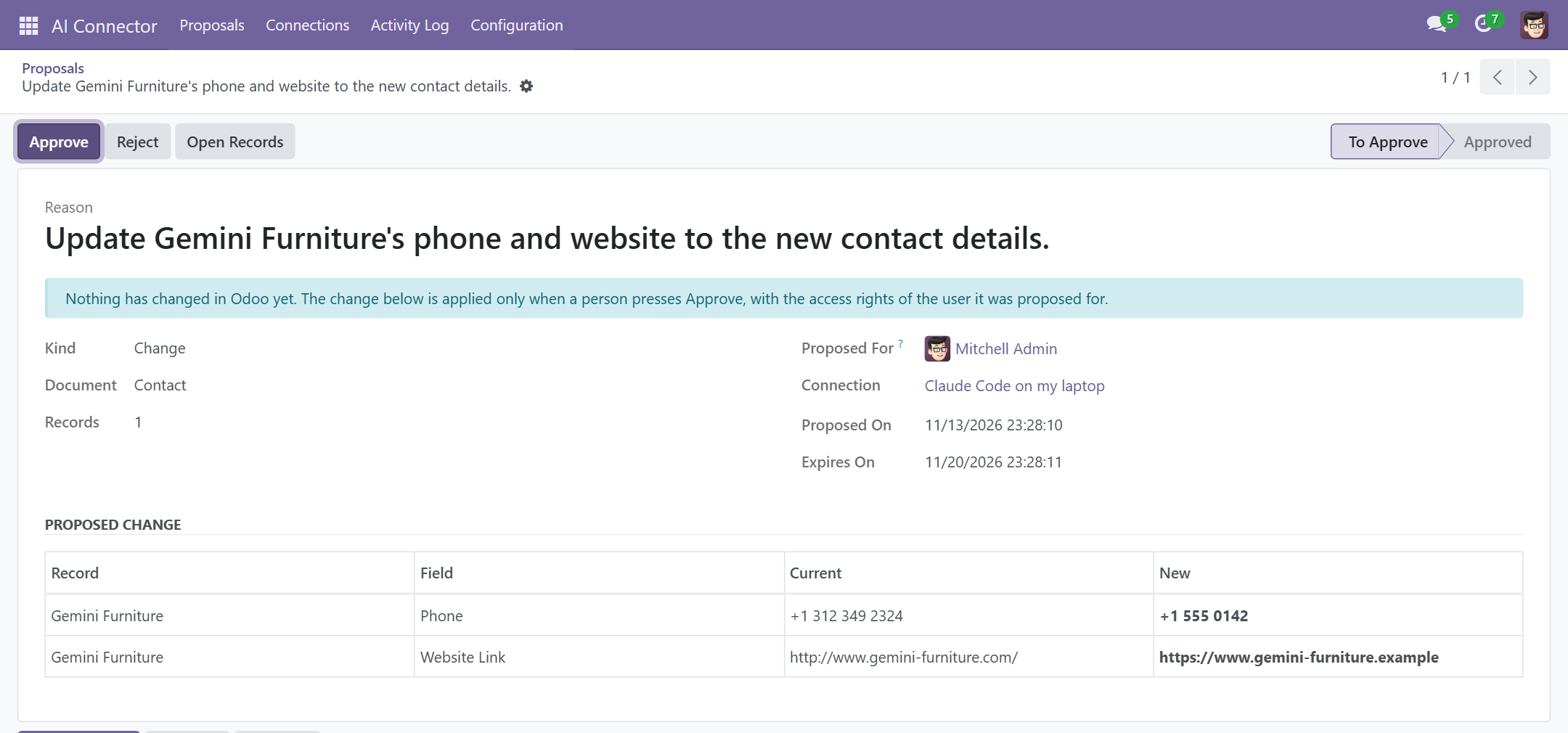
Each proposal shows the reason the AI gave, the records, and the current and new value of every field. A user with the Approve proposals right presses Approve or Reject inside Odoo. An approved change runs with the rights of the user it was proposed for and keeps who approved it and when. If the record was edited in Odoo after the AI proposed its change, the proposal is marked out of date so newer values are kept.
Who sees what
Every user connects as themselves, so the assistant follows the same access rights, record rules and companies as that user. Passwords, keys, tokens and file contents are left out of what the AI receives, and users and access rights are closed to proposals. An activity log lists every request with the connection, user, model and result, and you can disconnect any AI client in one click.
It is a one-time purchase on the Odoo Apps Store, with no subscription, and it works with the AI plan you already have. If you only want to hold changes made through an existing API key (scripts or other tools), see how to make AI agent changes in Odoo wait for approval.
Frequently asked questions
How do I connect Claude to Odoo?
Install an MCP server module such as MCP Server for Odoo, copy the Connector URL from its settings, and in Claude open Settings > Connectors > Add custom connector, paste the URL, sign in to Odoo and press Allow. It works on Odoo 17 to 20, Community and Enterprise.
Can ChatGPT read my Odoo data?
Yes, through an MCP server in Odoo. In ChatGPT open Settings > Connectors > Create, paste the Connector URL as the MCP server address, choose OAuth and sign in to Odoo. ChatGPT then sees only what that Odoo user may see.
Can the AI change records in Odoo by itself?
No. The AI reads and proposes; it cannot delete records. A creation or edit happens only when a user with the Approve proposals right presses Approve inside Odoo.
Related articles
 Tech logAI assistant for Odoo Community: ask your Odoo data in plain English with your own OpenAI, Claude or Gemini key (Odoo 20)Odoo 20 Community has no AI assistant that answers questions about your records. To ask "What were confirmed sales per month this year?" inside Odoo, you need an add-on that uses your own OpenAI, Claude, Gemini or Ollama key. What to check first: read-only, the asking user's rights, no SQL, and answers you can open in Odoo.
 Tech logStop salespeople changing the unit price and hide cost in Odoo 17 to 20Odoo Community (17 to 20) has no setting to make Unit Price read-only for salespeople or to hide the product cost from them: cost and margin are open to every internal user, and a field made read-only in the form view can still be changed by import or API. What standard Odoo offers, the free workarounds, and how to enforce the rule on the server.
 Tech logKPI dashboard for Odoo Community 20: shared dashboards from any list or pivot, where each user sees only their own numbersOn Odoo 20 Community you can view ready-made dashboards but not build your own or share one with your team. An add-on turns any list, pivot or graph into a number card or chart from the gear menu, and counts every card with the viewer's own access rights, so salespeople see only their own totals.
 Tech logMake AI agent changes in Odoo wait for approval (ChatGPT, Claude, MCP, n8n, Odoo 20)Odoo 20 has no approval step for API calls outside purchases: JSON-2, XML-RPC and JSON-RPC run the method as soon as the key is checked, and confirming an order or posting an invoice needs no more than ordinary Sales or Billing rights. What standard Odoo offers, free ways to limit an AI agent, and how to make its changes wait for a person.
 Tech logRead-only Odoo API key for ChatGPT, Claude or an MCP server (Odoo 20)In Odoo 20 Community the only scope a new API key can get is RPC, and a key acts with every right of its user: on 2026-10-09 the same key that read orders also confirmed them through /json/2/sale.order/action_confirm. The free way to limit an AI agent is a dedicated user; where that stops, and why an ordinary update from an agent can remove order lines.
 Tech logSeparate inventory adjustment gains and losses in Odoo 19 and 20 (Stock Valuation Account Incoming and Outgoing are gone)Odoo 19 and 20 have one Loss Account on the Inventory adjustment location, so counts that find stock and counts that lose stock both post there and the profit and loss shows only the net. What changed from Odoo 18, the debit and credit of each case, the manual workaround, and a Gain Account next to the Loss Account.