Contents
If your Shopify store has each color saved as its own product (for example Linen Shirt - Sand and Linen Shirt - Olive), you can show all colors as swatches on every one of those products without Shopify Plus and without merging them: link them with a swatch app, and each swatch opens that color's own product. Iromi Color Swatches, which we made at GRAMSHIFT, does this and is free for up to 3 swatch groups.
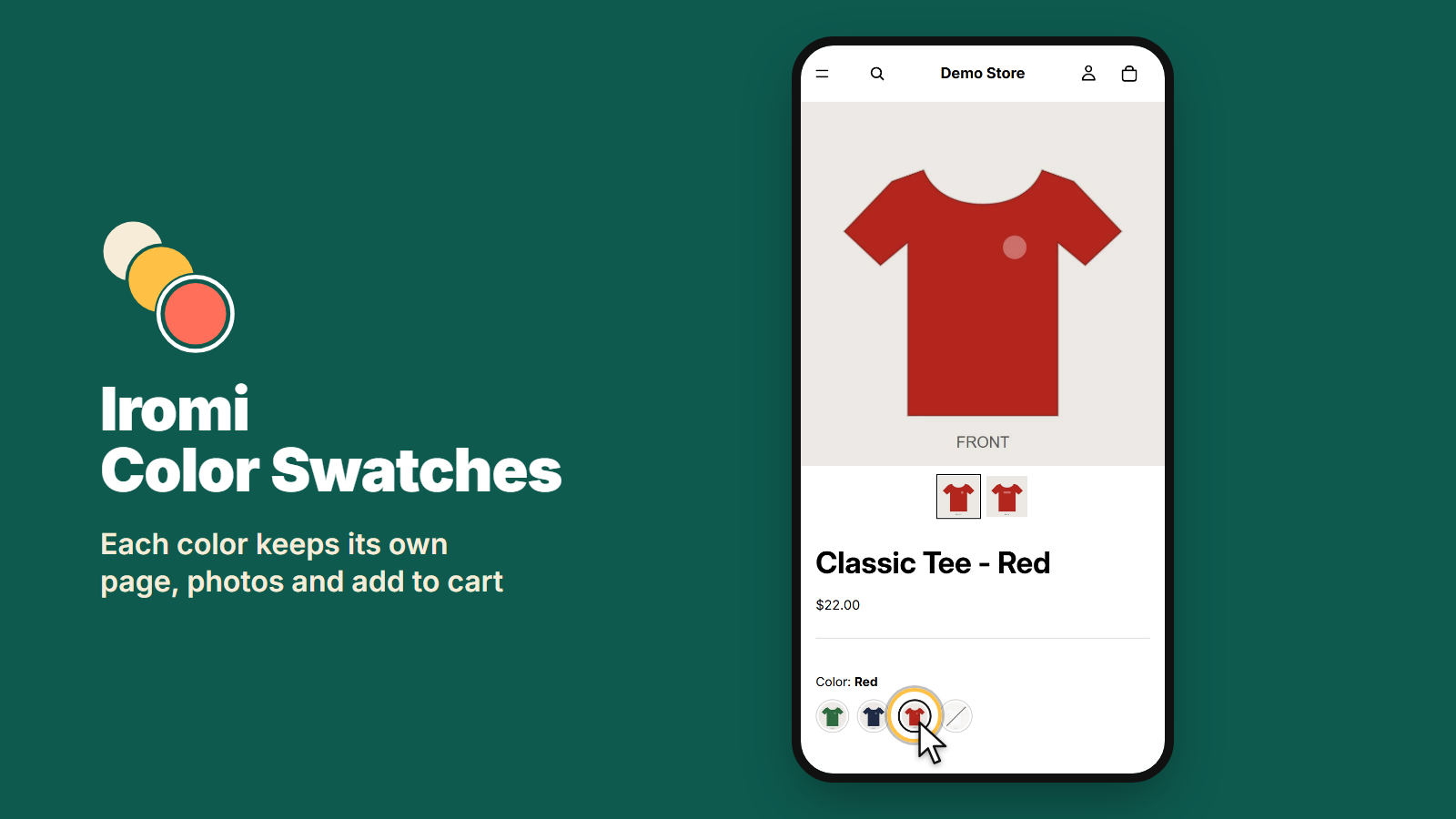
There are three ways to make separate color products look like one item. They differ in what happens to your URLs, photos, prices and the work you have to redo.
The three options at a glance
- Merge them into one product with a Color option. Works on every plan and needs no app. You rebuild the item by hand, and the old color products, with their URLs, reviews and sales history, have to be archived and redirected or kept alongside.
- Shopify's Combined Listings app. Groups separate products under one parent listing. It is a Shopify Plus feature, so it is not available on Basic, Shopify or Advanced.
- Keep separate products and link them with swatches. Works on any plan with the Online Store channel and an Online Store 2.0 theme. Nothing is merged: each color keeps its page, and the swatches connect them.
Option 1: merge into one product
This is the standard Shopify setup: one product, a Color option, and sizes as a second option. It is the right choice for a new item, or if your color products have little history. For an existing catalog it has costs:
- You re-enter each color as a variant, with its price, SKU, stock and images.
- If you archive or delete the old color products, their URLs need redirects, and their reviews and sales history stay with the old products (moving reviews depends on your review app).
- One product page shows every color, so a collection shows one card for the item instead of one per color.
Option 2: Combined Listings (Shopify Plus)
If you are on Shopify Plus, Shopify's own Combined Listings app is worth checking first: it links separate products under a parent listing that shoppers see as one item. On any other plan the app is not available, which is why stores on Basic, Shopify and Advanced look for another way.
Option 3: link separate products with color swatches
A swatch app leaves your products as they are and adds a row of color swatches that link them. With Iromi Color Swatches:
- On the product page, a row of swatches appears with the product details. The current color is marked, and tapping another color opens that color's product.
- The page that opens is the real product, so the price, sale price, photos, stock, sizes and Add to cart are those of the color the shopper picked. Nothing has to be kept in sync.
- On collection and search cards, small swatches appear under each product; hovering a swatch shows that color's photo.
- Sold-out colors are marked on their swatch, so shoppers see which colors are available.
- Prints and patterns can use the product photo as the swatch instead of a flat color.
- No theme code is edited. The swatches are a theme app block and an app embed that you add, move or switch off in the theme editor.
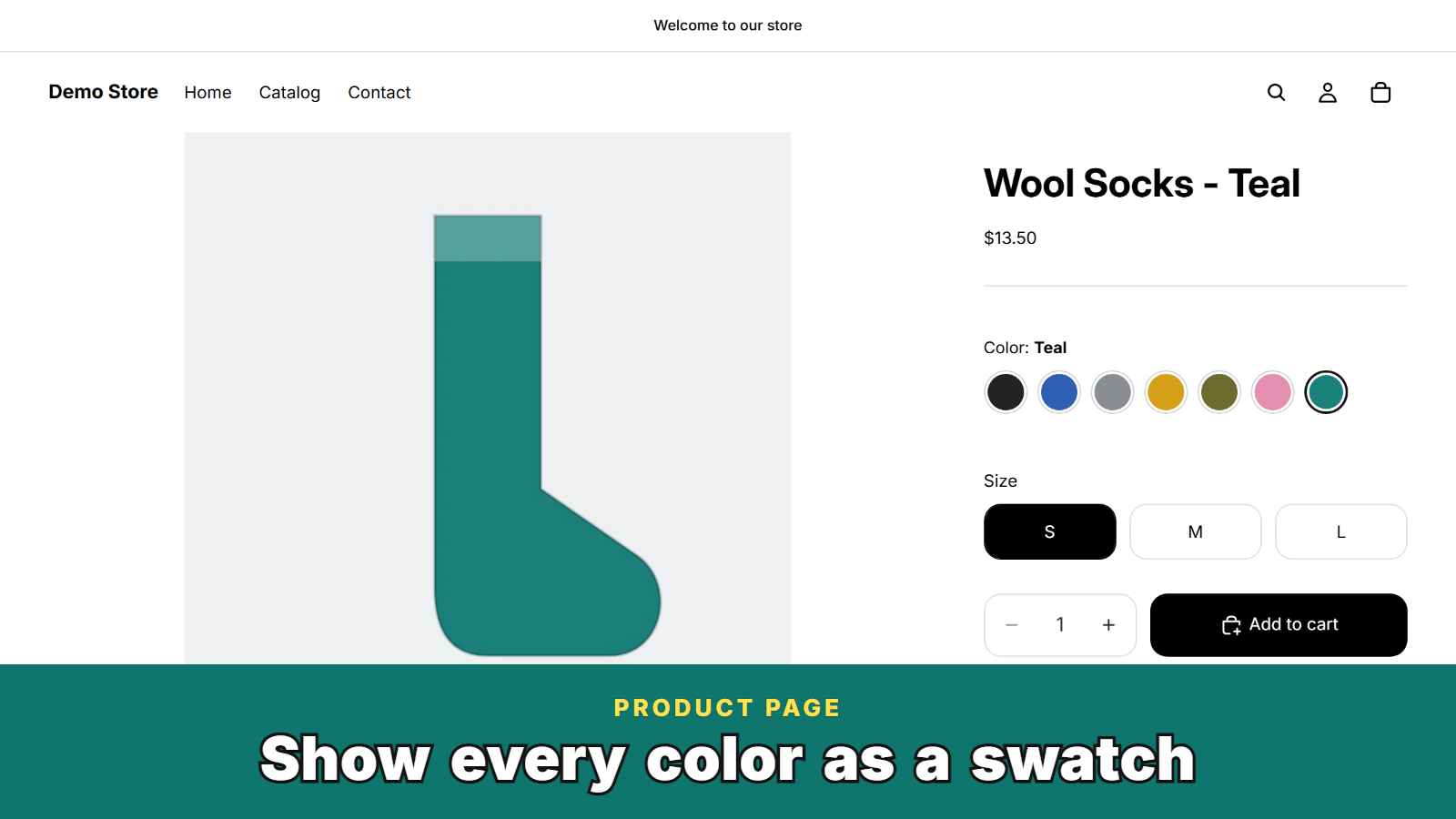
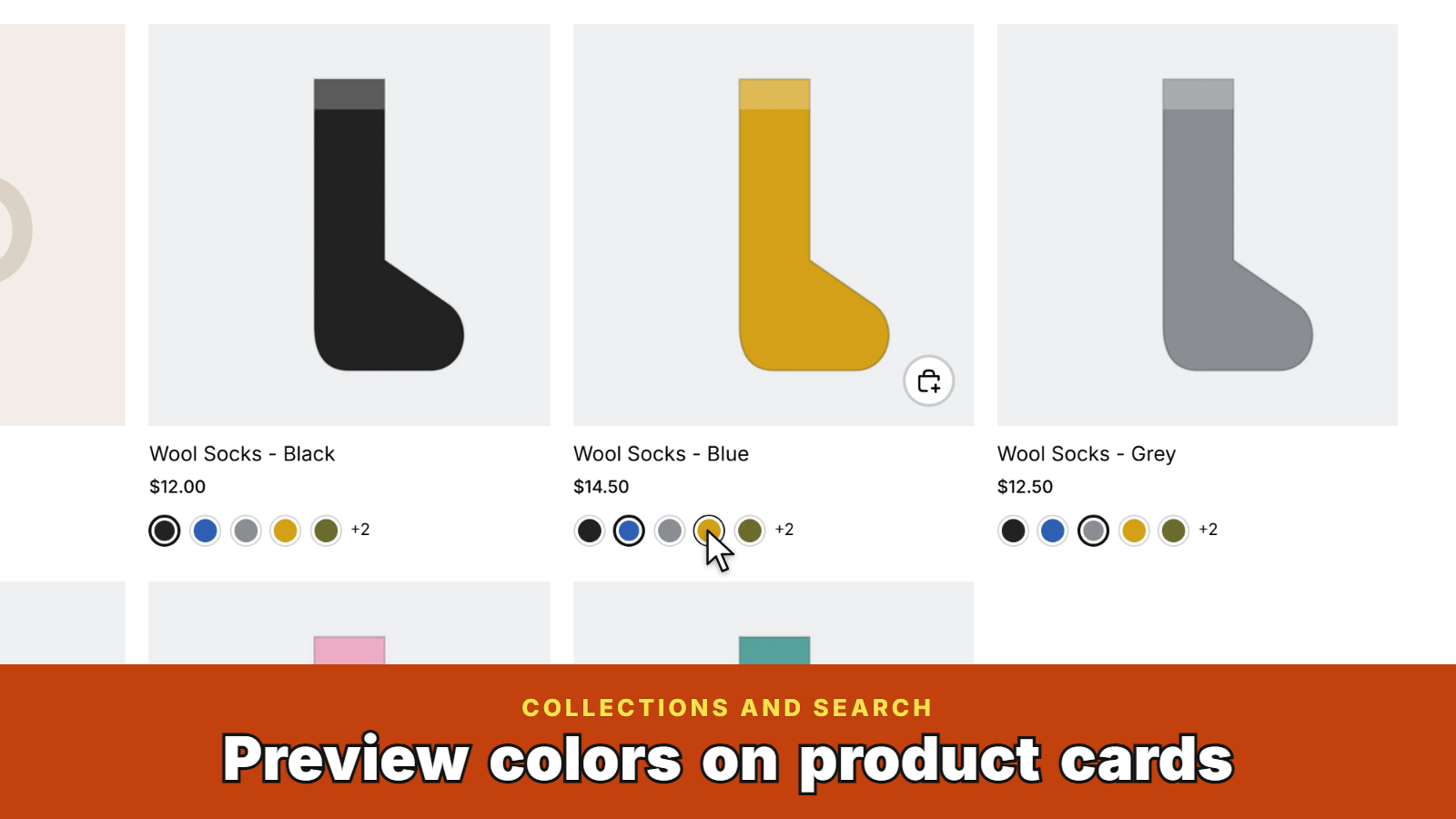
Each color also keeps its own URL, its own collection card and its own reviews, which is often the reason a store saved colors as separate products in the first place.
How to set it up
- Install Iromi Color Swatches from the Shopify App Store and open it.
- Click Create group, pick the products that are the same item in different colors, and give each a swatch name and color (or leave the color empty to use the product photo).
- Click Add to product page; the theme editor opens with the swatch block added. Click Save.
- Click Turn on card swatches to add swatches to collection and search cards. Click Save.
The Free plan covers up to 3 swatch groups with up to 50 products each. The Starter plan is $9.99 per month or $99.90 per year with a 7-day free trial and removes the group limit. Billing is on your Shopify invoice. Full setup steps and FAQ: Iromi Color Swatches guide.
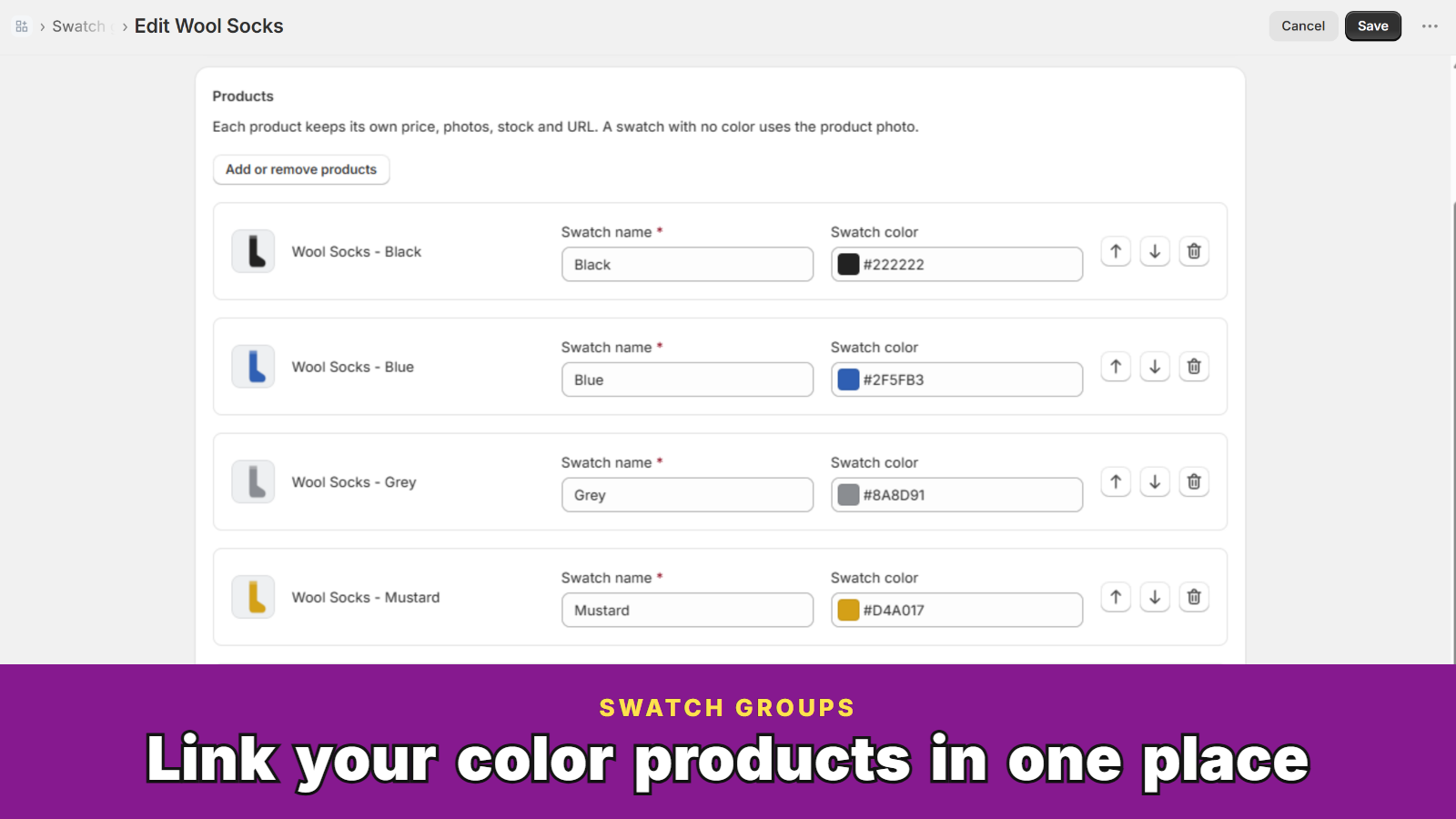
Which one to choose
- New item, or color products with no reviews or traffic yet: merge into one product.
- On Shopify Plus: try Combined Listings first.
- Not on Plus, and you want to keep each color's URL, photos and reviews: link the products with swatches.
Limits to know
- It needs the Online Store sales channel and an Online Store 2.0 theme that supports app blocks (tested on Dawn and Horizon).
- A product can belong to one swatch group at a time.
- The admin pages are in English; the swatch labels shoppers see come in 11 languages, including Japanese.
Questions or a theme where the swatches do not show: email contact@gramshift.com (English or Japanese).
Frequently asked questions
Can I use combined listings without Shopify Plus?
Shopify's Combined Listings app is a Shopify Plus feature. On other plans you can keep your separate color products and link them with color swatches using an app such as Iromi Color Swatches: each swatch opens that color's own product, with its own price, photos and stock.
How do I show separate color products as swatches in Shopify?
Install Iromi Color Swatches, click Create group, pick the products that are the same item in different colors, give each a swatch name and color, and save. Then click Add to product page and Turn on card swatches, and save in the theme editor.
Should I merge my color products into one product with variants instead?
Merging works on every plan and suits new items. For existing products it means re-entering each color as a variant, and if you then archive the old color products, their URLs need redirects and their reviews and sales history stay with them. Linking with swatches keeps all of that in place.
Does the price change when a shopper picks another color swatch?
Yes. The swatch opens that color's own product page, so the price, sale price, photos, stock and Add to cart are the ones of that color.
Is it free?
The Free plan covers up to 3 swatch groups with up to 50 products each. The Starter plan is $9.99 per month or $99.90 per year with a 7-day free trial and has no group limit.
Related articles
 Tech logSeparate inventory adjustment gains and losses in Odoo 19 and 20 (Stock Valuation Account Incoming and Outgoing are gone)Odoo 19 and 20 have one Loss Account on the Inventory adjustment location, so counts that find stock and counts that lose stock both post there and the profit and loss shows only the net. What changed from Odoo 18, the debit and credit of each case, the manual workaround, and a Gain Account next to the Loss Account.
 Tech logHow to add a search bar that shows products as you type on WixThe no-code way to show products as visitors type on Wix: install Live Product Search Bar and drag it into your header. Suggestions with photo, name and price appear from the first letter, small typos are forgiven, and new or deleted products are reflected for the next visitor.
 Tech logHow to let members delete their own account on Wix (and their contact, for GDPR)The no-code way to let Wix site members delete their own account: install Delete Member Account and place its Delete Account Button on your members' account page. Members see what will be deleted, confirm twice, and are logged out; you can have their contact deleted too. Also below: what Wix does on its own, and the code route.
 Tech logHow to approve Wix members automatically (and bulk approve pending members)The no-code way to approve Wix site members automatically: keep signups on "Only people I approve", install Member Approval Rules and add the addresses or, with Pro, the domain you expect. Listed people are approved once they confirm their email; everyone else waits in one list you can approve or block in bulk. Also below: what Wix does on its own, and the code route.
 Tech logHow to only allow business emails on a Wix form (block Gmail, Yahoo and disposable addresses)The no-code way to accept work addresses only on the Wix Forms form you already have: Business Email Only refuses Gmail, Yahoo, Outlook and other free email from many countries plus 9,226 disposable domains, with your message under the email field, partner exceptions and a test box. One form is free. Also below: what Wix Forms' own validations can do.
 Tech logKPI dashboard for Odoo Community 20: shared dashboards from any list or pivot, where each user sees only their own numbersOn Odoo 20 Community you can view ready-made dashboards but not build your own or share one with your team. An add-on turns any list, pivot or graph into a number card or chart from the gear menu, and counts every card with the viewer's own access rights, so salespeople see only their own totals.