Contents
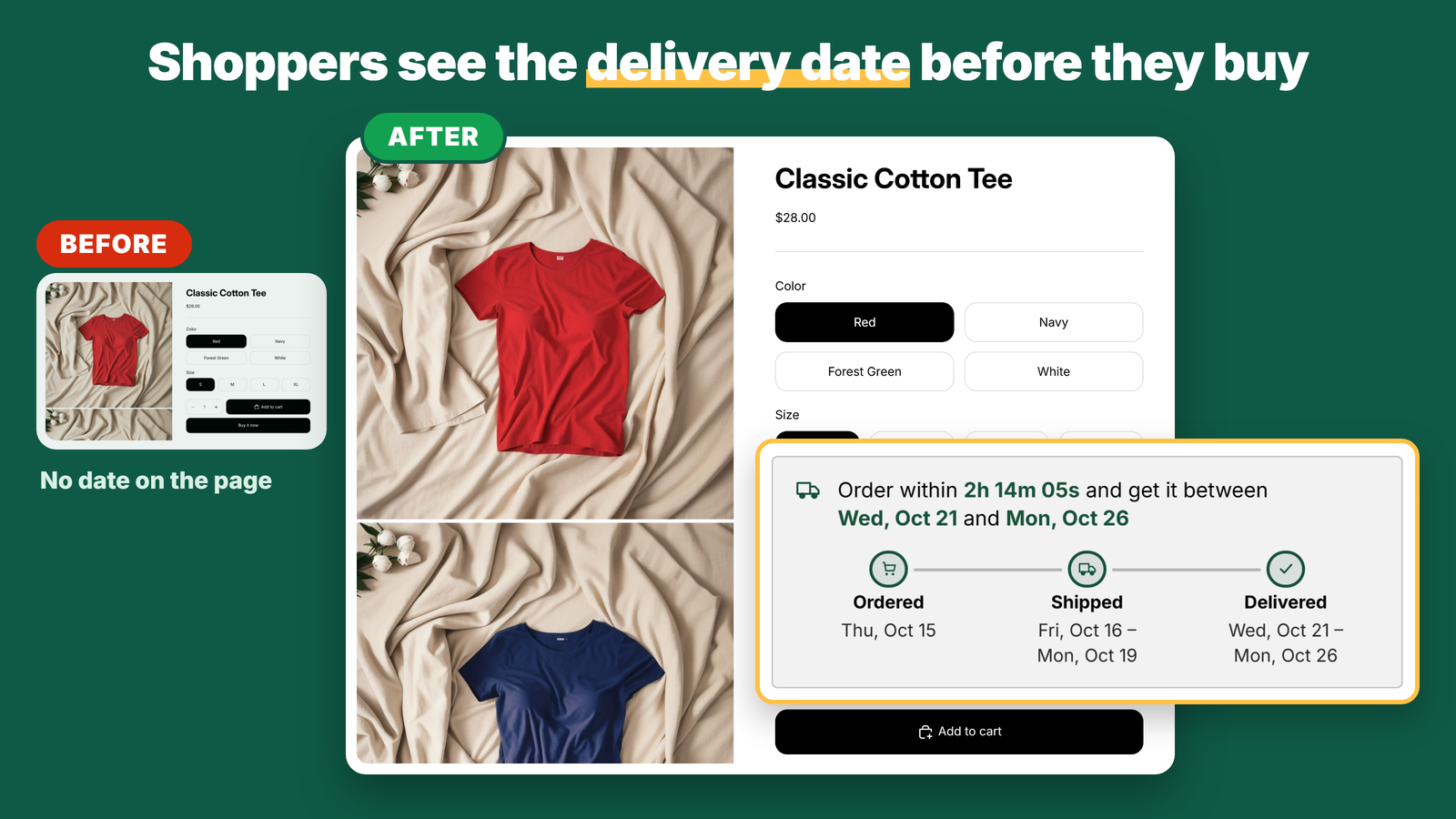
To show an estimated delivery date on a Shopify product page, use an app where you enter your processing time, shipping time and cut-off once, and it works out the arrival date for each shopper. Dateria Estimated Delivery, which we made at GRAMSHIFT, shows lines such as "Order within 2h 14m 05s and get it between Wed, Oct 21 and Mon, Oct 26", and the Free plan has no limit on page views or products. The date counts only your working days and skips your holidays.
What you set, and what shoppers see
The three ways, compared
1. Write it in the product description
"Ships in 3 to 5 days" is easy to add, but the shopper has to count the days, and the text never moves past weekends, holidays or your cut-off time.
2. Add code to the theme
A few lines of code can add days to today's date. Weekends, holidays, a cut-off time in your time zone, out-of-stock items and other languages each need more code, and theme updates can remove it.
3. Use an app
An app works out the date for each order time and adds the rest: countdown, holidays, languages and rules. Dateria does this inside your theme without code edits. Turn the app embed off and the product page is as before.
How the date is worked out
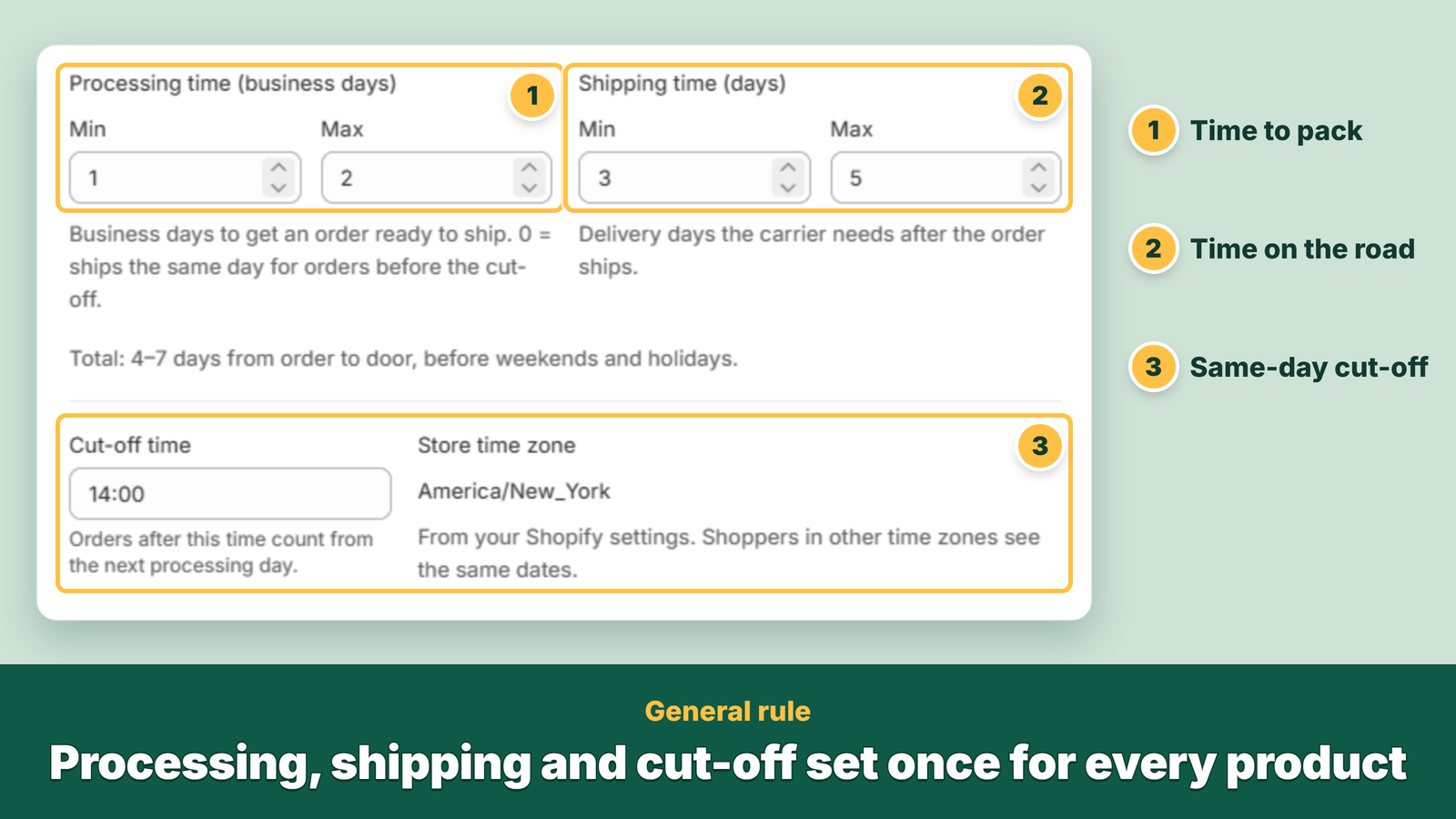
- Two steps, like a real shipment. Processing time (the business days you need to pack an order) plus shipping time (the days the carrier needs).
- Cut-off time. Orders after your cut-off, in your store's time zone, start the next processing day. Before the cut-off, the page shows a countdown.
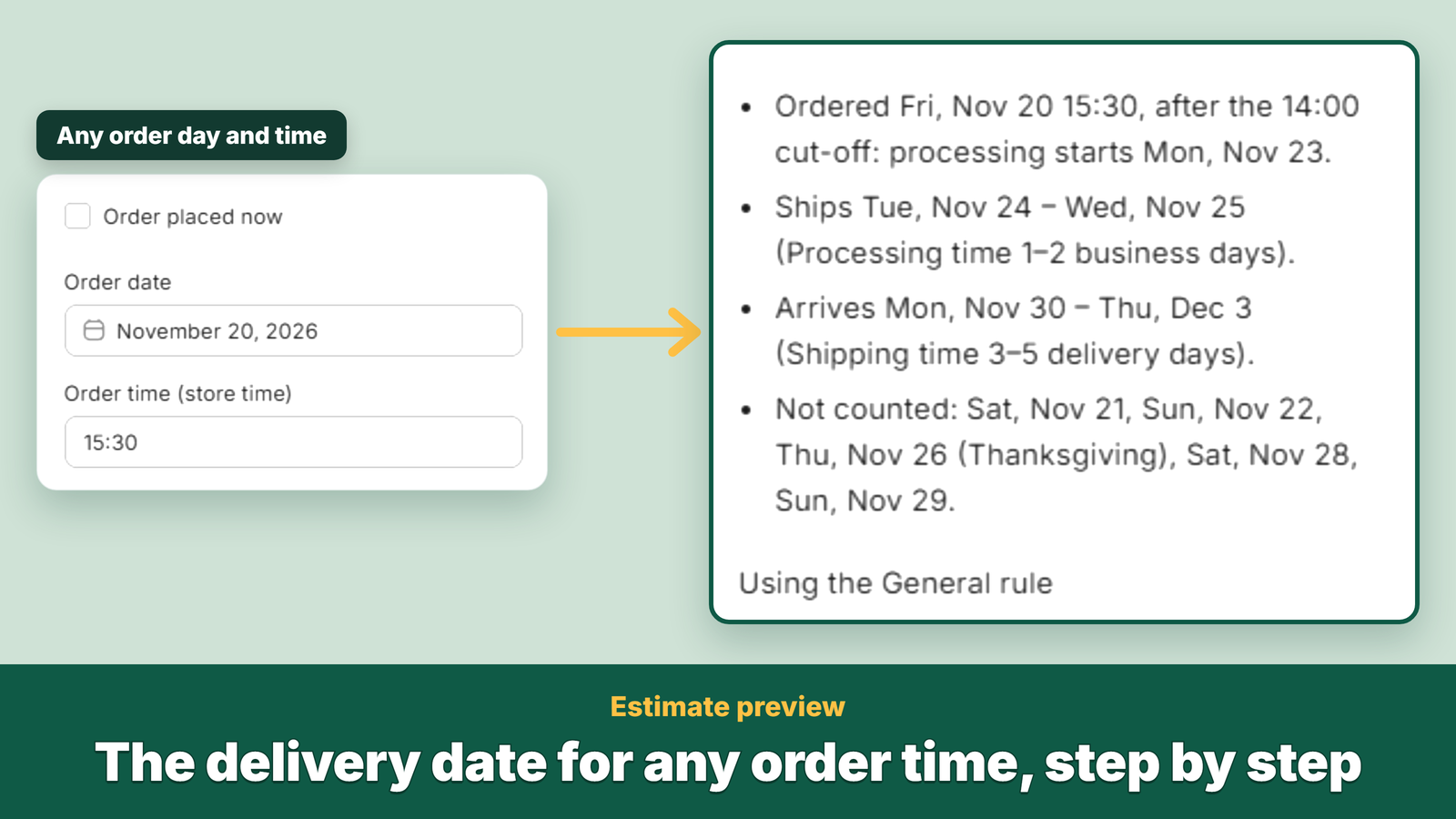
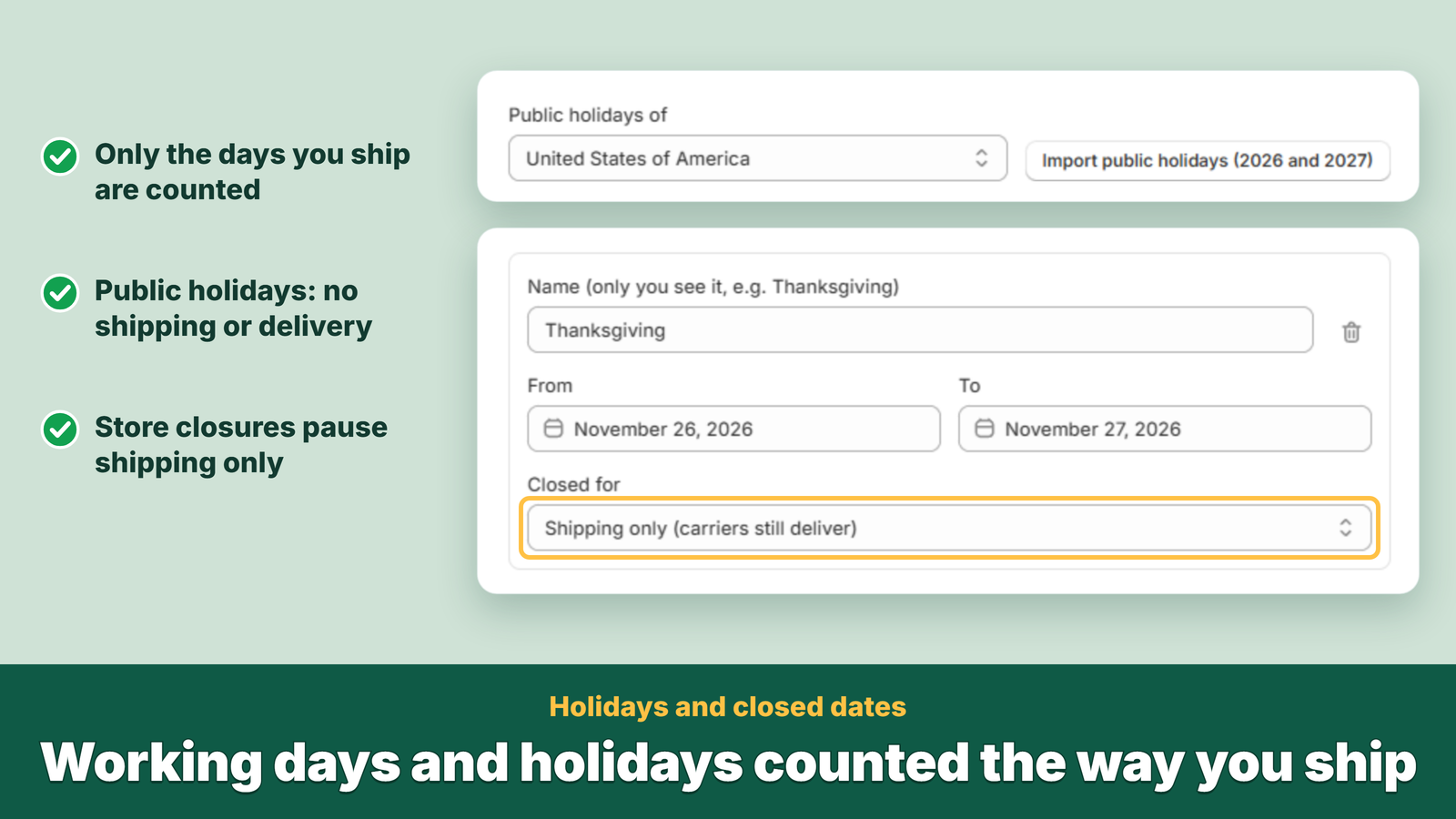
- Your days, not every day. Choose the days you ship and the days carriers deliver separately. Public holidays are skipped by both counts, and a day when only your store is closed, such as a summer break, stops shipping while carriers can still deliver.
- Holidays in one click. Import a country's public holidays for this year and next, and remove any day before saving.
- Out of stock. For a variant that is out of stock but still for sale, hide the date, add extra days or show a different message.
- In the shopper's language. Weekday and month names follow the language of the store page, and you can translate the message.
How to set it up
- Install Dateria Estimated Delivery from the Shopify App Store. The app opens on Home with four steps.
- Enter your processing time, shipping time and cut-off time, then your processing days, delivery days and holidays. Try a Friday evening order in the preview, then click Save.
- Pick a look in Design (text line, timeline or box) and check the message in your store's language.
- Click Enable app embed. The theme editor opens with Delivery estimate switched on. Click Save.
- Switch on Show on store and open a product page. Nothing shows on your store until you do this.
The Free plan covers every product page with no limit on page views or products, including cut-off time, working days and holidays, 3 rules and the estimate on cart lines and orders. Pro is $9.99 per month or $99.90 per year with a 7-day free trial and adds unlimited rules, rules by the shopper's country, rules that run on set dates, and CSV export and import of rules. Full steps and FAQ: Dateria Estimated Delivery guide.
Limits to know
- The date is an estimate from the times you enter, and carriers can be late. Keep your shipping time to what your carriers really take.
- Shopify's own "Deliver by" date at checkout is counted separately. Enter the same shipping days in your Shopify shipping settings and place one test order to compare.
- Collection pages and the home page are not covered.
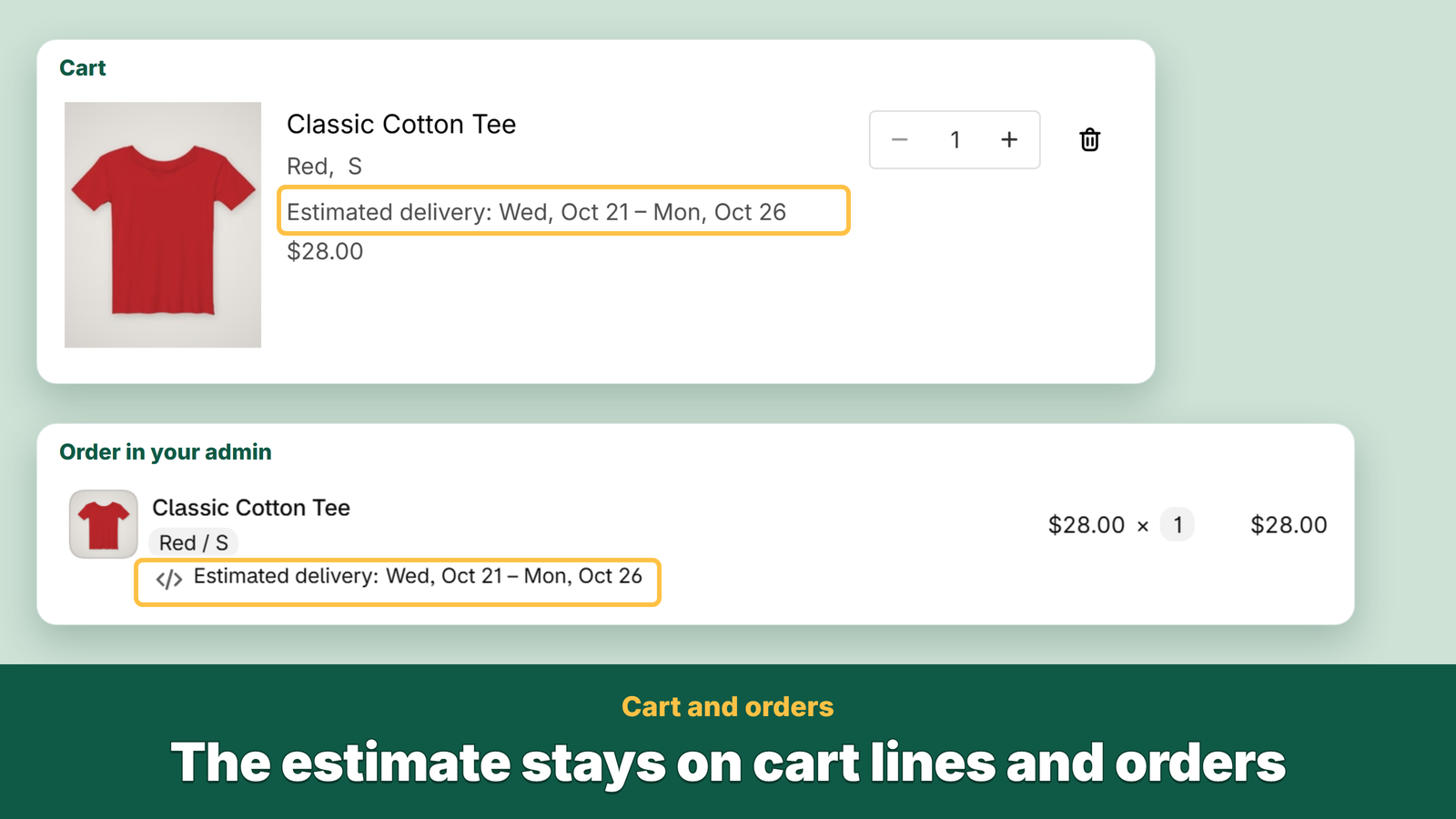
- Checkout and the thank-you page are not changed by the app. The estimate reaches the order through the cart line.
- Cart dates are brought up to date when the shopper opens any page of your store. A shopper who goes straight to checkout from a link, such as an abandoned checkout email, keeps the dates from their last visit.
Questions, or a theme where the date does not show: email contact@gramshift.com (English or Japanese).
Frequently asked questions
How do I show an estimated delivery date on my Shopify product page?
Install Dateria Estimated Delivery, enter your processing time, shipping time and cut-off time, and switch on Show on store. The date appears above the Add to cart button, or wherever you place the Delivery estimate block.
Can the delivery date skip weekends and holidays?
Yes. Choose the days you ship and the days carriers deliver, and add your public holidays and the dates your store is closed. Skipped days are shown in the preview.
How does the cut-off time work?
Orders placed after the cut-off time, in your store's time zone, start processing on the next processing day. Before the cut-off, shoppers see a countdown such as "Order within 2h 14m 05s".
Can I show different delivery times for different products or countries?
Yes. Free includes 3 rules by collection, tag, vendor, product type or product. Pro has no limit on rules and adds rules by the shopper's country.
Is there a limit on page views or products?
No. Free and Pro show the date on every product page, with no limit on page views or products.
Related articles
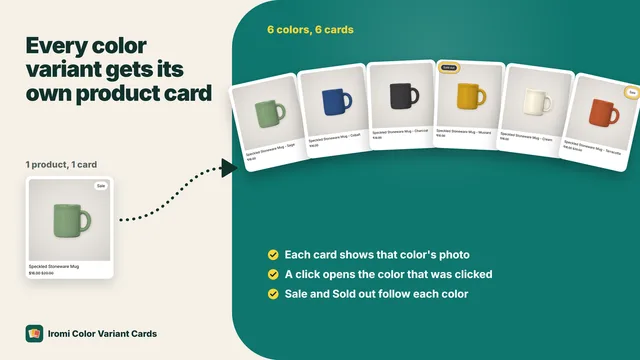 Tech logHow to show variants as separate products on Shopify collection pagesShopify themes show one card per product, so a tee sold in five colors appears once. You can show a card per color without duplicating products or editing theme code. Here are the three ways and what goes wrong with each.
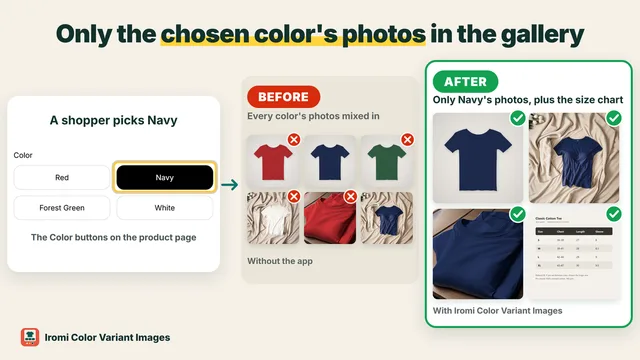 Tech logShopify multiple images per variant: show only the selected color's photosShopify gives each variant one variant image, so back, close-up and on-model photos show for every color. Here are the three ways to show only the selected color's photos, and what goes wrong with each.
 Tech logShopify color swatches for separate products, without Shopify PlusIf each color of an item is its own Shopify product, you can show all colors as swatches on each of those products without Shopify Plus and without merging them. Here are the three options and what each one does to your URLs, photos, prices and reviews.
 Tech logSeparate inventory adjustment gains and losses in Odoo 19 and 20 (Stock Valuation Account Incoming and Outgoing are gone)Odoo 19 and 20 have one Loss Account on the Inventory adjustment location, so counts that find stock and counts that lose stock both post there and the profit and loss shows only the net. What changed from Odoo 18, the debit and credit of each case, the manual workaround, and a Gain Account next to the Loss Account.
 Tech logHow to add a search bar that shows products as you type on WixThe no-code way to show products as visitors type on Wix: install Live Product Search Bar and drag it into your header. Suggestions with photo, name and price appear from the first letter, small typos are forgiven, and new or deleted products are reflected for the next visitor.
 Tech logHow to let members delete their own account on Wix (and their contact, for GDPR)The no-code way to let Wix site members delete their own account: install Delete Member Account and place its Delete Account Button on your members' account page. Members see what will be deleted, confirm twice, and are logged out; you can have their contact deleted too. Also below: what Wix does on its own, and the code route.