Contents
- What a shopper gets with one card per color
- Why themes show one card per product
- The three ways, and what goes wrong with each
- 1. Edit the theme code
- 2. Create a separate product for every color
- 3. Use an app that splits products into color cards
- How Iromi Color Variant Cards handles those
- How to set it up
- Limits to know
- Frequently asked questions
To show each color variant as its own product card on a Shopify collection page, use an app that splits the card by color, so the product stays one product in your admin and no theme code changes. Iromi Color Variant Cards, which we made at GRAMSHIFT, does this and is free for 1 collection. Editing your theme code or creating a separate product per color can also do it, with the drawbacks below.
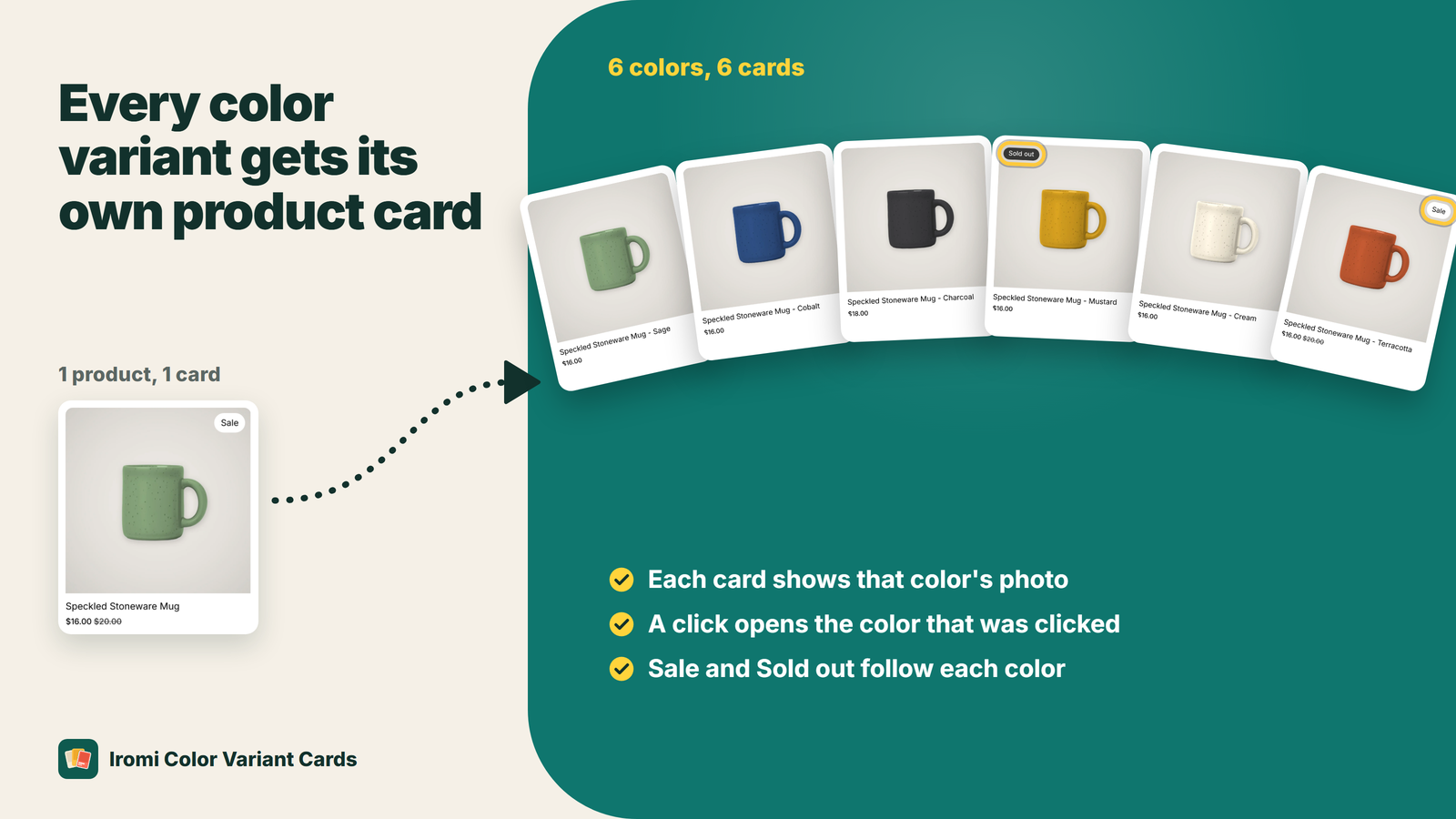
What a shopper gets with one card per color
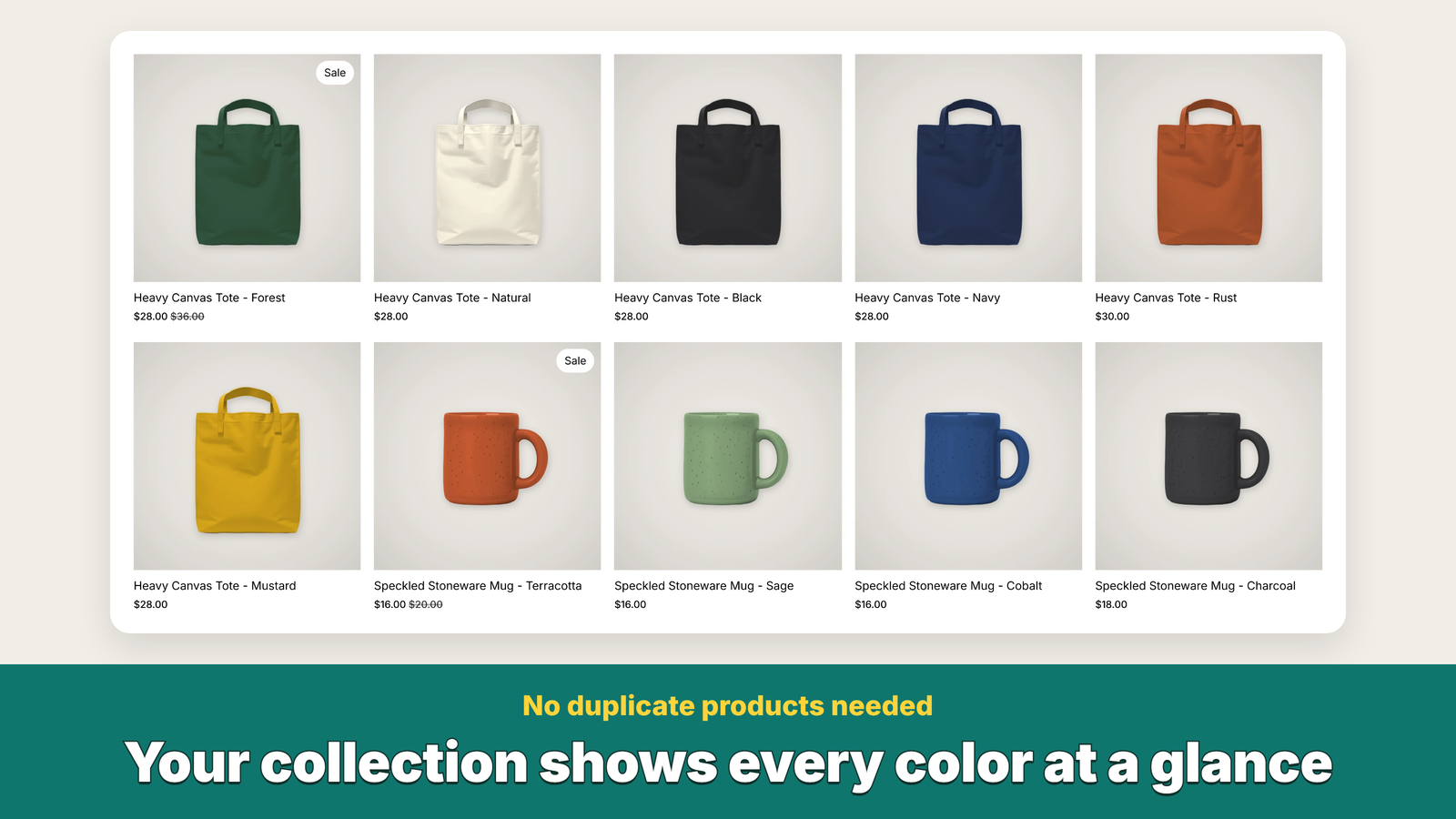
Why themes show one card per product
A collection page lists products, so a T-shirt sold in red, blue and black appears once, with one photo. A shopper looking for green has to guess that the product comes in green and open it to find out.
The three ways, and what goes wrong with each
1. Edit the theme code
A developer changes the product card loop in your theme so it outputs one card per color.
- Filters and counts stop matching. Collection filters and product counts work per product, so a hand-made loop has to re-check every filter for each color.
- Theme updates overwrite it. When you update or switch themes, the custom code is gone or conflicts with the new version.
2. Create a separate product for every color
You duplicate the product: Classic Tee - Red, Classic Tee - Blue and so on.
- More work and split stock. Every price change, description edit and stock count has to be done on each copy.
- Near-duplicate pages. Several pages with the same description can compete with each other in search results.
- Reviews and sales history are split across the copies, and the product page no longer offers the other colors unless you link the products together.
If your store already works this way, you do not have to merge: here is how to link separate color products with swatches.
3. Use an app that splits products into color cards
The product stays one product in your admin, and the storefront shows a card per color. Apps differ in the details, so check these before you install one:
- Does it edit your theme files, or work through an app embed you can switch off?
- Can it split by color only, so sizes stay inside the card?
- Does each card show that color's photo, price and stock, not the first variant's?
- Do your filters, sorting and pagination still work?
- What is left after you uninstall it?
How Iromi Color Variant Cards handles those
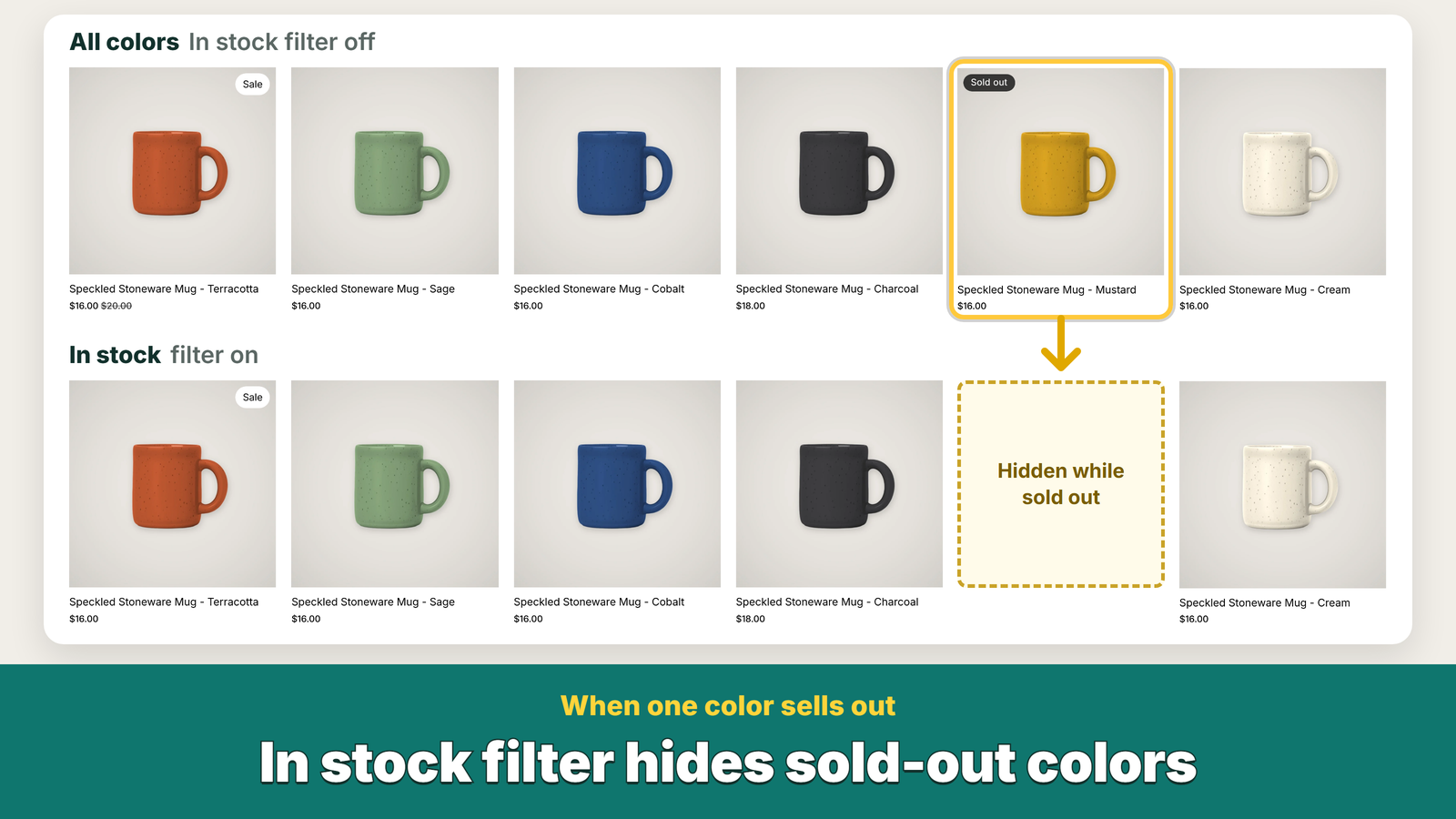
- Each card is that color. It shows that color's own photo and price, and a Sold out label when that color is sold out, even if other colors are in stock. The Sale label is hidden on colors that are not on sale.
- Sizes stay inside the card. A tee in 3 colors and 4 sizes becomes 3 cards, not 12. You can split by another option instead, such as Material or Pattern.
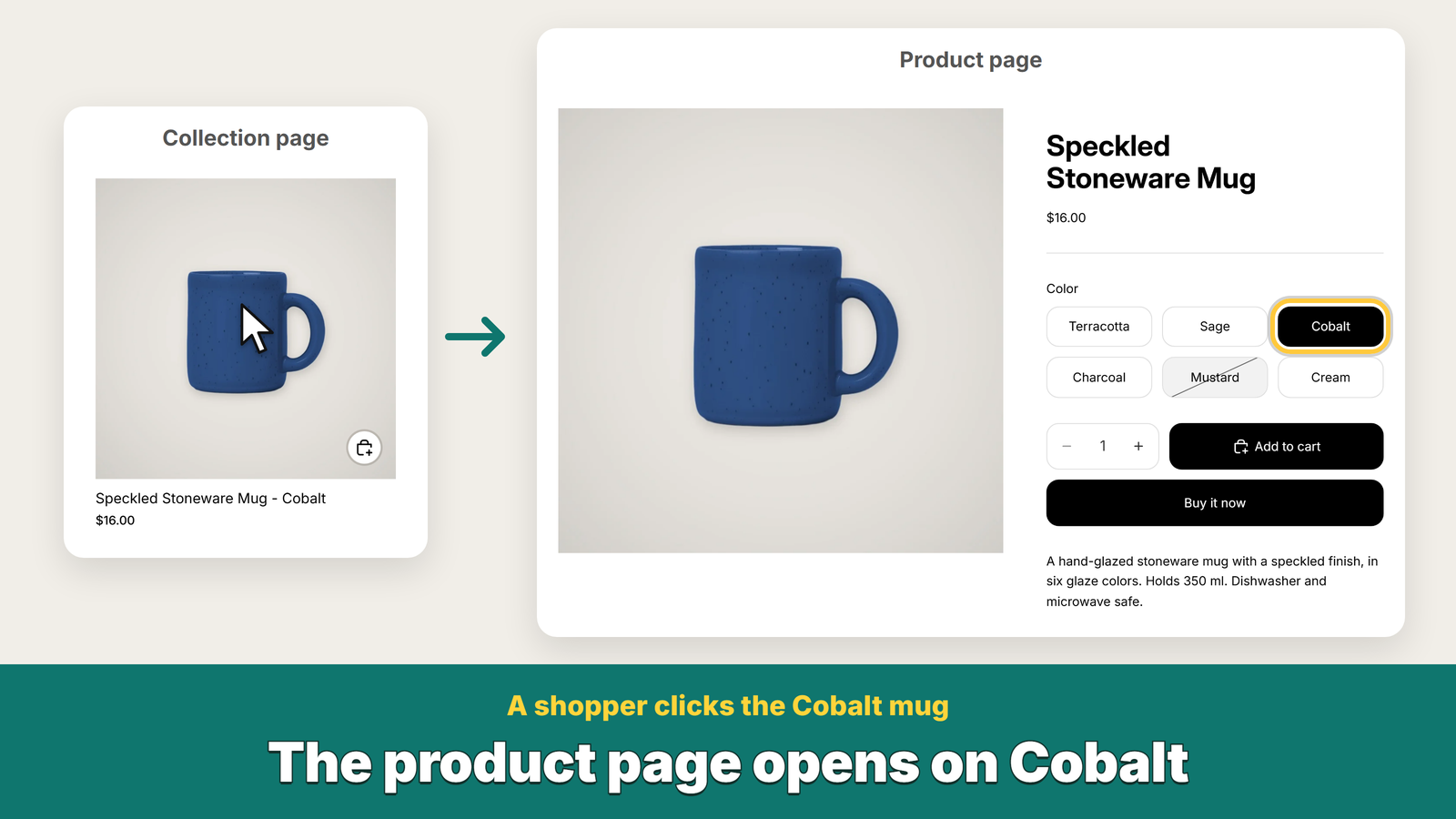
- Quick add adds that color. On Horizon, quick add on the Red card opens with Red selected, and the cart holds the red one.
- Filters and sorting keep working. Filter by Red and you see the red cards. Filter by Size M and In stock and you see the colors that have M in stock. Your theme's pages stay too, and each page holds more cards than before.
- No theme code is edited. Switch the app embed off, or uninstall the app, and your theme shows one card per product again, exactly as before.
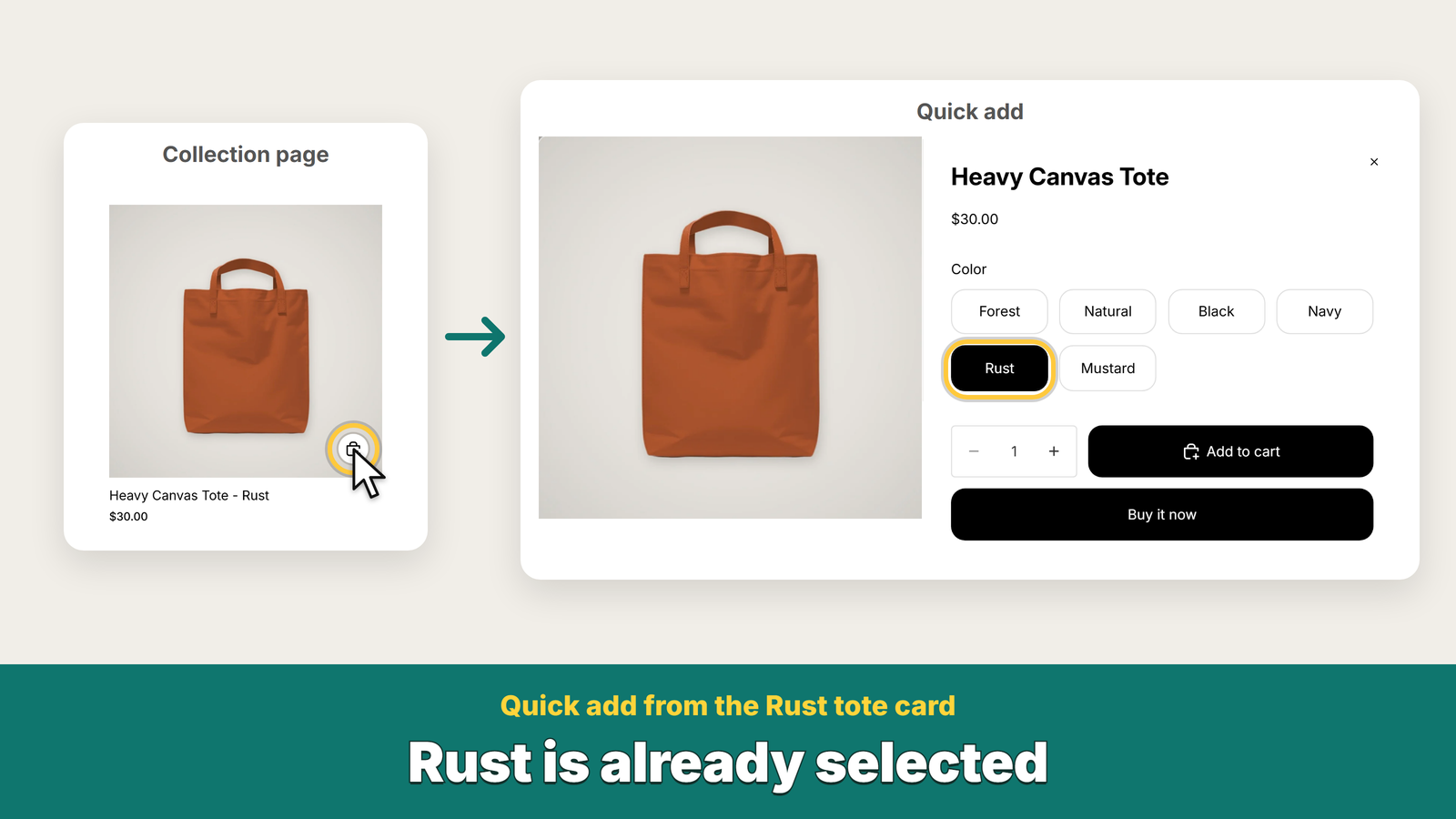
How to set it up
- Install Iromi Color Variant Cards from the Shopify App Store.
- In the app, click Turn on in theme. The theme editor opens with Variant cards switched on under App embeds. Click Save.
- Tick the option to split by (Color is suggested).
- Choose the collections that show color cards, click Save, then open the collection in your store.
Give each color its own variant image in the product admin, so every card shows the right photo. The Free plan shows color cards in 1 collection of your choice. Pro is $14.99 per month or $149.90 per year with a 7-day free trial and covers every collection (or all except the ones you choose) plus the search results page. Billing is on your Shopify invoice, so uninstalling the app ends the charge. Full steps and FAQ: Iromi Color Variant Cards guide.
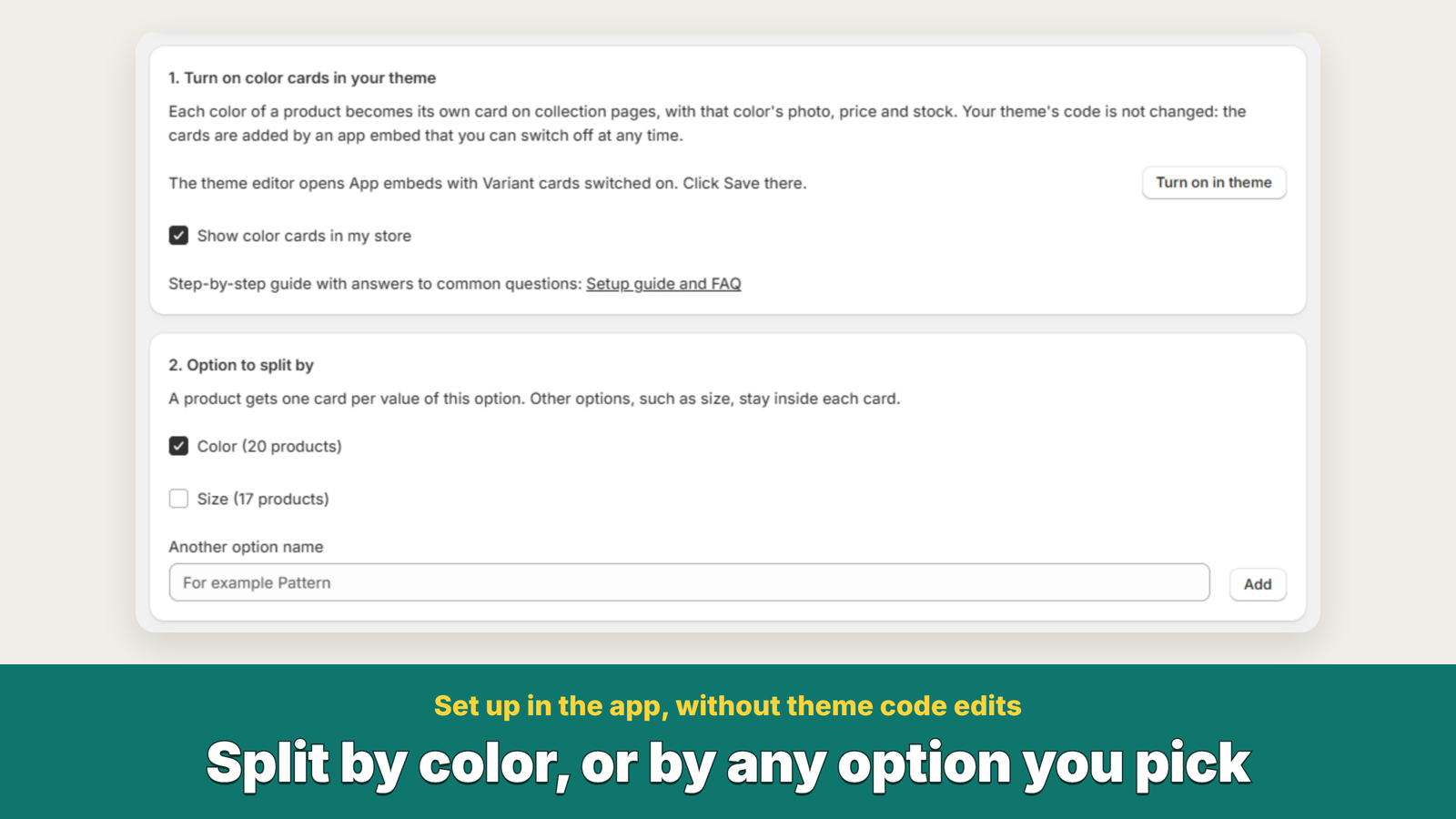
Limits to know
- Color cards appear on the collection pages you choose and, on Pro, the search results page. Home page featured collections, product recommendations, recently viewed products and the search suggestions box keep one card per product.
- It was tested on Horizon, Shopify's current default theme, and a Dawn-style Online Store 2.0 theme. Themes with very different product cards may not be picked up, and infinite scroll and load-more layouts have not been tested yet.
- The number of cards per page depends on how many colors each product has.
- A color without its own variant image has no photo of its own on its card.
- The struck-through compare-at price follows your theme's card, which prints it for the product's first color in stock. If only a later color is on sale, its card shows its own price without the strike-through.
- With a color filter built from the category color metafield, Shopify still filters the products, but each product keeps all of its color cards.
- Products with more than 250 variants show color cards for their first 250 variants.
Showing several photos per color on the product page is a different problem: how to show only the selected color's images.
Questions, or a theme where the cards do not show: email contact@gramshift.com (English or Japanese).
Frequently asked questions
How do I show each color of a product as a separate card on my Shopify collection page?
Install Iromi Color Variant Cards, turn on its app embed in the theme editor, choose the option to split by (Color is suggested) and the collections to use, then click Save. Each product then shows one card per color, with that color's photo, price and stock.
Do I need to duplicate products or edit my theme code?
No. Your products stay as they are: one product with its color and size variants. The cards come from an app embed, so no theme file is edited. Switch the embed off, or uninstall the app, and your theme shows one card per product again.
Will my collection filters, sorting and pagination still work?
Yes for filters made from your product options, and for the availability and price filters: filter by Red and you see the red cards. Sorting works, and your theme pages stay, with more cards on each page than before. Infinite scroll and load-more layouts have not been tested yet.
What happens to sizes and other options?
They stay inside each card. A tee in 3 colors and 4 sizes becomes 3 cards, not 12. You can also split by another option instead of color, such as Material or Pattern.
Is it free?
The Free plan shows color cards in 1 collection of your choice. Pro is $14.99 per month or $149.90 per year with a 7-day free trial and covers every collection plus the search results page.
Related articles
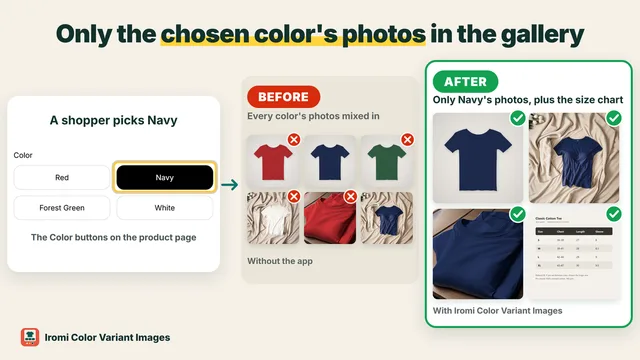 Tech logShopify multiple images per variant: show only the selected color's photosShopify gives each variant one variant image, so back, close-up and on-model photos show for every color. Here are the three ways to show only the selected color's photos, and what goes wrong with each.
 Tech logShopify color swatches for separate products, without Shopify PlusIf each color of an item is its own Shopify product, you can show all colors as swatches on each of those products without Shopify Plus and without merging them. Here are the three options and what each one does to your URLs, photos, prices and reviews.
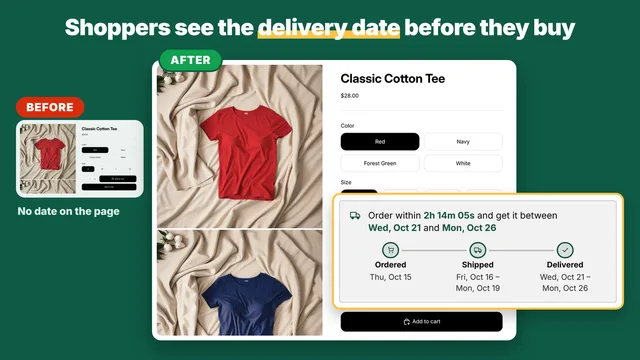 Tech logHow to show an estimated delivery date on a Shopify product pageA line like "ships in 3 to 5 days" leaves the shopper counting. Here are three ways to show a real delivery date on your Shopify product page, and how each handles weekends, holidays and your cut-off time.
 Tech logSeparate inventory adjustment gains and losses in Odoo 19 and 20 (Stock Valuation Account Incoming and Outgoing are gone)Odoo 19 and 20 have one Loss Account on the Inventory adjustment location, so counts that find stock and counts that lose stock both post there and the profit and loss shows only the net. What changed from Odoo 18, the debit and credit of each case, the manual workaround, and a Gain Account next to the Loss Account.
 Tech logHow to add a search bar that shows products as you type on WixThe no-code way to show products as visitors type on Wix: install Live Product Search Bar and drag it into your header. Suggestions with photo, name and price appear from the first letter, small typos are forgiven, and new or deleted products are reflected for the next visitor.
 Tech logHow to let members delete their own account on Wix (and their contact, for GDPR)The no-code way to let Wix site members delete their own account: install Delete Member Account and place its Delete Account Button on your members' account page. Members see what will be deleted, confirm twice, and are logged out; you can have their contact deleted too. Also below: what Wix does on its own, and the code route.