How to Make a Cafe Interior in Blender from Typed Requests (Blender 5.3)
To make a cafe interior in Blender, describe it one part at a time in the AI Scene Builder add-on: the room first, then the counter, shelves, seating, plants, lights and small details. The cafe below was built this way from an empty scene in 15 typed requests, with no hand modeling, and every piece is a normal Blender object you can edit.
- Built from
- An empty scene and 15 typed requests
- You get
- Normal Blender objects and materials
- Take it further
- Edit by hand, render, or export as FBX
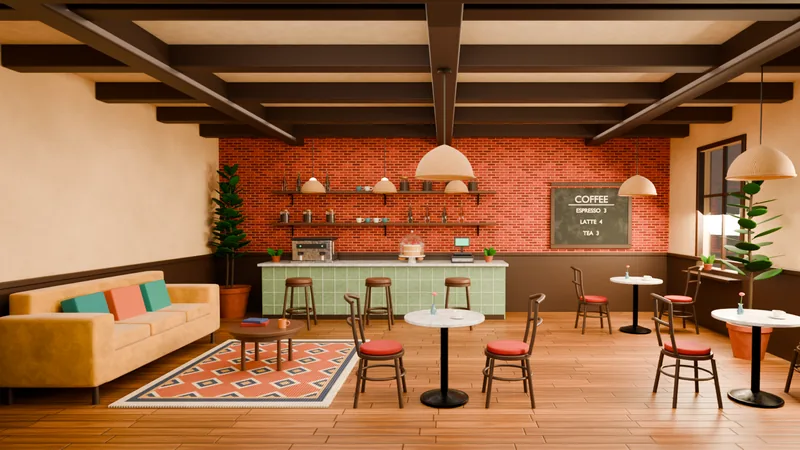
One part at a time
Start with the room, then add the counter, seating, plants and lights. Each request builds on what is already there.
Fix it with words
If something looks off, say what to change, like “make the lamp shades look like real woven rattan”.
Yours to edit and export
Every piece is a normal Blender object with materials. Move it, change it, or export it as FBX. Use it as a backdrop for avatar or character renders.
The cafe, request by request
These are the requests as typed, in order, each with a quick viewport preview taken right after it. 15 requests were used in all: the 10 below built the room, and 5 changed what was already there (two of them are shown further down).
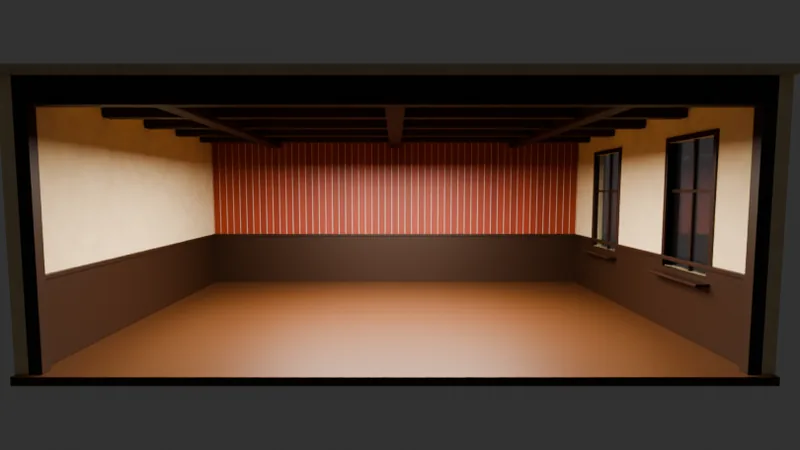
Request 1The room
Start with the room shell of a cozy cafe: about 8 m wide, 6 m deep and 3.2 m high, open at the front so we can look inside. Wide wooden plank floor, a red brick back wall, warm cream plaster side walls with dark wood panelling up to about 1 m, a ceiling with dark wooden beams, and two tall windows in the right wall.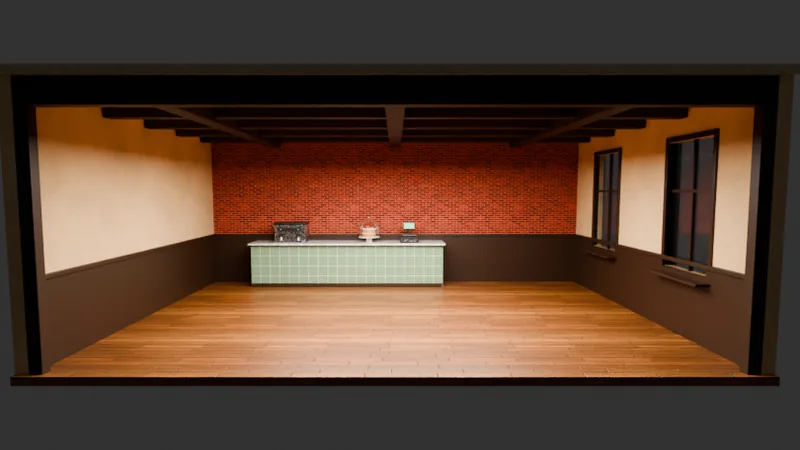
Request 3Coffee counter
Add a coffee counter along the back wall, about 4 m long and a bit left of centre, with a sage green tiled front and a white marble top. Put an espresso machine, a cash register and a glass cake dome with a cake on it.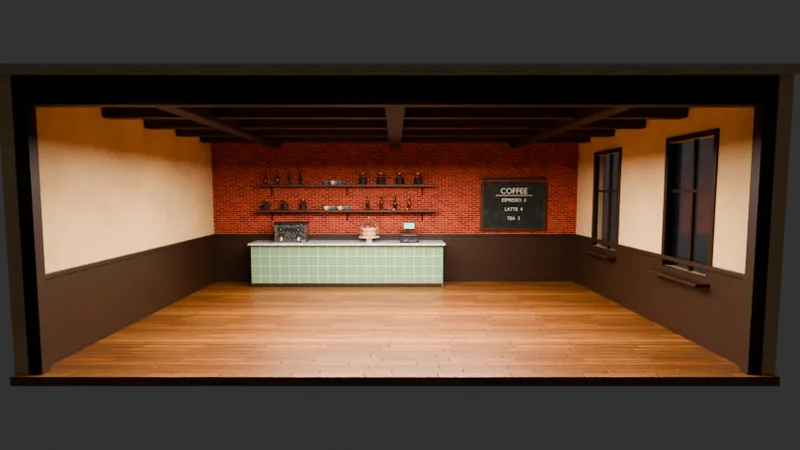
Request 4Shelves and menu board
Put two long wooden shelves on the brick wall above the counter with jars, cups and bottles on them, and hang a chalkboard menu on the back wall to the right of the counter that says COFFEE, ESPRESSO 3, LATTE 4, TEA 3.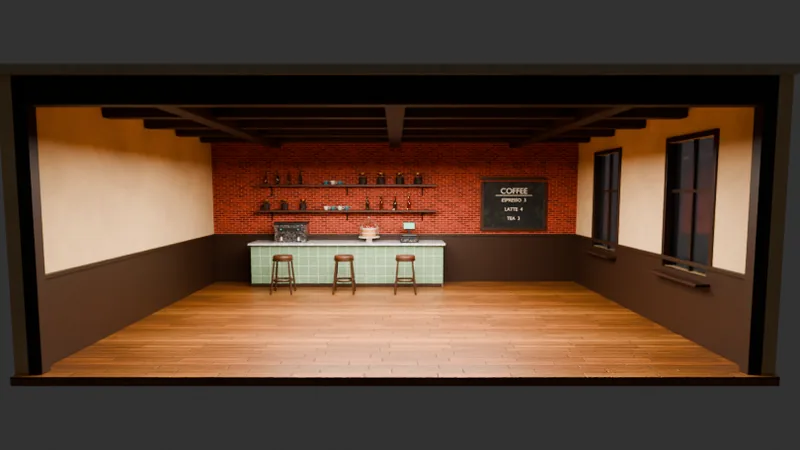
Request 5Bar stools
Add three wooden bar stools with brown leather seats in front of the counter.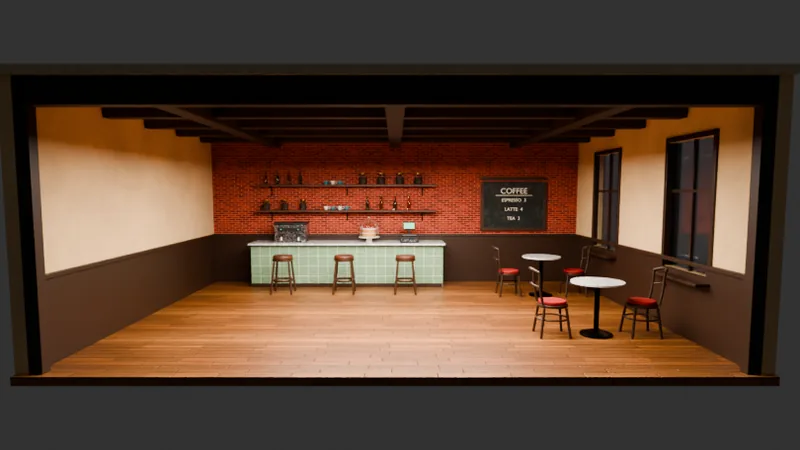
Request 6Tables by the windows
In the right half of the room, near the windows, add two small round cafe tables with white marble tops on black metal pedestals, each with two walnut bentwood chairs with a curved backrest and a red cushioned seat.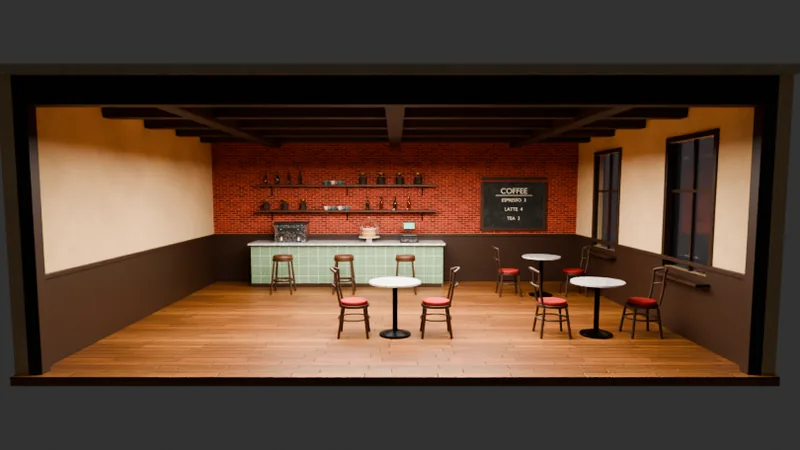
Request 7One more table
Add one more table with its two chairs, exactly like the other two, in the middle of the room a little toward the front.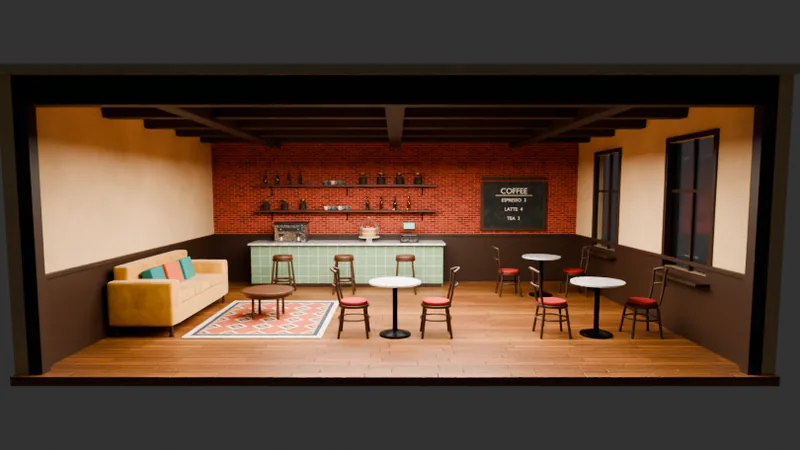
Request 8Sofa corner
Against the left wall, add a long mustard velvet sofa with three teal and terracotta cushions leaning on its back, a patterned rug in front of it and a small round wooden coffee table on the rug.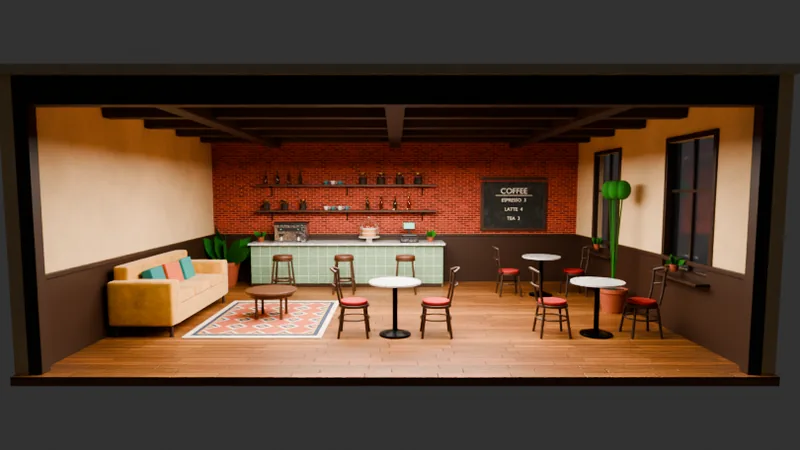
Request 10Plants
Add some plants: a big leafy plant in a terracotta pot in the back left corner beside the sofa, a tall plant between the two windows, and a few small potted plants on the counter and on the window sills.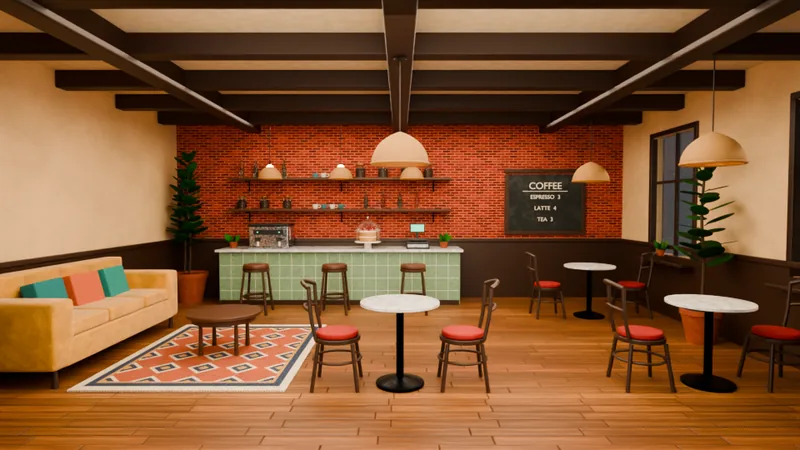
Request 12Cozy lighting
Now make the lighting cozy: woven rattan pendant lamps with warm glowing bulbs over each table and over the counter, warm late-afternoon sunlight coming in through the windows, and a soft warm fill so the room is bright but not washed out.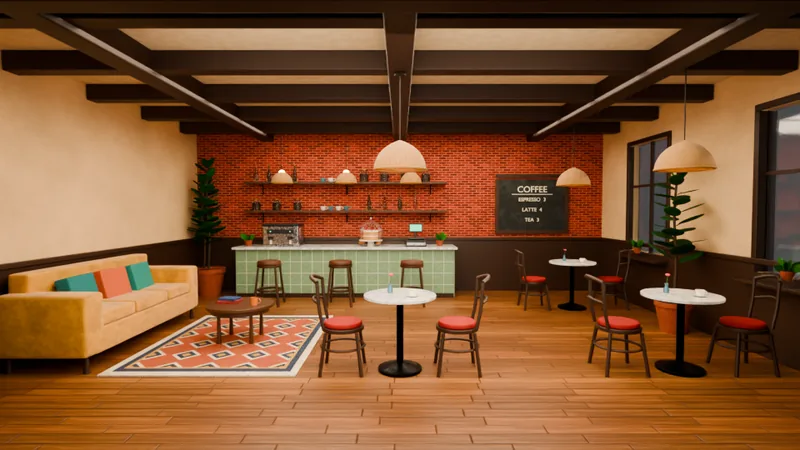
Request 14Small details
Finish with small details: a cup and saucer on each round table with a tiny vase and a flower, a couple of books and a mug on the coffee table, and a few pastries in the glass dome.
The step pictures are quick viewport previews. For the large pictures on this page, the camera and render settings were set by hand.
Not quite right? Say what to change
There is no need to start over. A short request changes what is already in the scene.
Request 2make the floor and walls look real
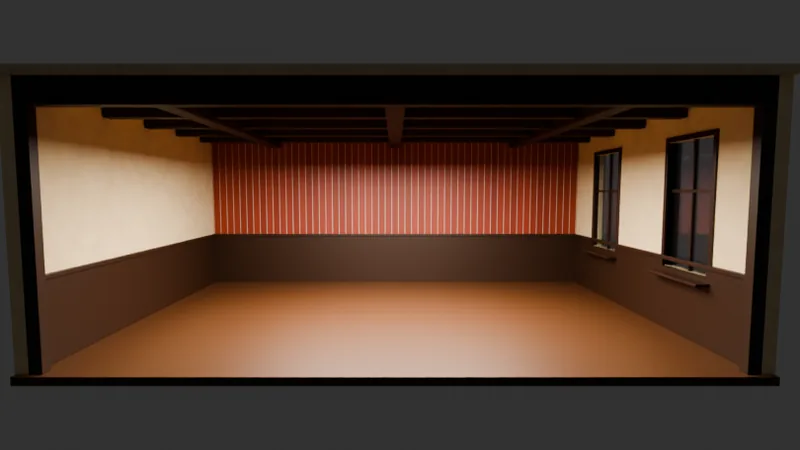
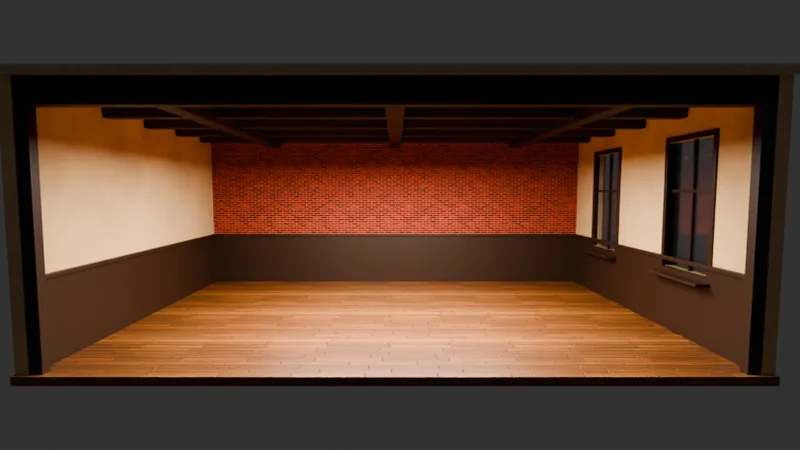
The floor and walls look flat and fake. Give the floor real wide wooden planks, make the back wall real red brick, and give the side walls a real warm plaster look.Request 13real woven rattan lamps
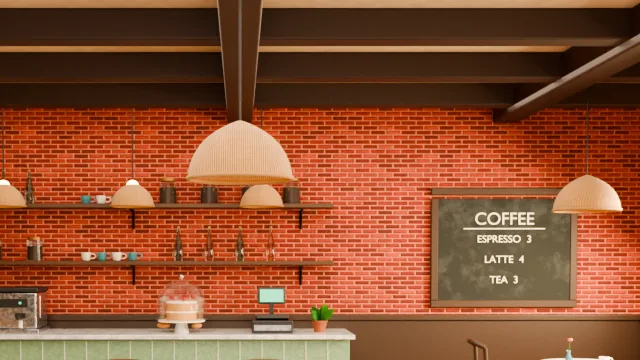
The hanging lamp shades look like smooth plastic. Make them look like real woven rattan, and let a little warm sunlight fall through the windows onto the floor.What you can do with the finished room
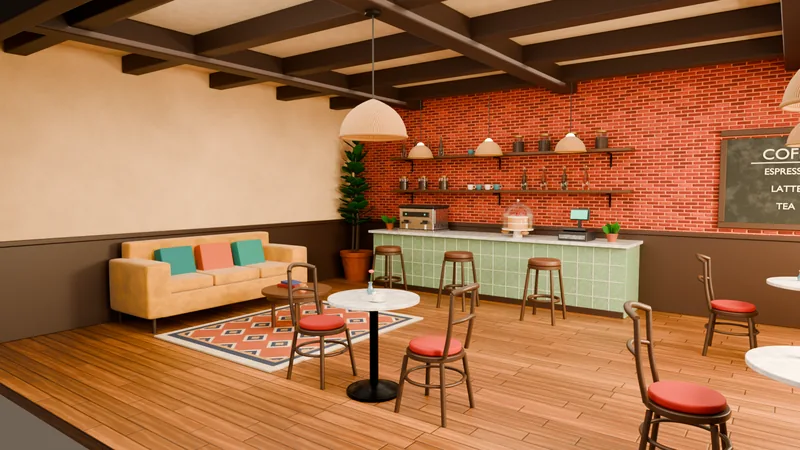
A backdrop for your renders
Place your avatar or character in the room, set a camera and render in Blender. Move the furniture or change the light to fit each shot.
Change it by hand
Every piece is a normal Blender object, so Blender’s own tools work on it: move a chair, swap a color, delete a plant.
Take it to Unity
Use File › Export › FBX to bring the room’s objects into Unity or another 3D program.
Tips for your own room
Start with the room and its size
Give the width, depth and height, which side is open and where the windows go. Everything after fits inside it.
One area per request
Counter, then shelves, then seating. A request about one area is easier to get right and easier to undo.
Name materials and colors
“White marble top”, “mustard velvet”, “red brick”. The add-on uses these words when it makes the materials.
Light it last
Ask for lamps, sunlight and a soft fill after the furniture is in, so the light falls on the finished room.
Install it in 3 steps
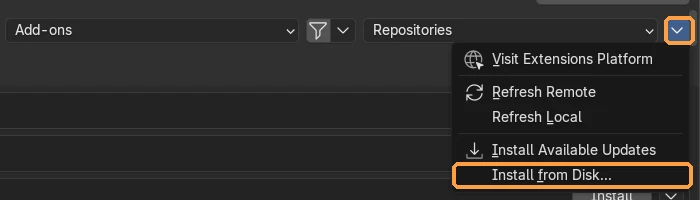
- Download the .zip from the add-on page and keep it zipped. Drag it into the Blender window, or use Edit › Preferences › Get Extensions › ⌄ menu › Install from Disk….
- Allow online access. The add-on needs the internet to reach the AI. If Blender asks, turn on Allow Online Access in Edit › Preferences › System › Network.
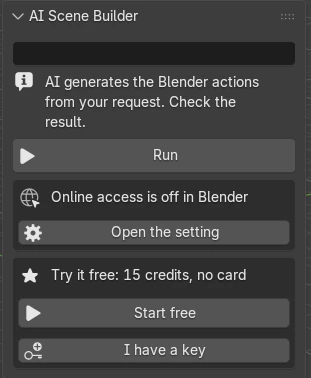
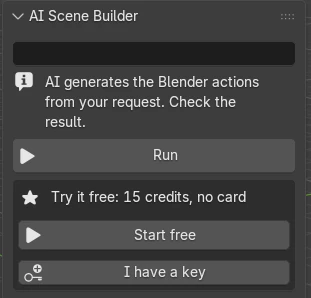
- Start free and type. With the mouse over the 3D Viewport, press N, open the AI tab, press Start free, type a request and press Run.
Price and free trial
Start with 15 free credits. Pick a plan when you want more; cancel anytime.
Free
$0
15 credits to try it. About 5 requests. One trial per computer. No card.
A big request takes at most 5 credits.
Basic
$19 / month
200 credits a month. About 66 requests a month.
A big request takes at most 12 credits.
Pro Recommended
$39 / month
450 credits a month. About 150 requests a month.
A big request takes at most 18 credits.
Studio
$79 / month
1000 credits a month. About 333 requests a month.
A big request takes at most 24 credits.
Try AI Scene Builder in your Blender
Type one request and get editable objects in your open scene. Every request can be undone in one click.
Questions
Can I make a cafe interior in Blender without modeling by hand?
Yes. The cafe on this page was built from an empty scene with typed requests in the AI Scene Builder add-on, with no hand modeling. The camera and render settings for the large pictures were set by hand.
How many requests did the cafe take?
15 in all. Ten built the room, the counter, the seating, the plants, the lights and the details, and five changed what was already there, such as making the lamp shades look like woven rattan.
Can I use the room as a background for avatar or character renders?
Yes. Put your avatar or character in the room, set a camera and render it in Blender. Move the furniture or change the light to fit each shot.
Can I take the cafe into Unity?
Yes. Use File › Export › FBX in Blender and import the file in Unity. Materials can look different there, so check them after import.
Can I change the furniture by hand afterwards?
Yes. Every piece is a normal Blender object with materials, so you can move, edit or delete it with Blender’s usual tools.
Which Blender version do I need?
Blender 4.2 or newer, on Windows, macOS or Linux. The cafe on this page was made in Blender 5.2.
How much does it cost?
You start with 15 free credits, about 5 requests, with no card. After that, plans start at $19 a month and can be cancelled anytime.
Can I build a whole room like this with the free credits?
The free 15 credits cover about 5 requests, enough to try the room and a few pieces of furniture. This cafe took 15 requests, so a full room like it fits a paid plan.
Can I type requests in Japanese?
Yes. Requests can be typed in Japanese or in English.
Limitations
- It is best at props, furniture, simple buildings and small scenes. On complex shapes it can miss details; Undo this request and a more detailed request help.
- It needs Blender 4.2 or newer and an internet connection while a request runs.
- The free trial is one per computer. Payment is not available from China or Russia.
- After FBX export, materials can look different in Unity or other programs and may need adjusting there.
- Something not working? Write to contact
@saas-diary.com and we will help.