Blender AI Modeling: Build a Model, Then Refine It
AI modeling in Blender with AI Scene Builder works in two moves: describe the model in one request to build it, then refine it with follow-ups such as “make the cargo box blue” or steps such as “Add one loop cut through the middle of the selected mesh”.
- Build
- Describe the model in one sentence
- Refine
- Follow-ups and single modeling steps
- Take back
- Undo this request, one press
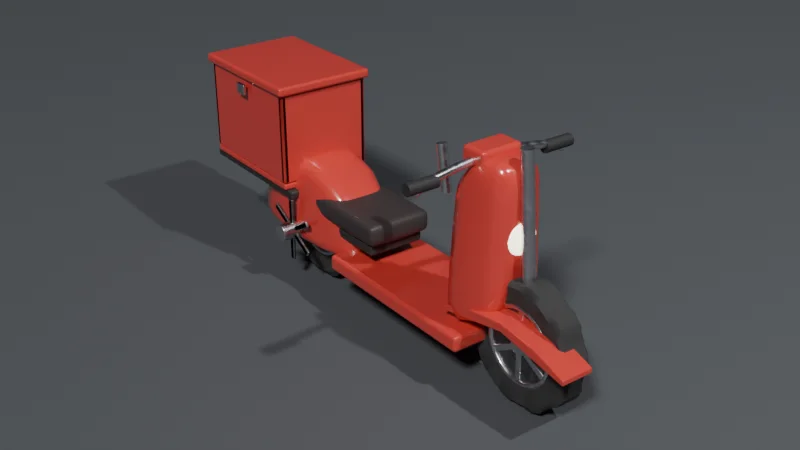
Build in parts
A model with several parts is built part by part, each a normal Blender object with materials applied.
Refine with words
Change what is there with a short follow-up, or run a single modeling step on your own mesh.
Exact numbers
Give widths, segments, counts and sizes in the request, such as a bevel of 0.2 with 3 segments.
Step 1: build the model
Typed into the add-on exactly as written, with no editing afterwards.
Step 2: refine it with a follow-up
Send a short second request. It works on what is already in the scene, so you do not need to describe the model again. These two were typed one after the other, right after the scooter request above, in the same scene.
Change a color
Make the cargo box blue.1 credit · 4 seconds. The box and its lid turned blue; the rest of the scooter stayed as it was.
Add a part
Add a rear light.1 credit · 4 seconds. A glowing red light in a small housing was added to the back of the cargo box.
Step 3: modeling steps on your own mesh
Each of these was typed into the add-on as written and did the step. For mesh steps, select the vertices, edges or faces in Edit Mode first.
Round the edges of the selected mesh with a bevel of 0.2 and 3 segmentsPrefer to do it by hand? How to Round the Edges of a Mesh in Blender
Add one loop cut through the middle of the selected meshPrefer to do it by hand? How to Add a Loop Cut in Blender
Add a Mirror modifier to the selected object so I can model one half symmetricallyPrefer to do it by hand? How to Model Symmetrically with the Mirror Modifier in Blender
Extrude the selected face of the cube upward by 1 metrePrefer to do it by hand? How do I extrude a face in Blender
Give the selected plane a thickness of 0.2 m with a Solidify modifierPrefer to do it by hand? How to Give a Flat Plane Thickness in Blender (Solidify)
Make a row of 5 copies of the selected object along the X axis with an Array modifierPrefer to do it by hand? How to Make a Row of Copies with the Array Modifier in Blender
Cut a hole in the Cube using the Cylinder with a Boolean difference and hide the CylinderPrefer to do it by hand? How to Cut a Shape Out of an Object in Blender
Set the selected object's dimensions to 2 by 1 by 0.5 metres and apply its scalePrefer to do it by hand? How to Set the Exact Dimensions of an Object in Blender
Reduce the selected mesh to about a quarter of its vertices and apply the changePrefer to do it by hand? How to Reduce Vertex Count on a Mesh in Blender
Create a circle and add a screw modifier so it forms a spiral three turns highPrefer to do it by hand? Model a Simple 3D Spiral Shape in Blender
Install it in 3 steps
- Download the .zip from the add-on page and keep it zipped. Drag it into the Blender window, or use Edit › Preferences › Get Extensions › ⌄ menu › Install from Disk….
- Allow online access. The add-on needs the internet to reach the AI. If Blender asks, turn on Allow Online Access in Edit › Preferences › System › Network.
- Start free and type. With the mouse over the 3D Viewport, press N, open the AI tab, press Start free, type a request and press Run.
Price and free trial
Start with 15 free credits. Pick a plan when you want more; cancel anytime.
Free
$0
15 credits to try it. About 5 requests. One trial per computer. No card.
A big request takes at most 5 credits.
Basic
$19 / month
200 credits a month. About 66 requests a month.
A big request takes at most 12 credits.
Pro Recommended
$39 / month
450 credits a month. About 150 requests a month.
A big request takes at most 18 credits.
Studio
$79 / month
1000 credits a month. About 333 requests a month.
A big request takes at most 24 credits.
Try AI Scene Builder in your Blender
Type one request and get editable objects in your open scene. Every request can be undone in one click.
 An evening market street built with the add-on from 11 typed requests. See every request →
Questions
Can AI edit a model I made myself in Blender?
Yes. A request can change your own model, not only add to it. For mesh steps, select the vertices, edges or faces in Edit Mode first.
Can I keep modeling by hand after the AI?
Yes. Everything it builds is a normal Blender object, so all of Blender’s own tools work on it as usual.
What if a modeling step goes wrong?
Press Undo this request. It takes back everything that request changed, in one press.
Does it remember the model when I send a follow-up?
Each request sends a short text summary of the scene and a small preview of the viewport, so a follow-up such as “add a rear light” works on what is already there.
Limitations
- It is best at props, furniture, simple buildings and small scenes. On complex shapes it can miss details; Undo this request and a more detailed request help.
- It needs Blender 4.2 or newer and an internet connection while a request runs.
- The free trial is one per computer. Payment is not available from China or Russia.
- Something not working? Write to contact
@saas-diary.com and we will help.